LinkedIn Collaborative Posts in Pakistan: How to Add a Collaborator
LinkedIn Collaborative Posts let you invite up to five collaborators on a public post, but only early access members can use them. See the steps and rules.
LinkedIn Collaborative Posts let you invite up to five connections or Pages onto one public post, so it shows on their profiles too. But LinkedIn's own help pages say only members in an early access program can create one, and access is rolling out slowly.
If you open the post box and see no "Add collaborators" option, that is normal. LinkedIn has not said the feature is open to everyone, and its help pages do not state which countries have access. This guide covers what the help pages confirm, the exact desktop steps, and how to use the feature honestly if it reaches your account.
We opened LinkedIn's five help pages on collaborative posts, its privacy setting page and its community policies on 7 October 2026, and we have written only what they say. We did not test the feature, because we cannot confirm our own account has access.
Only early access members can create a collaborative post right now
Every LinkedIn help page on this feature carries the same warning. It is rolling out gradually, it may not be available to you yet, and only members in the early access program can create collaborative posts. LinkedIn's own newsroom also lists an "Introducing Collaborative Posts" feature on its front page.
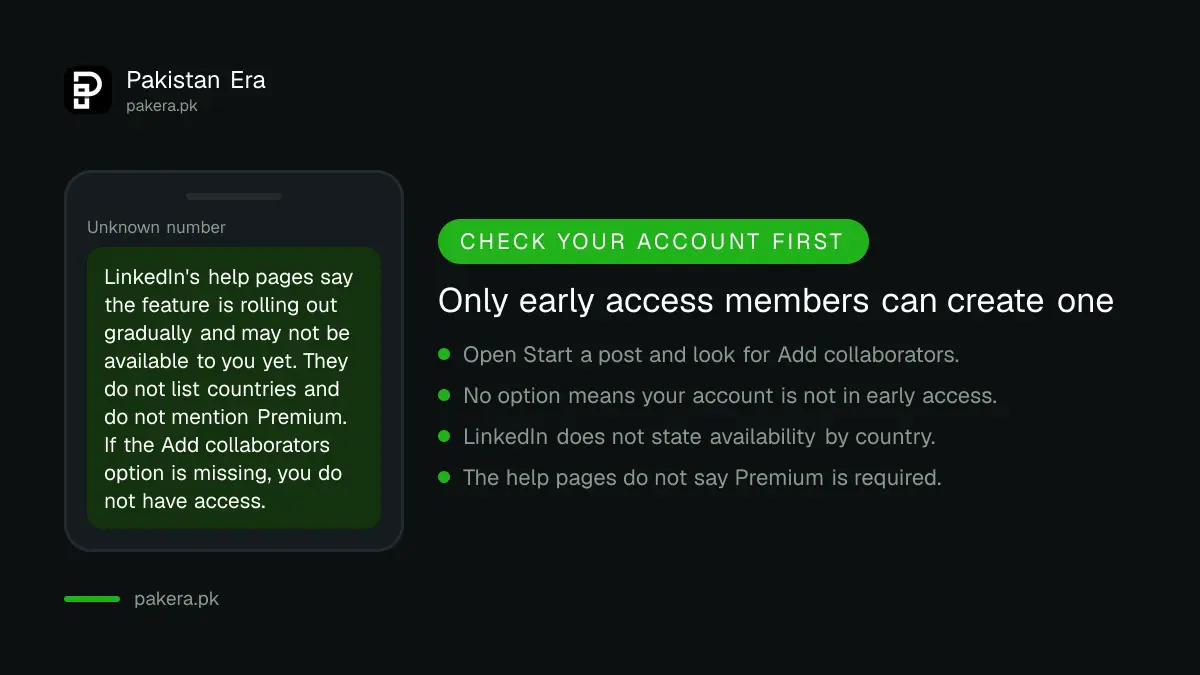
The help pages do not say whether Premium is needed. They do not give a list of countries. So we cannot tell you it works in Pakistan. The only honest test is to open the post box on your own account and look for the option.
How to add a collaborator while writing a post on desktop
On desktop, you start a post, write it, click Add collaborators, pick connections, save, and post. LinkedIn's help page lists exactly these steps. The page does not give separate phone steps, so we do not invent them here.
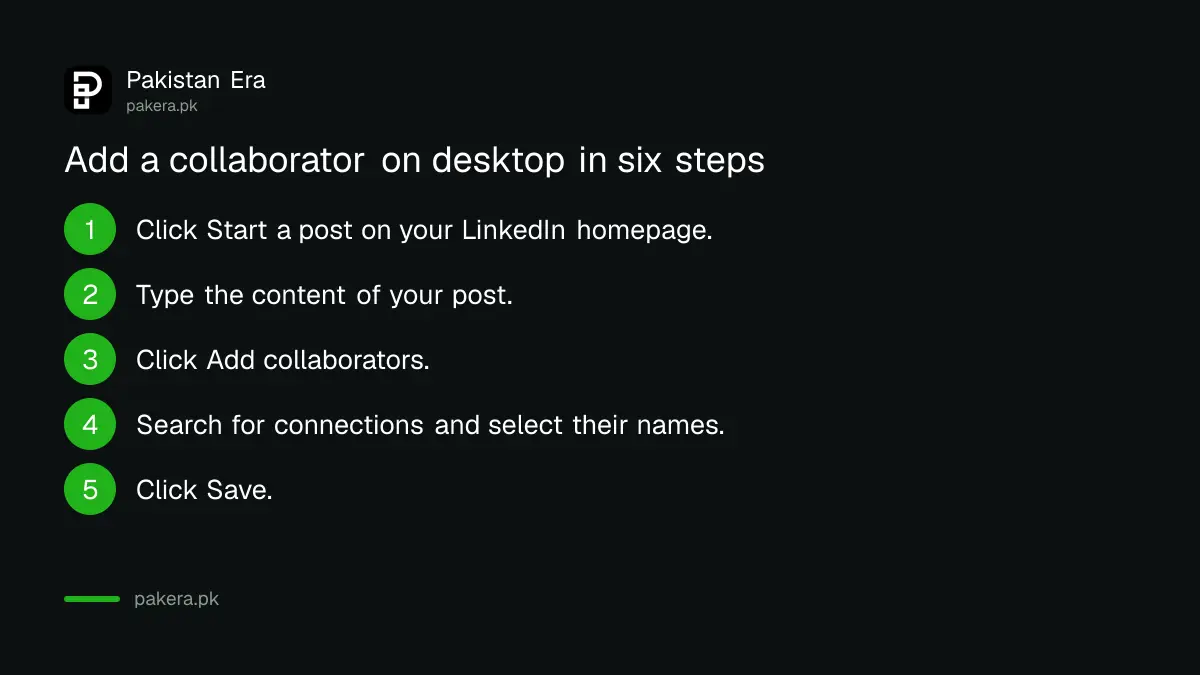
- Click Start a post at the top of your LinkedIn homepage.
- Type the content of your post.
- Click Add collaborators.
- Search for connections and select their names.
- Click Save.
- Click Post.
Your invited collaborators get a notification to accept or decline. The full steps are on LinkedIn's Create a collaborative post help page.
The rules and limits LinkedIn sets
You can invite up to five collaborators, and the post must be public. Many post types work, including text, images, video, links, documents, polls and events. Only the person who created the post can change the collaborators later.
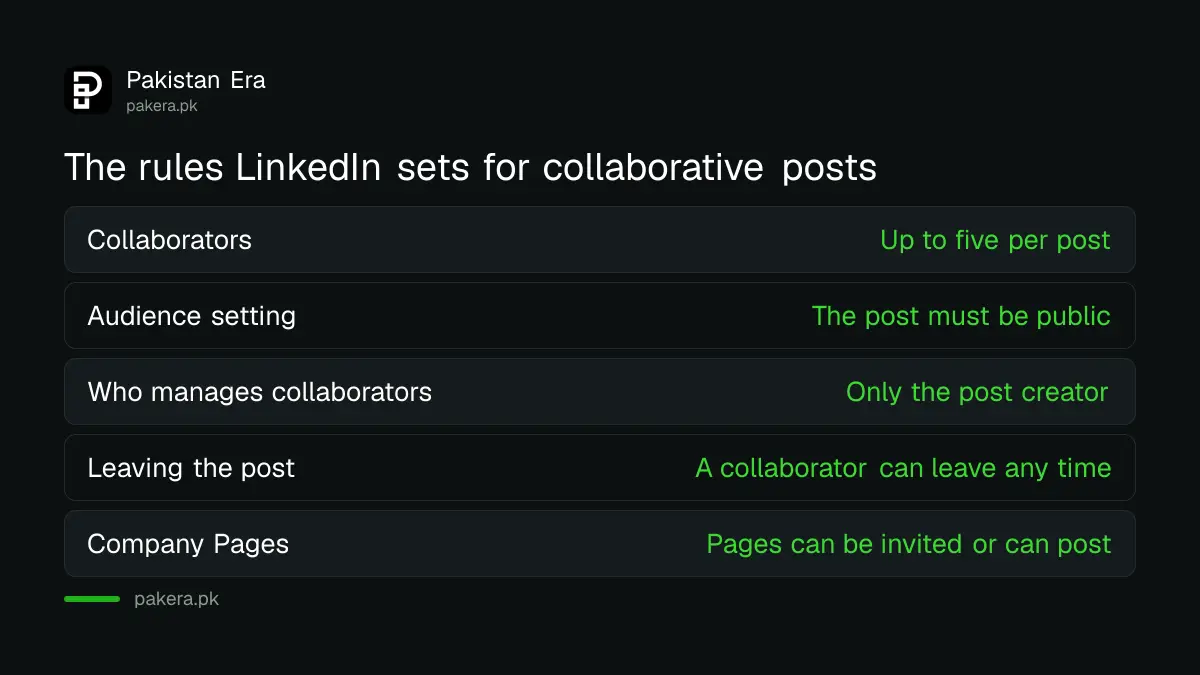
| Question | What LinkedIn's help pages say |
|---|---|
| How many collaborators? | Up to five per post |
| Public or private? | The post must be public |
| Who can manage collaborators? | Only the person who created the post |
| Can a collaborator leave? | Yes, at any time |
| Can a Page collaborate? | Yes, connections or Pages can be invited |
Invited people must allow mentions and collaboration in their privacy settings. They also need notifications on for posting and commenting, or they may not see the invite.
What happens when someone accepts or declines
If a collaborator accepts, the post appears on their profile with them listed as a collaborator. If they decline, it stays on your profile only. LinkedIn says accepted collaboration helps the post reach a broader audience.
People who accept can see engagement numbers such as reactions, comments and shares. The help pages do not spell out whose followers see the post first or how the feed ranks it. We will not guess at reach numbers.
After publishing, you can add or remove collaborators from the post menu. Choose More, then Edit post, then Edit with others. You can remove people who are pending or who have already accepted. Adding someone new sends a fresh invitation.
Collaborators can remove themselves at any time
An accepted collaborator can leave whenever they like. They click More on the post, choose Remove myself from collaborative post, and confirm. The post then no longer shows them, and they lose access to the engagement numbers.
If you have not accepted yet, you can simply decline. Only the creator can remove other people. You can also switch off collaboration for your own account. Go to Settings and Privacy, then Visibility, then Mentions, tags, and collaborations, and turn the toggle off. Details are on LinkedIn's mentions and collaborations setting page.
Company Pages can create collaborative posts too
A Page admin creates a collaborative post from the Page's own admin view. Click Create on the left, choose Publish a collaborative post, pick your collaborators, save, write the post and click Post. LinkedIn says the same limit of five and the same public rule apply.
LinkedIn gives examples of good uses: a joint launch, a partnership, project results or a milestone. For a Pakistani business that could mean a shop and its supplier, or two firms running one event. If your business basics are not set up yet, start with our guide on putting your shop on Google Maps, and plan your other social posting with free scheduling for Facebook and Instagram.
Advice for Pakistani professionals and small businesses
Collaborate with someone who truly worked on the thing you are posting about. A joint project, a talk you both gave, a client result you both delivered. That matches LinkedIn's own examples, and it is also what readers will believe.
- Ask first, in a short message. Say what the post is and why their name belongs on it.
- Do not invite strangers just to borrow their audience. They can decline or leave at any time.
- Do not set up a group that likes and comments on each other's posts on a schedule. LinkedIn's Professional Community Policies ask for a true identity and authentic content, and they ban spam.
- Do not claim a partnership you do not have. The same policies bar misleading claims about your business and affiliations.
LinkedIn's policy page says violations can limit a post's visibility, remove it, or lead to account restriction. A fake collaboration puts your reach at risk, which is the opposite of the goal. Keep your own profile trustworthy as well, and see how to verify your LinkedIn profile in Pakistan.
Common questions
Is the LinkedIn collaborative post feature available in Pakistan?
LinkedIn's help pages do not name any country. They say only early access members can create one. Open the post box on your account to see if the option appears.
Do I need LinkedIn Premium to add a collaborator?
The help pages do not mention Premium. They only say access is limited to the early access program.
How many people can I add to one post?
Up to five collaborators, who can be connections or Pages.
Can I add a collaborator to a private post?
No. LinkedIn says collaborative posts must be public.
Can I remove myself or someone else later?
You can remove yourself at any time after accepting. Only the person who created the post can remove other collaborators.
How we verified this
What we checked, where we read it, and what we could not confirm.
Last checked on 7 October 2026. The facts above come from these LinkedIn pages:
- Collaborate on a LinkedIn post
- Create a collaborative post
- Create a collaborative post as a LinkedIn Page
- Manage collaborators on a collaborative post
- Remove yourself from a collaborative post
- LinkedIn Professional Community Policies
LinkedIn can change access and steps at any time. We could not open the newsroom post itself, so we do not state a launch date.
About the author

Technology Journalist & Multimedia Producer
Ahmad Ali is a technology journalist and multimedia producer at Pakistan Era, joining the team in October 2026. He covers consumer technology and digital life for Pakistani readers, combining research with hands-on product testing.