Microphone Not Working on Windows 11 in Pakistan: Every Fix for Laptop, Headset and Webcam Mics
Microphone not working on Windows 11? Turn on the 3 privacy switches, choose the right input, run the troubleshooter, reinstall audio drivers, raise volume.
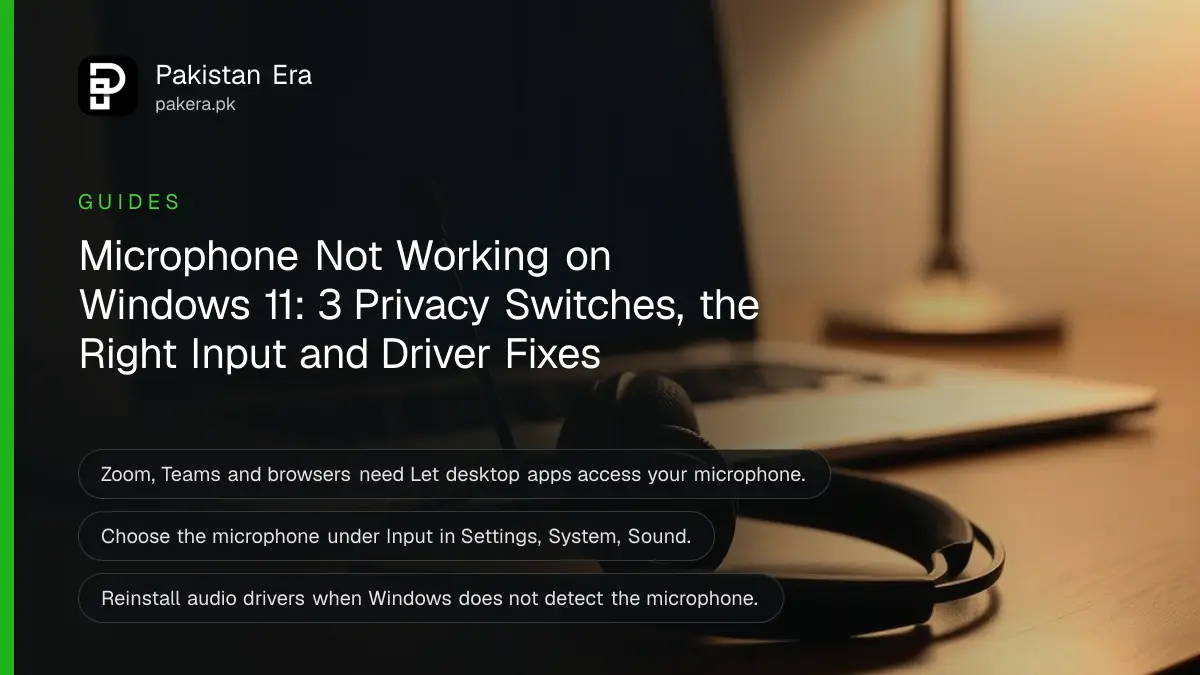
If your microphone is not working on Windows 11, go to Settings > Privacy & security > Microphone and turn on Microphone access, Let apps access your microphone and Let desktop apps access your microphone. Then open Settings > System > Sound and pick the right microphone under Input. Zoom, Teams, WhatsApp Desktop and browsers are desktop apps, so the third switch is the one they need.
Below are Microsoft's fixes for the three problems it describes: others cannot hear you, Windows does not detect the microphone at all, and the microphone is too quiet. We read Microsoft's support page "Fix microphone problems" on 1 November 2026, and it covers a laptop's built-in microphone, a headset and a webcam microphone.
Turn on all three microphone privacy switches
Microsoft says a microphone that stops after a Windows 11 update often needs app permission. Open Settings, Privacy and security, Microphone, and turn on Microphone access, Let apps access your microphone, and Let desktop apps access your microphone.
- Select Start, then Settings, then Privacy & security, then Microphone.
- Turn on Microphone access.
- Turn on Let apps access your microphone, then choose which listed apps can use it.
- Turn on Let desktop apps access your microphone.
The list under the second switch shows only Microsoft Store apps. Microsoft says desktop apps do not appear there, and you cannot switch the microphone off for individual desktop apps. So for a browser, Zoom or Teams installed from a website, the third switch decides everything.
If your microphone is part of a webcam, Microsoft adds that you may also need camera permission under Privacy and security, Camera. The same three-switch pattern applies there, as it does when a laptop camera is not working on Windows 11.
Others cannot hear you: check mute and the input device
When people on a call cannot hear you, Microsoft's checks are: the headset's Mute button is off, the microphone or headset is connected properly, a Bluetooth headset is paired and connected, and the right microphone is chosen as the input device in Sound settings.
To choose the input, select Start, Settings, System, Sound. Under Input, go to Choose a device for speaking or recording and select the microphone you want. A laptop with a headset plugged in often has two inputs listed, and Windows may still be using the built-in one.
Then test it. Select the arrow beside the device, select Start test under Microphone test and speak. Select Stop test, then Play under Recorded sample to hear yourself. If the sample is silent, the problem is in Windows or the hardware, not in the app.
For a wireless headset, the link has to work first, and the steps for Bluetooth not working on Windows 11 cover pairing. Inside the call app, also check that app's own microphone choice, since Zoom, Teams and Meet each keep their own setting.
| Problem | What Microsoft says to check |
|---|---|
| No app can use the microphone | The three switches under Privacy and security, Microphone |
| Others cannot hear you | Mute button, connection, Bluetooth pairing, input device in Sound |
| Windows does not detect it | Reinstall the audio drivers in Device Manager |
| Too quiet | Position, then the Input volume slider in Sound |
| Webcam microphone only | Camera permission too |
Run the audio troubleshooter in Sound settings
Microsoft's built-in fix is the recording troubleshooter. Open Settings, System, Sound, scroll down to Advanced, and under Troubleshoot common sound problems choose Input devices. Microsoft says All sound devices, also under Advanced, offers more options.
We would run it before the driver steps below, simply because it takes a minute and needs no Device Manager. Let it finish, follow what it suggests, and test again with Start test.
Windows does not detect the microphone: reinstall the audio drivers
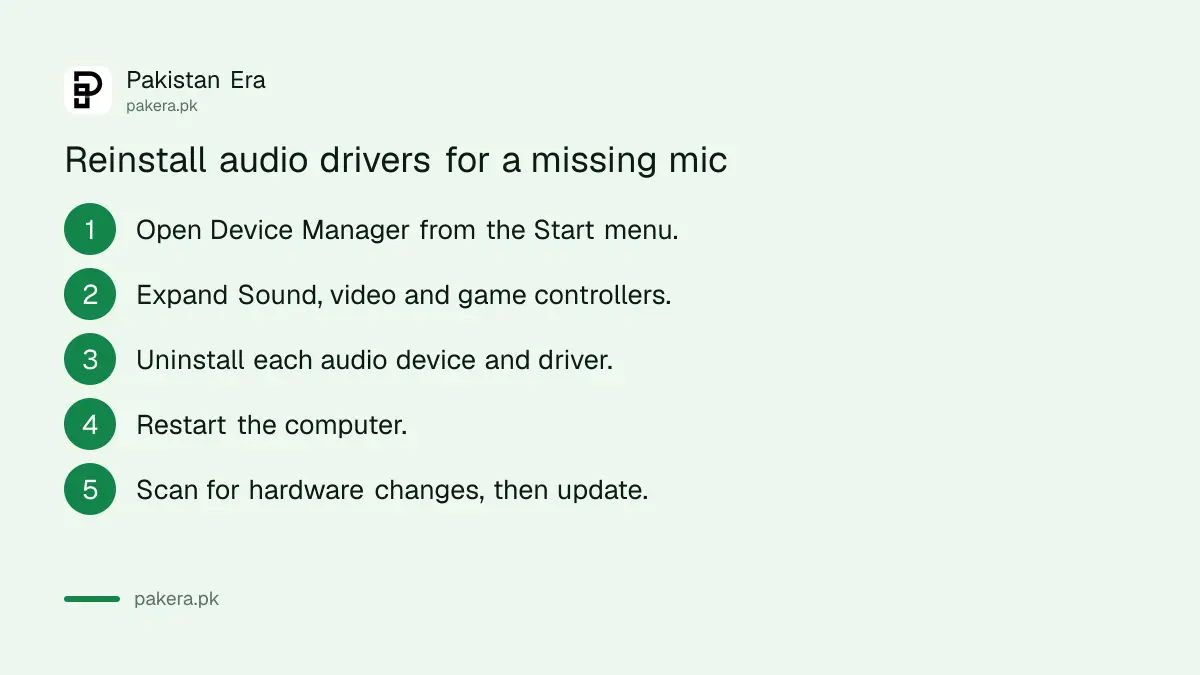
If Windows does not see the headset, camera or microphone at all, Microsoft says to reinstall the audio drivers. In Device Manager, open Sound, video and game controllers, uninstall each audio device with its driver, restart, and let Windows install them again.
- Right-click the Start button and select Device Manager.
- Expand Sound, video and game controllers.
- Right-click an audio device and select Uninstall device. Tick Attempt to remove the driver for this device, then select Uninstall. Repeat for other audio devices.
- Restart the computer. Windows tries to reinstall the audio devices and drivers.
- If they do not return, right-click Sound, video and game controllers and select Scan for hardware changes.
- Back in Device Manager, right-click the audio driver and select Update driver.
Expect the speakers to go quiet for a moment too, since the same driver usually runs both. If sound out of the laptop also stops working, the fixes for no sound on a Windows 11 laptop pick up from there.
A quiet microphone needs the input volume raised
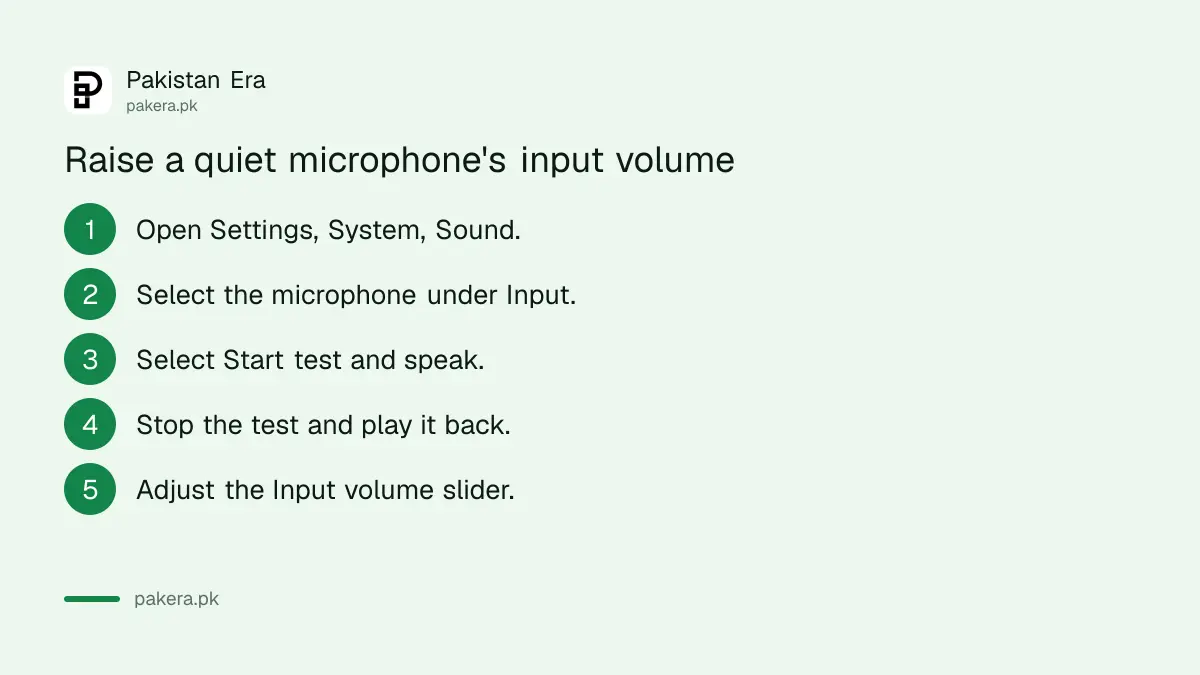
If the microphone works but sounds faint, Microsoft says check the connection and how the microphone is positioned, then raise its level. In Settings, System, Sound, select the microphone under Input and adjust the Input volume slider while testing.
- Select Start, Settings, System, Sound.
- Under Input, select the microphone to open its properties.
- Under Input settings, select Start test and speak normally.
- Select Stop test, then Play to hear the sample.
- Move the Input volume slider and test again.
A laptop's built-in microphone sits near the keyboard or the screen edge, so a fan or a keyboard right next to it adds noise. A cheap wired headset with a microphone close to the mouth usually sounds clearer on calls. For dictation, the same settings decide whether Urdu voice typing on a PC hears you.
Common questions
Why is my microphone not working in Zoom or Teams?
Turn on Let desktop apps access your microphone in Privacy and security, then choose the right microphone inside the app's own settings.
How do I test my microphone on Windows 11?
Open Settings, System, Sound, select the microphone under Input, and use Start test, Stop test and Play.
Why does Windows not detect my headset microphone?
Microsoft says to reinstall the audio drivers under Sound, video and game controllers in Device Manager, then restart.
Can I block the microphone for one desktop app?
No. Microsoft says you cannot turn off microphone access for individual desktop apps, only for listed Store apps.
My microphone stopped after a Windows update. What do I do?
Check the three privacy switches first. Microsoft says apps may need permission again after an update.
How we verified this
What we checked, where we read it, and what we could not confirm.
Last checked 1 November 2026. Every step comes from Microsoft's page Fix microphone problems, which we read on 1 November 2026, along with its Pair a Bluetooth device in Windows page, which it links for wireless headsets and which notes that a PC without Bluetooth can use a USB Bluetooth adapter. The remarks about two inputs on a laptop, the speakers going quiet during a driver reinstall, microphone placement and headsets are our own reading, not Microsoft's. Laptop makers' audio apps differ by model, and we did not test each brand.
About the author

Technology Journalist & Multimedia Producer
Ahmad Ali is a technology journalist and multimedia producer at Pakistan Era, joining the team in October 2026. He covers consumer technology and digital life for Pakistani readers, combining research with hands-on product testing.