How to Set Up Google Authenticator for Your Google Account in Pakistan
Set up Google Authenticator on your Google Account in Pakistan: open 2-Step Verification, tap Set up authenticator, and keep a backup. Free and takes minutes.
Short answer: Open the 2-Step Verification page of your Google Account, tap Set up authenticator (some phones say Get Started), and follow the prompts. Google says it can take up to 7 days before the option shows as a sign-in method. It costs nothing.
Most Pakistanis who turn on two-step verification choose the SMS code. It works, but a stolen SIM or a scam call can still hand that code to a criminal. An authenticator app makes the code on your own phone, so no one can ask you to read it out from a text message.
We read Google's own Account Help pages on 14 October 2026. The steps below follow what Google describes. Screens can look a little different on your phone, so use the names, not the exact layout.
An authenticator app makes your code on the phone, not by SMS
Google lists Google Authenticator as one of several second steps. The app shows a short code that changes often. You type it after your password. Because it is made on the device, it does not travel by text message, where a SIM swap or a scam can catch it.
The idea is simple. Your password is something you know. The code is something you hold, the phone. A thief who learns your password still needs the phone. That is why this step blocks most account takeovers.
This is not the same as a passkey. A passkey replaces the password with your fingerprint, face or phone PIN. If you want that route, see how to set up a passkey on your Google Account. Many people use both.
Five steps turn it on for your Google Account
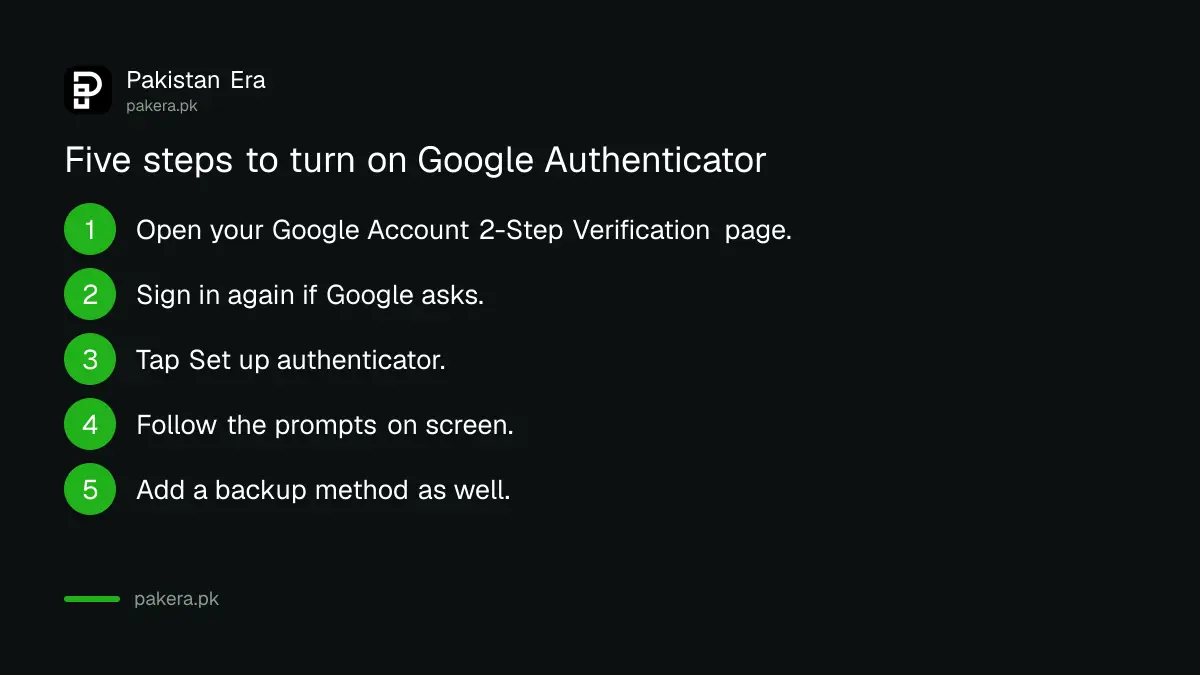
Go to your Google Account, open the 2-Step Verification settings, sign in again if asked, then tap Set up authenticator. On some devices the button says Get Started. Follow the prompts, then add a backup method before you close the page.
- Open your Google Account on the phone you will use for the codes, and go to Security.
- Open 2-Step Verification. Sign in again if Google asks for your password.
- Find the authenticator option and tap Set up authenticator. If you see Get Started, tap that.
- Follow the on-screen prompts to finish the link between the app and your account.
- Go back to 2-Step Verification and check that a second backup method is listed.
Do step 5 even if you are in a hurry. Google's own page tells people to enrol more than one method so they are not locked out if they lose access to the authenticator.
Google says the new option can take up to seven days to appear
Google states that Google Authenticator may take up to 7 days to show up as an available option for sign-in. This is a safety delay while Google confirms the account is yours. A trusted passkey or security key can shorten the wait.
So do not panic if the app does not appear the same day. Your old second step keeps working in the meantime. Leave it switched on until the new one is clearly listed on your sign-in page.
Plan this a week before any trip abroad or a phone change. Waiting until the day you switch phones is the usual mistake.
Compare the second steps before you drop SMS
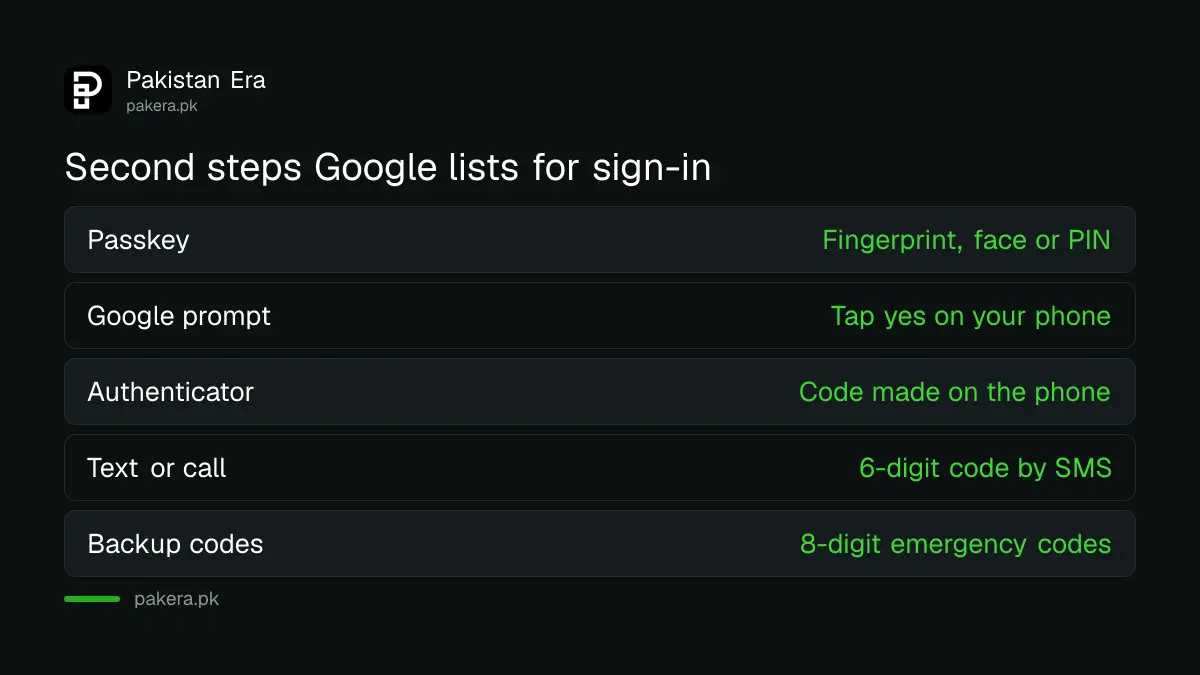
Google offers passkeys, Google prompts, security keys, Authenticator codes, text or voice codes, QR codes and backup codes. Authenticator and passkeys are safer than SMS. Keep SMS or backup codes as a fallback until the new method works.
| Second step | How it works | Main risk |
|---|---|---|
| Passkey | Fingerprint, face scan or device PIN | Lost or shared device PIN |
| Google prompt | Approve or deny on your phone | Tapping yes without reading |
| Google Authenticator | Code made in the app | Phone lost with no backup |
| Text or voice code | 6-digit code by SMS or call | SIM swap, scam calls |
| Backup codes | 8-digit codes you saved | Codes kept where others can see |
The last column is our reading of the risk, not a Google statement. The method names and code lengths come from Google's page. To see the same step on other apps, read how to turn on two-step verification across your accounts, and keep a printed set of backup codes.
Never read a code to anyone who calls you
Google's page warns that scammers may try to take over your account and tells you never to share verification codes. In Pakistan the usual trick is a fake courier or bank call asking for a code. A real company never needs it from you.
Whatever the app shows, the rule is the same. If someone on the phone asks you to read a code, hang up. The call is the attack. Read how the fake courier call asking for a code works so you recognise it quickly.
If you ever lose the phone, a saved backup code lets you in. Without one, you will have to go through account recovery, which can be slow. The steps are in the guide on how to recover a Gmail or Google Account.
Common questions
Is Google Authenticator free in Pakistan?
Yes. Google Authenticator is a free app and setting it up costs nothing. You only need an internet connection while you link it to your account.
Why is the authenticator option not showing yet?
Google says it can take up to 7 days to appear as a sign-in option. Use your current second step until then, and check again after a few days.
What if I lose my phone?
Use a backup code or another method you added, such as a passkey. Without any, you need to go through Google's account recovery process.
Is an authenticator safer than an SMS code?
Generally yes, because the code is made on your phone and not sent by text. A SIM swap cannot catch it. A passkey is stronger still.
Can I keep my SMS code as well?
Yes. Google encourages more than one second step. Keep SMS or backup codes as a fallback until you trust the new setup.
How we verified this
What we checked, where we read it, and what we could not confirm.
Last checked on 14 October 2026, Pakistan time. We read Google's Google Authenticator setup page and its 2-Step Verification overview. The setup page we read described the steps on an Android device, so menus on an iPhone may look different. We did not test the 7 day wait ourselves, and we did not check whether any Pakistani network delays SMS codes. Confirm the current steps on your own Google Account page.
About the author

Technology Journalist & Multimedia Producer
Ahmad Ali is a technology journalist and multimedia producer at Pakistan Era, joining the team in October 2026. He covers consumer technology and digital life for Pakistani readers, combining research with hands-on product testing.