Set Up Medical ID and Emergency Contacts on Your Phone's Lock Screen in Pakistan
Add your blood type, allergies and an emergency contact to the lock screen so helpers can read it without your passcode. Steps for iPhone and Android.
Short answer: On an iPhone, open the Health app, tap your profile picture, choose Medical ID, and turn on "Show When Locked". On Android, open the Safety app, tap Your info, add medical information and emergency contacts, and turn on "Show when locked". Both let a helper see your details without your passcode.
A person collapses on a bus, or a motorcyclist is brought in after a crash. The phone is in the pocket, locked, with a passcode only they know. Everyone around has the phone and nobody has a name, a blood type or a number to call.
We read Apple's support page on setting up Medical ID and Google's Android Help page on emergency information on 12 October 2026. This is a five minute job that costs nothing. The steps below follow those two pages, and the cautions are ours.
Medical ID and emergency info show your details on a locked phone
Apple says Medical ID helps first responders access your critical medical information from the Lock screen without your passcode. Google says anyone who picks up an Android phone can find the lock screen message and emergency information even if it is locked. That is the point, and also the risk.
So decide what to put there. Add what a helper needs: blood type, allergies, medicines and one or two contacts. Leave out anything you would not want a stranger to read, such as your home address or CNIC number.
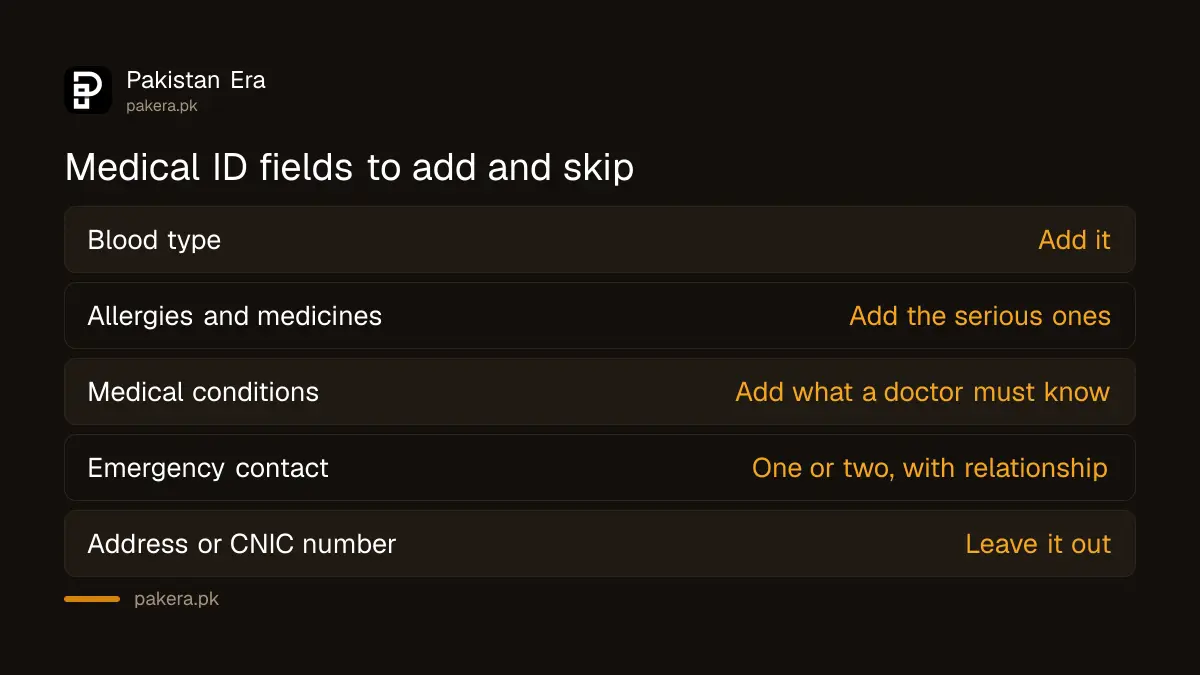
| Item | Useful to a helper | Our advice |
|---|---|---|
| Blood type | Yes | Add it |
| Allergies and medicines | Yes | Add the serious ones |
| Medical conditions | Yes | Add what a doctor must know fast |
| Emergency contact | Yes | Add one or two, with the relationship |
| Home address or CNIC | Rarely | Leave it out |
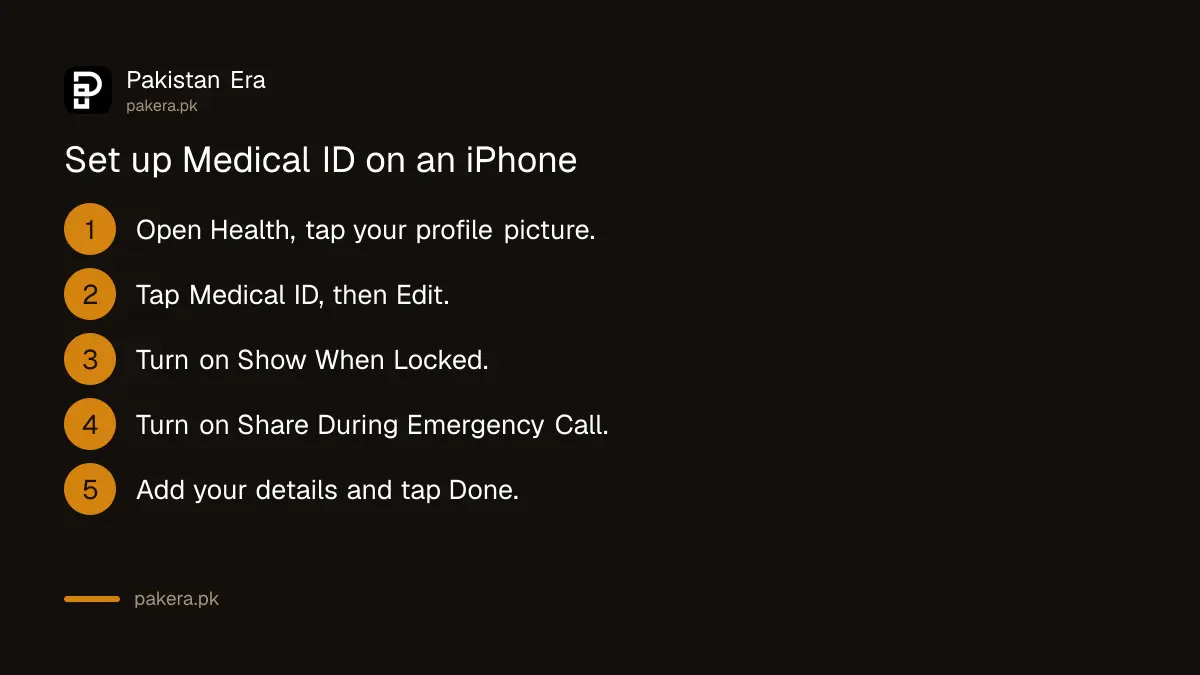
Set up Medical ID on an iPhone in seven taps
Open the Health app, go to Summary, tap your profile picture, choose Medical ID, and tap Edit. Fill in medications, allergies and conditions. Turn on "Show When Locked" and "Share During Emergency Call". Tap Done. Apple's page gives these steps in this order.
- Open the Health app and tap the Summary tab.
- Tap your profile picture in the upper corner.
- Tap Medical ID, then Edit.
- Turn on "Show When Locked".
- Turn on "Share During Emergency Call".
- Fill in medications, allergies and conditions.
- Tap Done.
To add a contact, use Edit next to Emergency Contacts, tap the plus button and set the relationship. Apple also warns that if "Emergency Calls & SOS" is turned off, Medical ID will not be shared, and that Location Services must be on for emergency features. It also says Enhanced Emergency Data is not available in all countries.
Set up emergency information on an Android phone
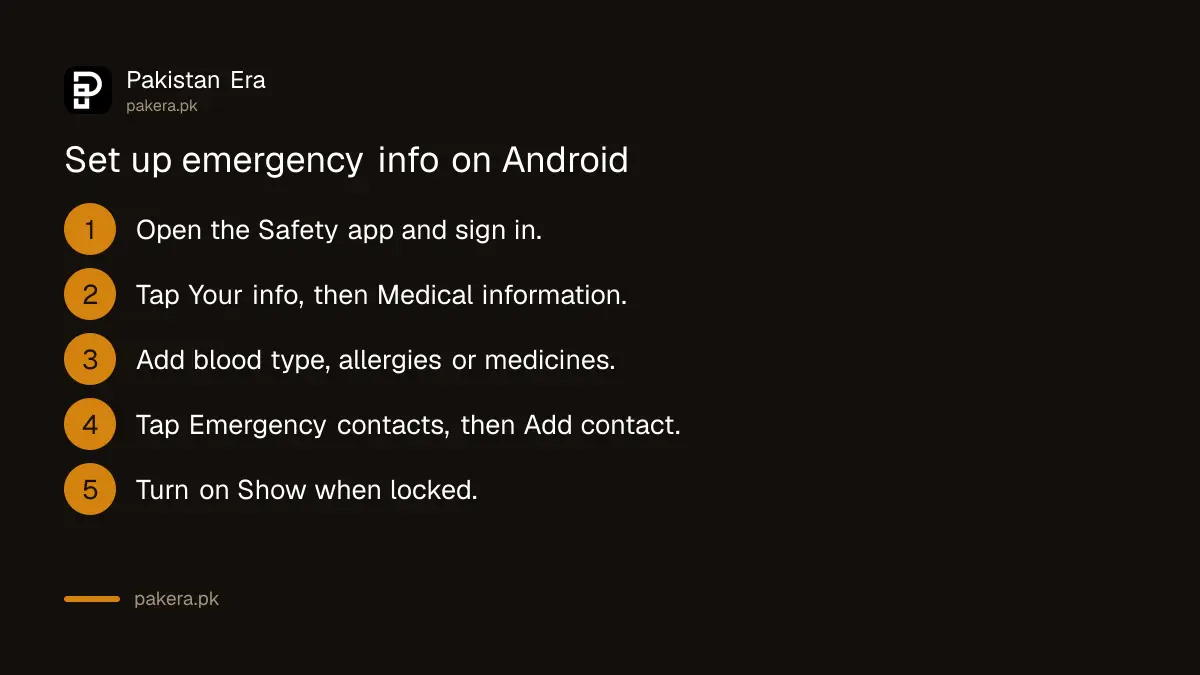
Open the Safety app, sign in to your Google account, tap Your info, then Medical information. Add details such as blood type, allergies or medications. Then tap Emergency contacts, tap Add contact, pick a person and turn on "Show when locked". Google gives the same flow.
To put a short message on the lock screen, go to Settings, Display, Lock screen, then Add text on lock screen. Google says Emergency SOS needs Android 12 or later and a SIM card for full function. Menu names can differ between brands, so search "emergency" in your settings if you cannot find them.
- Open the Safety app and sign in to your Google account.
- Tap Your info, then Medical information, and add your details.
- Go back and tap Emergency contacts, then Add contact.
- Turn on "Show when locked".
- Check it from the lock screen on another look.
Name the person who will answer, not the whole family
Add one or two contacts who will pick up. A contact who is abroad or asleep helps no one. Put the relationship, so a helper knows to say "your brother" and not "a stranger". Tell the person you named, so they are not surprised by a call at night.
In Pakistan the first call is usually to the ambulance service, not a relative. Save the right numbers beforehand, listed in emergency and helpline numbers in Pakistan. Rescue 1122 does not cover every province in the same way, so check what applies where you live.
Medical ID is not a replacement for a medical card, so keep one in your wallet as well.
Keep your lock screen safe as well as helpful
A phone with details on the lock screen is easy to read, so it should still be hard to misuse. Keep a screen lock on, and turn on the theft tools our guides cover: Stolen Device Protection on iPhone and Android theft protection.
If the phone is lost, finding it with Find Hub or Find My uses the same lock screen message idea. Review the entries once a year, because medicines and contacts change.
Common questions
Can anyone see my Medical ID on a locked iPhone?
Apple says first responders can reach it from the Lock screen without your passcode when "Show When Locked" is on. Anyone with the phone can try the same route.
Where do I add emergency contacts on Android?
In the Safety app, tap Your info, then Emergency contacts, then Add contact. Turn on "Show when locked" for lock screen access.
What should I put in Medical ID?
Blood type, serious allergies, medicines, key conditions and one or two contacts. Leave out your address and CNIC number.
Does Medical ID work without a SIM?
Google says Emergency SOS on Android needs a SIM card for full function. We did not find a SIM requirement for the lock screen details themselves, so test yours.
Does the emergency call share my Medical ID automatically?
On an iPhone, only if "Share During Emergency Call" is on. Apple also says Enhanced Emergency Data is not available in all countries, and we did not verify it for Pakistan.
How we verified this
What we checked, where we read it, and what we could not confirm.
Last checked on 12 October 2026 against Apple's Medical ID page and Google's emergency information page. What to include and leave out is our own advice.
About the author

Technology Journalist & Multimedia Producer
Ahmad Ali is a technology journalist and multimedia producer at Pakistan Era, joining the team in October 2026. He covers consumer technology and digital life for Pakistani readers, combining research with hands-on product testing.