How to Take a Screenshot on Samsung, Xiaomi, Infinix and Tecno Phones in Pakistan, Including Long Screenshots
Take a screenshot on Samsung, Xiaomi, Infinix, Tecno, Vivo and Oppo phones in Pakistan: buttons, palm and three-finger gestures, long screenshots and fixes.
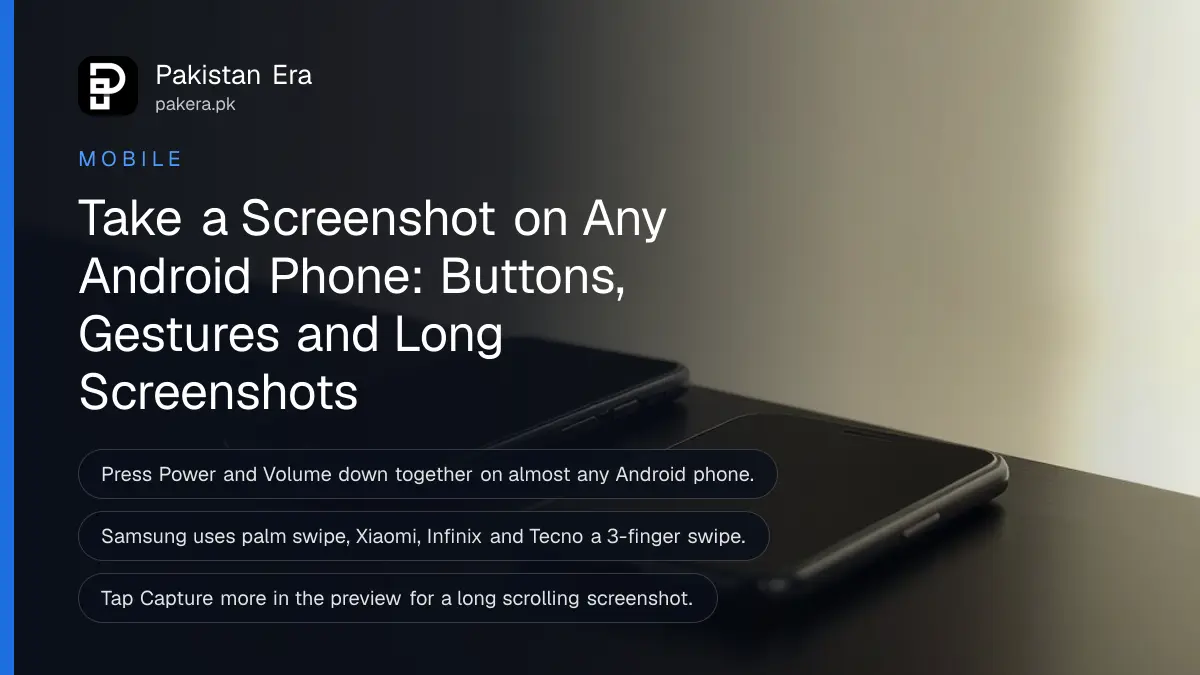
On almost every Android phone in Pakistan, press Power and Volume down at the same time and release. The screen flashes and the screenshot goes to the Screenshots album in Gallery or Photos. For a long (scrolling) screenshot, take a normal one, then tap Capture more, Scroll or the scroll icon in the preview at the bottom.
Button not working, or want a faster way? Samsung, Xiaomi, Infinix and Tecno each have a gesture as well. Here is every method by brand.
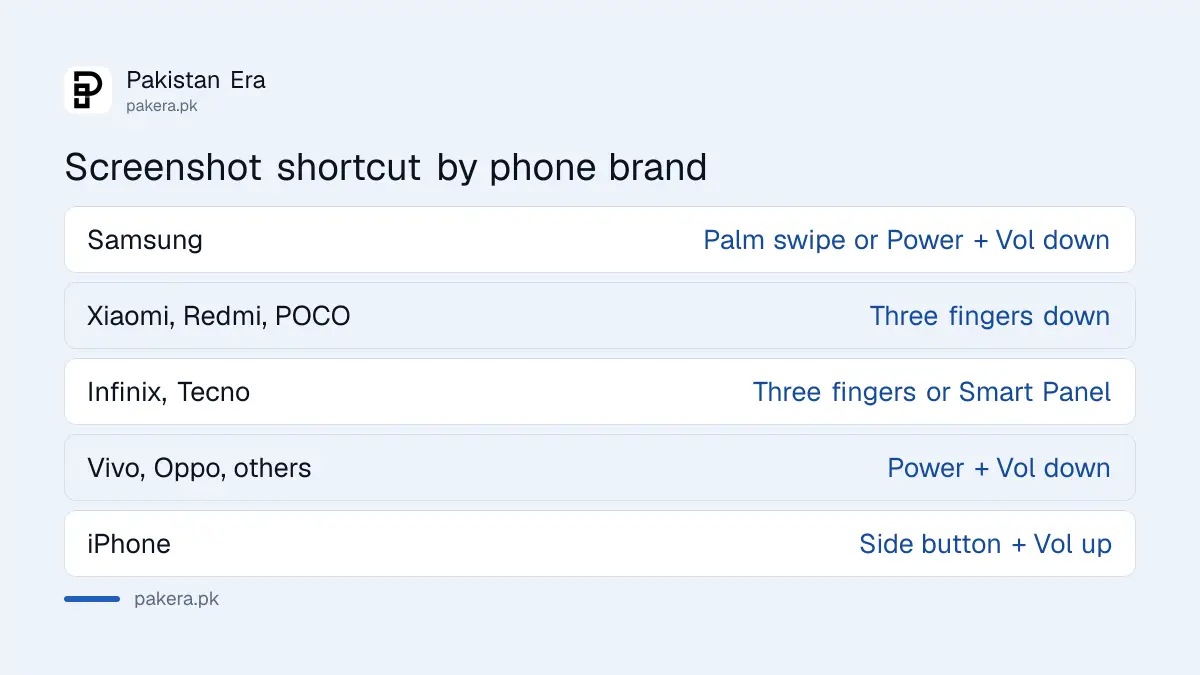
| Phone brand | Buttons | Gesture or shortcut | Where to turn the gesture on |
|---|---|---|---|
| Samsung Galaxy | Power + Volume down | Palm swipe across the screen | Settings, Advanced features, Motions and gestures |
| Xiaomi, Redmi, POCO | Power + Volume down | Slide three fingers down | Settings, Additional settings, Gesture shortcuts |
| Infinix, Tecno | Power + Volume down | Swipe three fingers down, or Smart Panel | Settings, Micro Intelligence |
| Vivo, Oppo, Realme, Pixel and others | Power + Volume down | Screenshot tile in Quick Settings | Swipe down twice from the top |
| iPhone with Face ID | Side button + Volume up | Back Tap (optional) | Settings, Accessibility, Touch |
Take a screenshot with the buttons on any Android phone
Google's own method works on nearly every Android phone: press Power and Volume down together. If that does nothing, press and hold Power for a few seconds and tap Screenshot in the menu. A preview then appears at the bottom left of the screen.
- Open the screen you want to capture.
- Press Power and Volume down at the same moment, then let go. A brief press works better than a long hold, which opens the power menu.
- Look for the small preview at the bottom of the screen. Tap it to edit or share, or ignore it and it saves on its own.
- Find the image later in Gallery, Albums, Screenshots, or in Google Photos under Collections, On this device, Screenshots.
On an older Samsung with a physical Home key, press Power and Home together instead.
Use a gesture on Samsung, Xiaomi, Infinix and Tecno
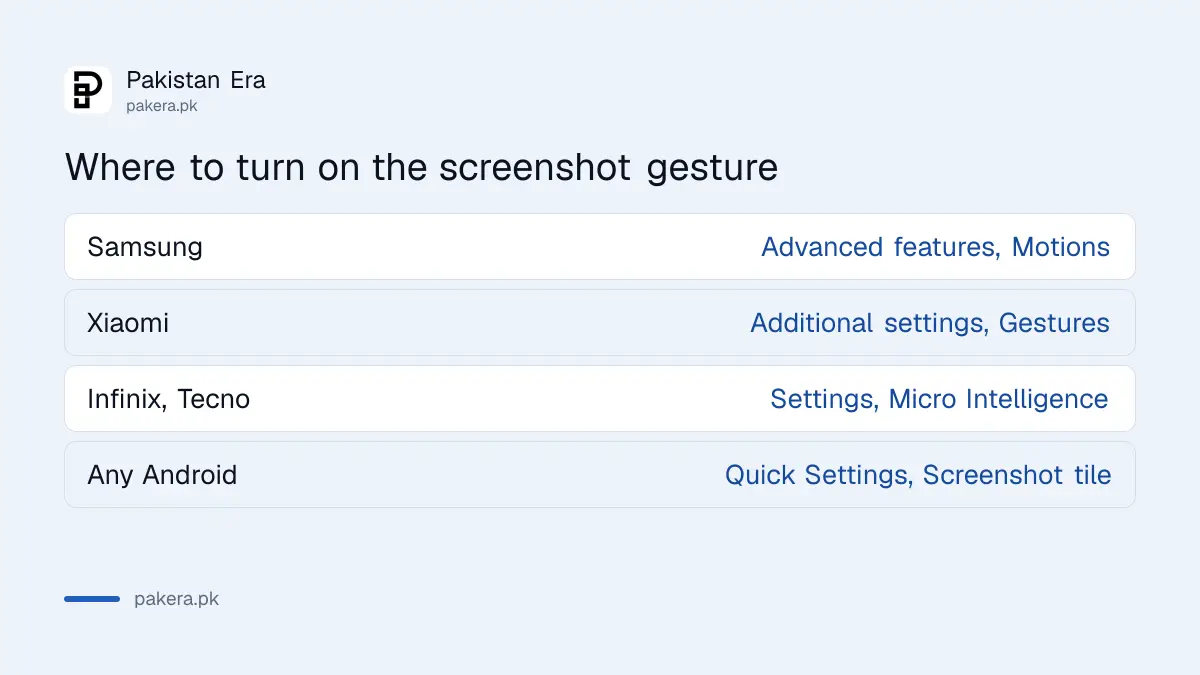
Gestures help when a button is broken or stiff. Samsung uses a palm swipe, Xiaomi a three-finger slide down, and Infinix and Tecno a three-finger swipe under Micro Intelligence. Each must be switched on once in Settings before it works.
Samsung Galaxy: palm swipe
- Open Settings, then Advanced features.
- Tap Motions and gestures.
- Turn on Palm swipe to capture.
- Swipe the edge of your hand across the screen from one side to the other.
Xiaomi, Redmi and POCO: three fingers down
- Open Settings, then Additional settings.
- Tap Gesture shortcuts, then Take a screenshot.
- Turn on the three-finger slide down, then slide three fingers down the screen.
Infinix and Tecno: three fingers or Smart Panel
- Open Settings and tap Micro Intelligence.
- Turn on Take screenshot with 3 fingers.
- Swipe down with three fingers on the screen you want.
Infinix and Tecno phones also have Smart Panel in Settings. Turn it on, swipe in from the side of the screen, and tap Screenshot. Menu names shift a little between XOS and HiOS versions, so search "screenshot" in the Settings search bar if a path does not match.
Take a long scrolling screenshot of a whole chat or page
A scrolling screenshot captures a full WhatsApp chat, a bill or a long web page in one image. On Android 12 and newer, take a normal screenshot, then tap Capture more in the preview and drag the crop guides to the end you need.
- Open the chat, page or receipt you want to capture.
- Take a normal screenshot with Power and Volume down.
- In the preview, tap Capture more (Pixel and most stock Android), the scroll button (Samsung), or Scroll under the preview (Xiaomi).
- Let the phone scroll, or drag the crop guide down, and stop at the end you want.
- Tap Save or the tick.
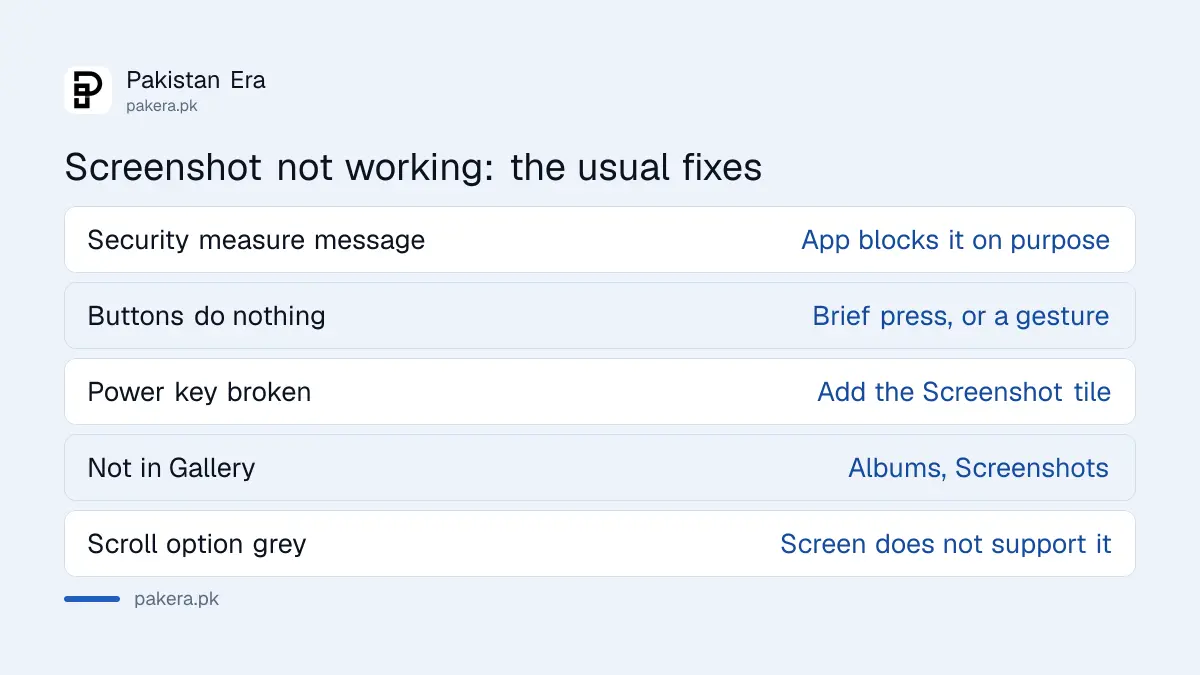
If the scroll option is grey or missing, that screen does not support long screenshots. Xiaomi says so in its own help: some screens cannot be captured this way. Take several normal screenshots instead, or use a screen recording on Android for a long chat.
Fix screenshots that do not work
The most common block is the message "Can't take screenshot due to security measure". Banking apps, wallets, Netflix and some private chats turn screenshots off on purpose. That is a security rule inside the app, and no setting on your phone overrides it.
- Security message in a banking or wallet app. Expected. Use the app's own Share receipt or Download button instead.
- Nothing happens with the buttons. Try a brief press rather than a hold, or the other order of keys. Then use the Quick Settings tile or a gesture.
- Power button broken. Turn on a gesture above, or add the Screenshot tile: swipe down twice, tap the pencil (Edit), and drag Screenshot into the panel.
- Screenshot taken but not in Gallery. Check Albums, Screenshots, and Google Photos, On this device. Storage may be full: a phone with no free space cannot save new images.
- Touch gestures do nothing. The screen may not register three fingers. The steps for a touch screen that is not responding help there.
A screenshot can be faked as easily as it is taken. Never release goods against a screenshot of a payment alone, and check how to confirm a payment really arrived in your own app.
Common questions
How do I take a screenshot on Infinix without the power button?
Turn on Take screenshot with 3 fingers under Settings, Micro Intelligence, then swipe down with three fingers. You can also use the Smart Panel from the side of the screen, or the Screenshot tile in Quick Settings.
Where are screenshots saved on Samsung?
In the Gallery app, under Albums, Screenshots. Samsung saves every screenshot there automatically, and you can move it to another album later.
Why does my phone say "Can't take screenshot due to security measure"?
The app on screen blocks screenshots to protect your data. Banking and wallet apps do this on purpose. Use the app's own share or download option for receipts.
How do I take a long screenshot on Xiaomi?
Take a normal screenshot, then tap the long screenshot (Scroll) option at the bottom of the preview. The phone scrolls down the page. Tap Done when you reach the end. If Scroll is grey, that screen does not support it.
How do I take a screenshot on an iPhone?
On an iPhone with Face ID, press the side button and Volume up together, then let go. On an iPhone with a Home button, press the side or top button and the Home button together.
Can I take a screenshot on a laptop the same way?
No, laptops use keyboard keys. On Windows, the Windows key, Shift and S open the snipping tool, and other shortcuts for screenshots on Windows 11 and 10 work too.
How we verified this
What we checked and where we read it.
We checked these official pages on 25 November 2026: Google's Android Help page "Take a screenshot or record your screen on your Android device" (support.google.com/android), for the Power and Volume down method and Capture more on Android 12 and up; Samsung's UK support page on taking a screenshot (samsung.com), for palm swipe, the Home key method and the security message; Xiaomi's global support article KA-06505, for the three-finger gesture path and long screenshots; and Carlcare's Pakistan tips page, the after-sales service for Infinix and Tecno, for Micro Intelligence and Smart Panel. Gesture menu names change between software versions.
Free on WhatsApp
Get last dates and rule changes on WhatsApp
We post new last dates, fee changes and fixes for common problems, a few short posts a day.
Follow Pakera on WhatsAppOther followers cannot see your number.
Pakera Solves It
Which online process wasted your time this week?
A portal that will not load, a form nobody explains, a complaint that went nowhere. Tell us. Every week we pick one, solve it step by step and publish the answer.
About the author

Technology Journalist & Multimedia Producer
Ahmad Ali is a technology journalist and multimedia producer at Pakistan Era, joining the team in October 2026. He covers consumer technology and digital life for Pakistani readers, combining research with hands-on product testing.