How to Use Digital Wellbeing on Android to Limit App Time in Pakistan
Use Android Digital Wellbeing in Pakistan to see screen time, set app timers, pause distracting apps with Focus mode and use Bedtime mode. Free and built in.
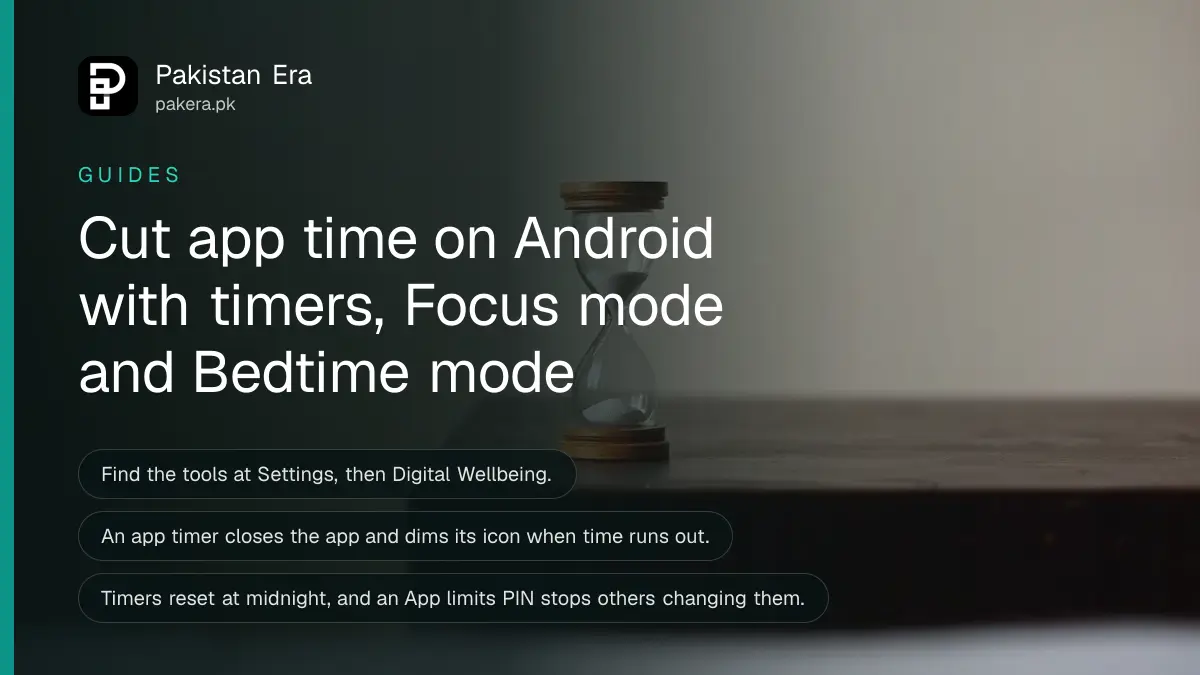
Short answer: Open Settings, Digital Wellbeing on your Android phone. Use the Dashboard to see your time, set a timer for any app, switch on Focus mode to pause distracting apps, and use Bedtime mode at night. Google says timers reset at midnight.
Open Instagram for "one minute" at ten, and it is midnight. Most of us know the feeling. Android has a built-in set of tools to deal with it, free of charge and with no extra app. This guide shows how to use them.
We read Google's Android Help page on Digital Wellbeing on 14 October 2026. The tools are found at Settings, Digital Wellbeing. Some phone brands rename menus, so look for the same words on your handset. We did not test the steps on a specific Pakistani model.
The Dashboard shows where your time goes
Google says Digital Wellbeing shows how often you unlock the phone and how long you use each app. It can also show screen time, notification counts and website use through Chrome. Look at it for a few days before you set any limit.
Numbers are more honest than guesses. Many people think they spend one hour on social apps and find it is three. Write down your top three apps. Those are the ones to limit first.
If mobile data is also running out, the same list shows which apps eat your time. To cut data use as well, read how to save mobile data on Android and iPhone.
Four steps set a timer on one app
Open Digital Wellbeing, tap the Dashboard, pick the app, and set a daily timer. Google says that when time runs out, the app closes and its icon dims. The timers reset at midnight, so you start fresh each day.
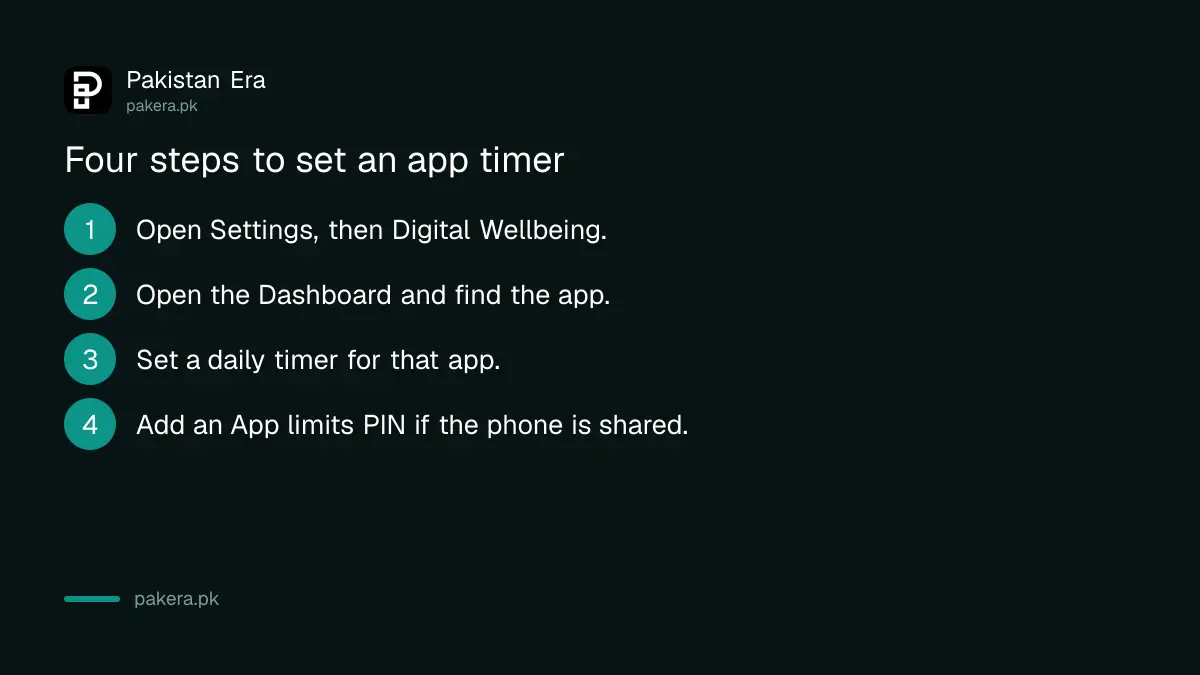
- Open Settings and tap Digital Wellbeing.
- Open the Dashboard and find the app you want to limit.
- Set a daily timer. Start with a limit slightly lower than today's use, not zero.
- If other people use the phone, set an App limits PIN so they cannot change the timer.
Be fair to yourself. A timer of 30 minutes on an app you use for work will only annoy you. Put timers on apps that waste time, such as short videos and games, and leave work apps free.
Parents who want to limit a child's phone should use the dedicated tool. See how to set a daily screen time limit on your child's Android phone.
Focus mode pauses the apps that pull you away
Google says Focus mode lets you pause selected apps so they cannot distract you. You can set an automatic schedule, for example study hours. If you really need an app, Take a break unpauses it for a limited time.
This suits students before exams and workers on deadline. Pick the apps that distract you, such as social media and games. Keep calls, messages and maps unpaused so you can still be reached.
Schedule it for the hours you most often lose, such as after school or in the first hour of work. A schedule works better than remembering to turn it on each day.
Bedtime mode makes the phone less tempting at night
Google says Bedtime mode can run on a schedule or when the phone is charging. It can turn the screen grayscale, dim it and use a dark theme. It can switch off at your next alarm, so your morning starts normally.
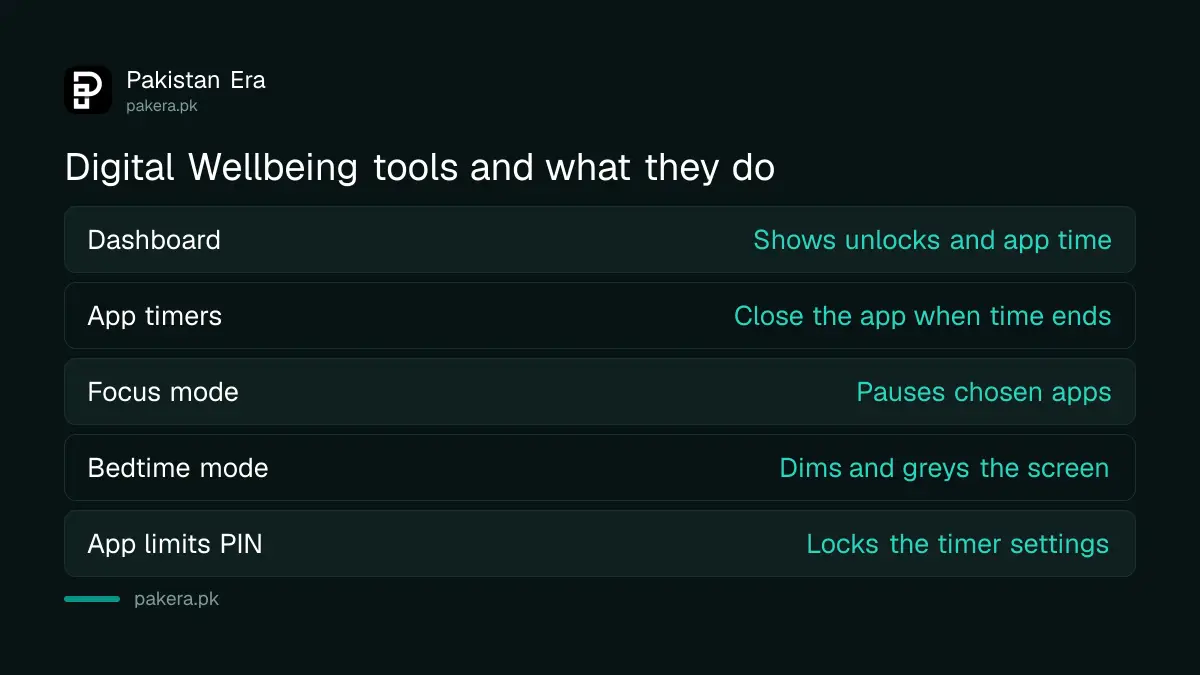
| Tool | What it does | Best for |
|---|---|---|
| Dashboard | Shows unlocks, app time and notifications | Seeing your habits |
| App timers | Close the app when time runs out | Social media and games |
| Focus mode | Pauses chosen apps on a schedule | Study and work hours |
| Bedtime mode | Grayscale, dimmer screen, dark theme | Falling asleep sooner |
| App limits PIN | Protects the timer settings | Shared phones |
The "best for" column is our suggestion, not Google's. A grayscale screen at night makes colourful apps less exciting. The phone is also easier to put down.
If YouTube is your main time sink, it has its own tools too. Read how to turn on YouTube Take a break and Bedtime reminders, which work inside the app.
Give each setting one week before you judge it. In the first days you will tap past the timer out of habit. By the second week most people find they reach for the phone less. Then lower the limit a little more, and keep one app, such as a Quran or study app, free of any limit.
Common questions
Where is Digital Wellbeing on my phone?
Go to Settings, then Digital Wellbeing. Some brands use a slightly different menu or name, so use search in Settings if you cannot find it.
What happens when an app timer ends?
Google says the app closes and its icon dims. The timer resets at midnight.
Can someone else change my timers?
Not if you set an App limits PIN. Google suggests it for shared devices.
What is the difference between Focus mode and an app timer?
A timer limits how long you use an app in a day. Focus mode pauses chosen apps for a period, on a schedule if you like.
Does Bedtime mode work only at a fixed time?
No. Google says it can run on a schedule or when the phone is charging, and it can turn off at your next alarm.
How we verified this
What we checked, where we read it, and what we could not confirm.
Last checked on 14 October 2026, Pakistan time. We read Google's Android Help page on Digital Wellbeing. We did not test the tools on Samsung, Xiaomi, Oppo or Vivo phones, whose menus can differ, and the page did not state a minimum Android version. Check Settings on your own phone to see which tools it offers.
About the author

Tax, Bills and Technology Writer
Ali Akhtar is a young and curious voice here at Pakistan Era. He is currently pursuing his A-Levels and has a growing interest in Pakistan’s changing industrial landscape and educational trends. Ali likes to write in a way that helps him explain and explore the world around him. His writing reflects the perspective of the new generation navigating the evolving trends of Pakistan where technology, youth innovation, and shifting opportunities are reshaping the country’s future.