How to Block Someone From Your Wi-Fi in Pakistan: TP-Link, Tenda, Huawei and Nayatel
Block an unknown user from your Wi-Fi in Pakistan: TP-Link Block List, Tenda blacklist, Huawei Allow switch and Nayatel app, then change the Wi-Fi password.
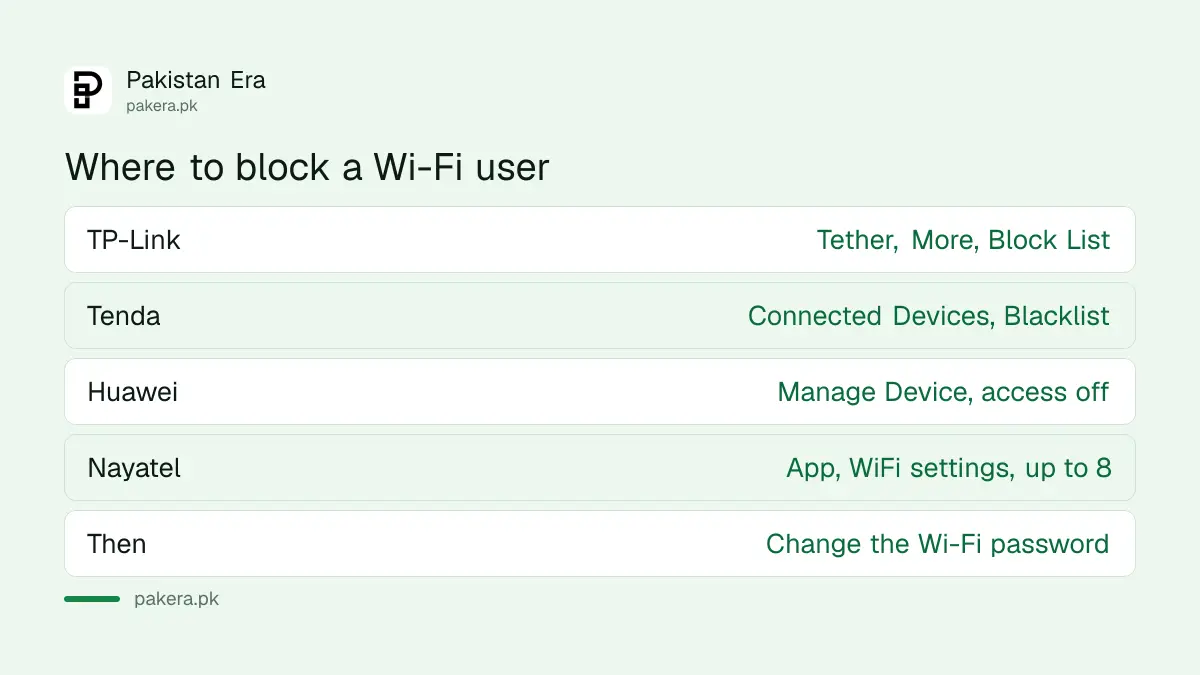
To block someone from your Wi-Fi, open your router's app or settings page, find the list of connected devices, and block the one you do not know. Then change your Wi-Fi password so they cannot come back. On TP-Link it is Tether, More, Block List. On Tenda it is Connected Devices, Add to Blacklist. On Nayatel it is the My Nayatel app, which blocks up to 8 devices.
Blocking works on the device's MAC address, a hardware ID each phone or laptop shows to the router. It stops that one device. A new phone, or the same phone with a changed address, can try again, which is why the password change matters.
| Router or provider | Where to block a device |
|---|---|
| TP-Link, Wi-Fi 6 and newer | Tether app: Local Device, More, Block List, + |
| TP-Link, older models | Tether app: Clients, swipe left on the device |
| TP-Link, web page | tplinkwifi.net: Advanced, Security, Access Control, Blacklist |
| Tenda mesh (app) | Tenda WiFi app: Connected Devices, Add to Blacklist |
| Tenda router (web) | Bandwidth Control switch, or MAC Address Filter, blacklist |
| Huawei | Web page: Manage Device, Internet Access off. AI Life app: Connected devices, Allow off |
| Nayatel | My Nayatel: More, Network Management, WiFi settings, connected devices (up to 8) |
Find the unknown device in the connected list first
Every router app and settings page has a list of devices using your Wi-Fi, with a name and a MAC address for each. Match your own phones, TVs and laptops first. Whatever is left over, and unknown, is the one to block.
- On a phone, the MAC address is in Settings, About phone, Status, or in the Wi-Fi details of the network.
- Smart TVs, cameras and printers also appear, often with model numbers as names. Do not block those by mistake.
- Note the unknown device's MAC address before you block it. You need it if you add it by hand or later want to unblock it.
Not sure how to open your router's settings? Logging in to a TP-Link router, logging in to a Tenda router and logging in to a Huawei router cover each address and password.
Block a device on a TP-Link router
TP-Link gives two routes. The Tether app blocks a device in a few taps, through a Block List on Wi-Fi 6, 6E and 7 routers or a swipe on older ones. The web settings page uses Access Control in Blacklist mode, which blocks the device on both Wi-Fi and cable.
With the Tether app
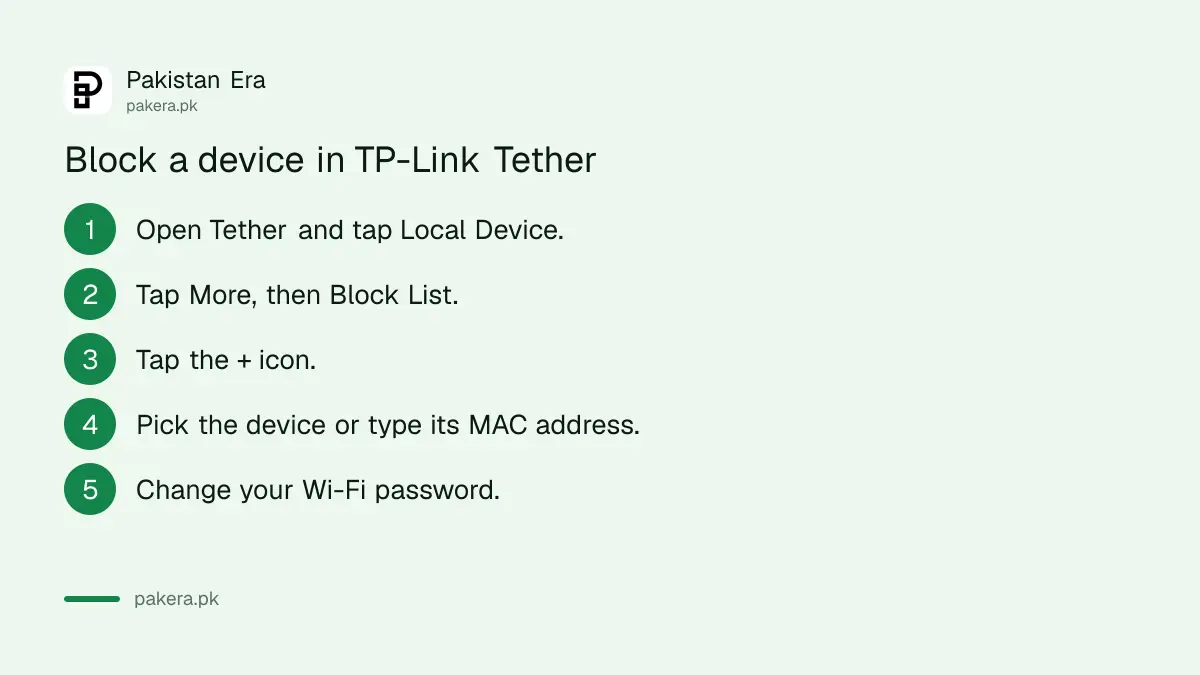
- Open Tether and tap Local Device to find your router.
- On a Wi-Fi 6, 6E or 7 router, tap More, then Block List, then the + icon.
- Pick the device from your connected clients, or enter its MAC address by hand.
- On an older router, tap Clients and swipe left on the device. It moves to Blocked Clients.
TP-Link warns that on some older models a blocked device can still join the Wi-Fi but gets no internet. That is normal. To undo a block, tap the icon next to the device in the Block List and choose Unblock, or swipe it back from Blocked Clients.
On the web settings page
- Go to tplinkwifi.net or 192.168.0.1 and log in.
- Open Advanced, then Security, then Access Control, and turn it on.
- Choose Blacklist, tick the device in the online list, and click Block. For a device not online, click Add and type its MAC address.
Block a device on a Tenda router
On Tenda mesh systems, open the Tenda WiFi app, tap Connected Devices, choose the device and tap Add to Blacklist. On Tenda web-managed routers such as the F9, block the device from Bandwidth Control, or add its MAC address under MAC Address Filter in blacklist mode.
- Log in at tendawifi.com or 192.168.0.1.
- Open Bandwidth Control and switch off the device you want to block, then click OK. Or go to Advanced, MAC Address Filter, choose blacklist and add the MAC address.
- To remove a block, switch the device back on in Bandwidth Control, or delete it from the blacklist and click OK.
Tenda also has a whitelist mode, where only the devices on the list can connect. It is the strictest option, but every new phone or guest must be added by hand.
Block a device on Huawei and Nayatel
On a Huawei router, open Manage Device on the web page and switch off Internet Access for the device, or turn off Allow under Connected devices in the AI Life app. On Nayatel, use the My Nayatel app's connected devices list, which blocks up to 8 devices.
For Nayatel, the path is More, Network Management, WiFi settings, then the connected devices list. Older Nayatel ONTs show fewer controls. The full Nayatel app routes are in changing the Nayatel Wi-Fi password.
For a PTCL, StormFiber or Transworld router, the steps follow the router's maker, which is printed on the label under the device. Most use the same idea: a device list, then a block or blacklist switch.
Change the Wi-Fi password after you block
A block stops one device, but the person still knows your password. Change the Wi-Fi password the same day to a long one nobody can guess, and use WPA2 or WPA3 security. Then reconnect your own devices with the new password.
| Problem after blocking | What to do |
|---|---|
| The person is back on a new phone | Change the Wi-Fi password, then block the new device |
| Blocked device still shows as connected | Normal on some older TP-Link models; it gets no internet |
| You blocked your own TV or phone | Unblock it from the Block List or blacklist |
| Cannot log in to the router | Use the admin password on the label, or ask your provider |
| Internet still slow after blocking | Check speed, then complain to your provider |
Also change the router's admin password, which is separate from the Wi-Fi password. Securing a home Wi-Fi router walks through it. If friends or visitors need Wi-Fi often, give them a guest network instead of your main password, as shown in setting up guest Wi-Fi with a QR code.
Common questions
How do I see who is using my Wi-Fi?
Open your router's app or settings page and look for Clients, Connected Devices or Manage Device. Every phone and laptop on your Wi-Fi is listed there with its MAC address.
Can a blocked person still use my Wi-Fi?
Not from the blocked device. But if they know the password, they can join from another phone. Change the Wi-Fi password after blocking.
How many devices can I block on Nayatel?
Up to 8, from the connected devices list in the My Nayatel app under Network Management and WiFi settings.
What is the difference between blacklist and whitelist?
A blacklist blocks only the devices on it. A whitelist allows only the devices on it, so every other device is kept out, including new guests.
How do I unblock a device on TP-Link Tether?
On newer routers, tap the icon next to the device in the Block List and choose Unblock. On older ones, swipe left on it in Blocked Clients.
How we verified this
What we checked and where we read it.
Last checked 24 November 2026. TP-Link steps come from TP-Link's support articles on blocking a device with the Tether app (updated April 2026) and Access Control on the web page. Tenda steps come from Tenda's articles on the F9 black and white list and the MW3 blacklist in the Tenda WiFi app. Huawei and Nayatel paths come from Huawei's support pages on managing connected devices and Nayatel's FAQ page, as set out in the linked router guides. Menu names change with app and firmware updates, so look for the closest match on your model.
Free on WhatsApp
Get last dates and rule changes on WhatsApp
We post new last dates, fee changes and fixes for common problems, a few short posts a day.
Follow Pakera on WhatsAppOther followers cannot see your number.
Pakera Solves It
Which online process wasted your time this week?
A portal that will not load, a form nobody explains, a complaint that went nowhere. Tell us. Every week we pick one, solve it step by step and publish the answer.
About the author

Technology Journalist & Multimedia Producer
Ahmad Ali is a technology journalist and multimedia producer at Pakistan Era, joining the team in October 2026. He covers consumer technology and digital life for Pakistani readers, combining research with hands-on product testing.