How to Check If a Text Message Is a Scam With Circle to Search on Android in Pakistan
Hold the Home button, circle a suspicious SMS and Google's AI Overview points out scam signs. How to check a text on Android in Pakistan and what to do next.
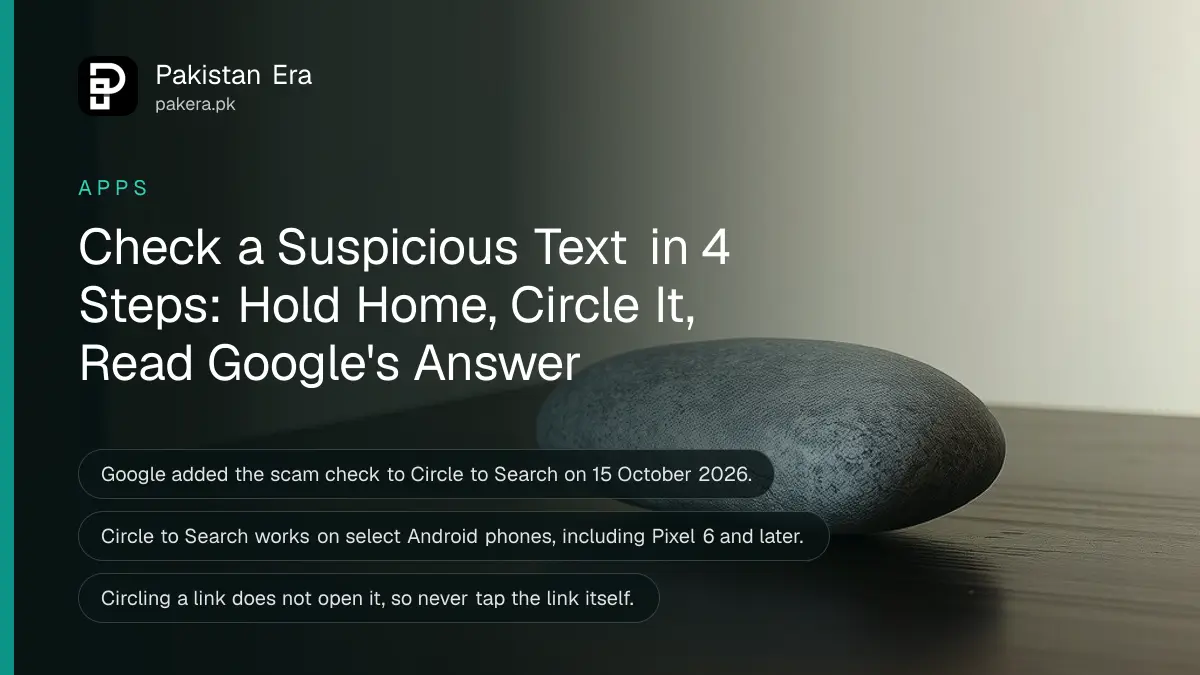
To check whether a text message is a scam on an Android phone, open the message, touch and hold the Home button or navigation bar, and draw a circle around the text. Google's AI Overview then gives guidance and next steps, and if it shows red flags, Google says to consider deleting the message and blocking the number. Google announced this use of Circle to Search on 15 October 2026.
Fake prize messages, fake e-challans and fake delivery notices are a familiar problem in Pakistan. Most of them push you to tap a link or share a code. A second opinion in five seconds, without copying the text into another app, is worth having. We read Google's announcement and its Circle to Search help page on 20 October 2026. We did not test the scam check on a Pakistani handset.
Circle to Search can now judge a suspicious message on your screen
Circle to Search lets you search anything on your screen without leaving the app. When you circle a suspicious text, Google shows an AI Overview, a short written answer at the top of the results, with guidance, insights and suggested next steps. It works on select Android phones.
Google's post lists four steps and nothing more. It does not name countries, languages or phone models, and its footnote says results, availability and compatibility may vary. So treat the answer as advice, not a verdict. A clean result does not prove a message is safe.
Circle to Search is the same tool many students already use for translation. If you have not used it before, the basics are in using Circle to Search to translate and study.
Four steps check a message in about five seconds
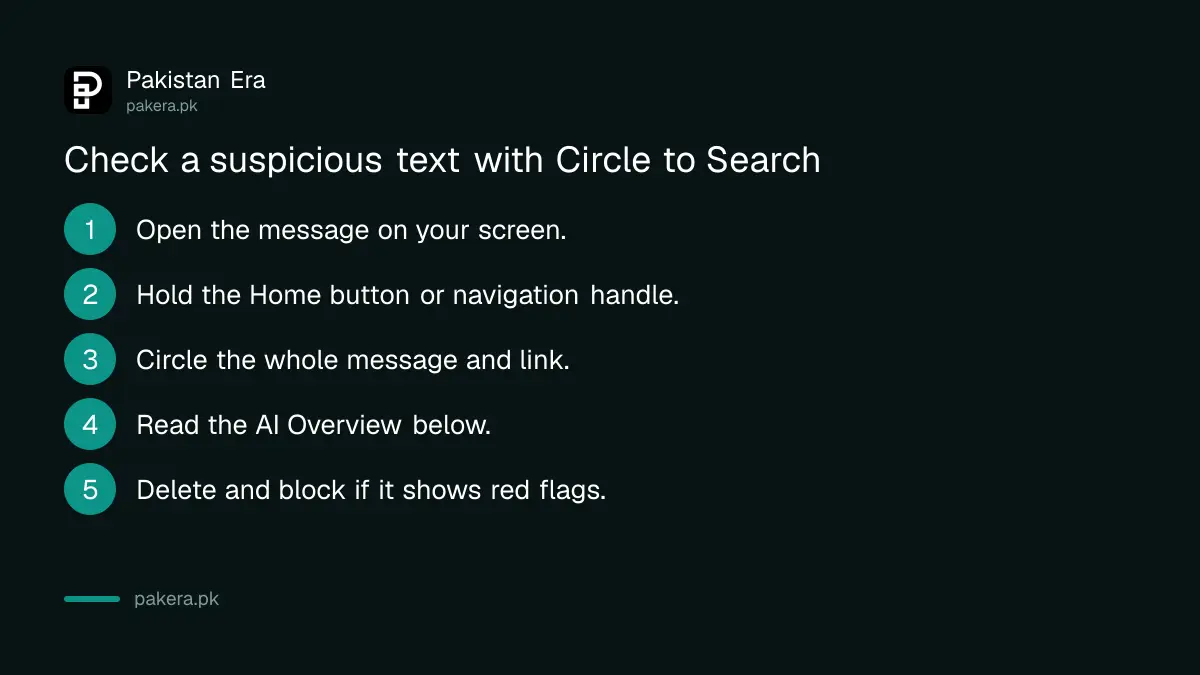
Open the message, hold the Home button or navigation handle, circle the text, then read the AI Overview. If it flags the message, delete it and block the sender. Do not tap any link inside the message while you check it.
- Open the suspicious SMS, WhatsApp chat or email so the text is on screen.
- Touch and hold the Home button or the navigation handle at the bottom of the screen. A search bar and a glow appear.
- Draw a circle around the whole message, including the sender and any link.
- Read the AI Overview in the lower half of the screen. Tap it to expand.
- If it shows red flags, delete the message and block the number.
Circle the full message, not one word. The sender name, the link and the demand together are what give a scam away. And keep your thumb away from the link itself: circling it is safe, tapping it is not.
Pixel 6 and later phones have Circle to Search, other brands vary
Google says Circle to Search is on select Android phones, including Pixel 6 and later. Google calls the rest "select" phones and publishes no full list. If holding the Home button opens nothing, your phone may not support it.
Some extras, such as Find the look, are limited to Pixel 10 and Pixel 11 phones and six countries. The scam check is not on that limited list, but it relies on AI Overviews, which Google says are not shown for every search. Google's help page also notes that some Circle to Search features may not work inside banking, medical and other confidential apps.
Google's help page describes Circle to Search for Android phones only. On an iPhone, the closest built-in step is to screen unknown senders in Messages.
The red flags are the same whatever the tool says
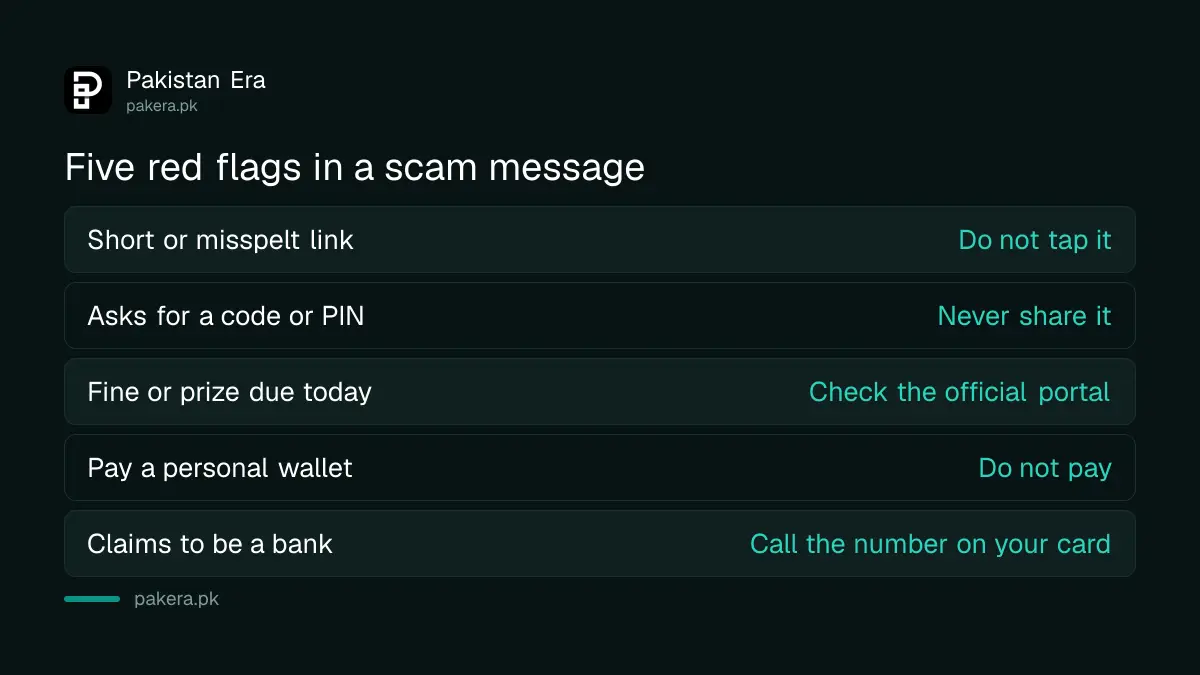
A scam message usually asks you to act fast, tap a link, pay a fee or share a code. If a message does two of those things, treat it as a scam even if no tool flags it. Check the claim with the real organisation instead.
| Sign in the message | What it usually means | What to do |
|---|---|---|
| Short link or a misspelt website | A page built to copy your details | Do not tap it, type the real website yourself |
| Request for a code or PIN | Someone is trying to take over an account | Never share it, no bank or app asks for it |
| Fine, prize or grant with a deadline today | Pressure so you skip checking | Check on the official portal or helpline |
| Payment to a personal wallet number | Money that cannot be pulled back | Do not pay, report the number |
| Sender claims to be a bank or government body | Impersonation | Call the number printed on your card or on the official site |
Traffic fine messages are a common example. The signs of a fake one, and the real way to check a challan, are in our breakdown of the fake e-challan SMS.
Circle to Search works best next to your other scam filters
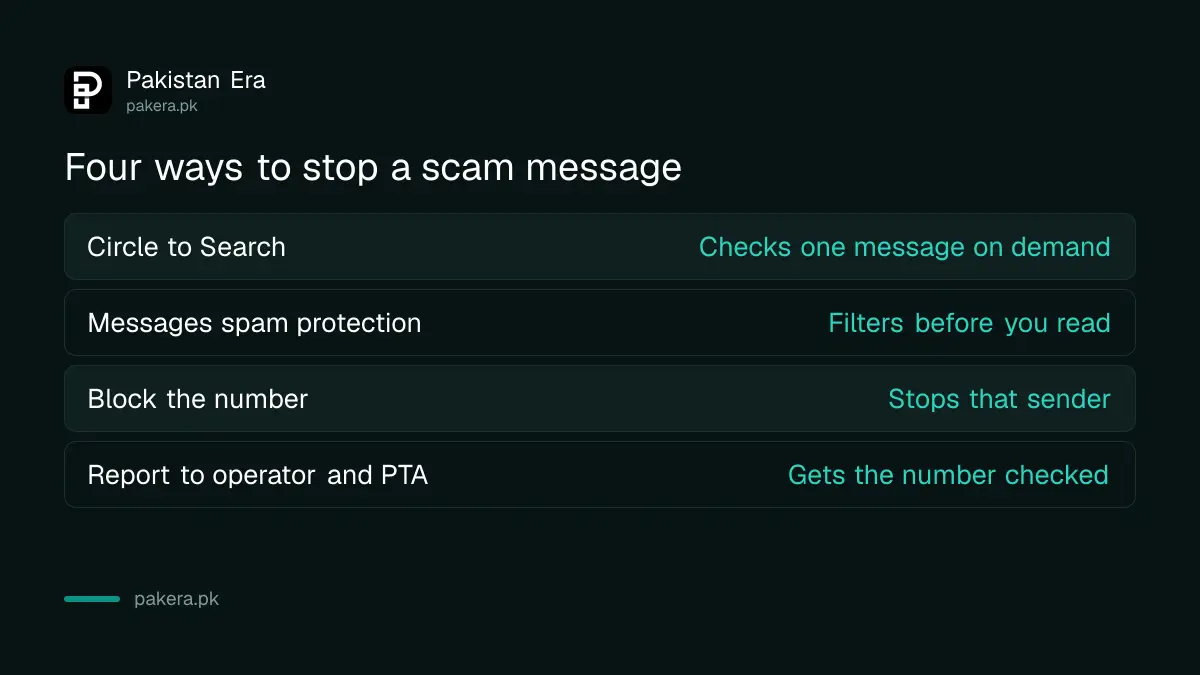
Circle to Search checks one message when you ask. Spam protection in your messaging app filters many messages before you read them. Reporting the number helps stop the sender. Use all three, because none of them catches everything on its own.
| Tool | When it works | What it does |
|---|---|---|
| Circle to Search | When you circle a message | AI Overview with guidance and next steps |
| Google Messages spam protection | Before you open a message | Moves likely spam out of your inbox |
| Blocking the number | After you spot a scam | Stops that sender reaching you again |
| Reporting to your operator and PTA | After you spot a scam | Lets the number be checked and blocked |
If you use Google Messages, switch on Google Messages spam protection as well. For a number that keeps sending scams, the route to report the scam number to your operator and PTA starts with your own mobile company.
Older parents gain most from a one-press check
A parent who struggles to copy text into a search box can still hold one button and draw a circle. Set it up on their phone, show them once, and tell them to call you before paying anyone who sends a message.
Practise with a harmless message first, such as an old promotion from your network. That way the glow and the results panel will not surprise them the day a real scam arrives. More family safety steps sit in protecting elderly parents from phone scams.
Common questions
Is Circle to Search scam checking free?
Yes. Circle to Search is part of Google Search on supported Android phones. Google has not listed any charge for it.
Does it work on WhatsApp messages too?
Circle to Search searches whatever is on your screen, so it can read a WhatsApp chat. Google's post talks about text messages, and it does not list which apps the scam check supports.
What if the AI Overview says the message looks safe?
Still check the claim yourself. Google says results may vary, so a clean answer is not proof. Contact the bank or office through its official number.
Does circling a link open it?
No. Circling selects what is on the screen. The link opens only if you tap it, so do not tap it.
My phone opens Google Assistant instead. What now?
Your phone may not support Circle to Search, or another assistant may be set as default. Check your phone's settings for Circle to Search before giving up.
Can I use it on an iPhone?
Google's help page describes it for Android phones only. iPhone users can screen unknown senders in Messages instead.
How we verified this
What we checked, where we read it, and what we could not confirm.
Last checked 20 October 2026. We read Google's blog post "Check if a text message is a scam using Circle to Search", dated 15 October 2026, and Google's help page "Search your screen with Circle to Search" on support.google.com, both on 20 October 2026. The four steps and the advice to delete and block come from Google's post. The device note, Pixel 6 and later, comes from the help page. We did not test the scam check on a phone in Pakistan, and we could not confirm which non-Pixel models sold here support it or whether the AI Overview answers in Urdu. The red flag table is our own general guidance, not Google's.
About the author

Technology Journalist & Multimedia Producer
Ahmad Ali is a technology journalist and multimedia producer at Pakistan Era, joining the team in October 2026. He covers consumer technology and digital life for Pakistani readers, combining research with hands-on product testing.