How to Use Circle to Search on Your Android Phone to Translate and Study in Pakistan
Use Circle to Search on your Android phone in Pakistan: hold the Home button or handle, circle text or an image, translate the screen and fix common errors.
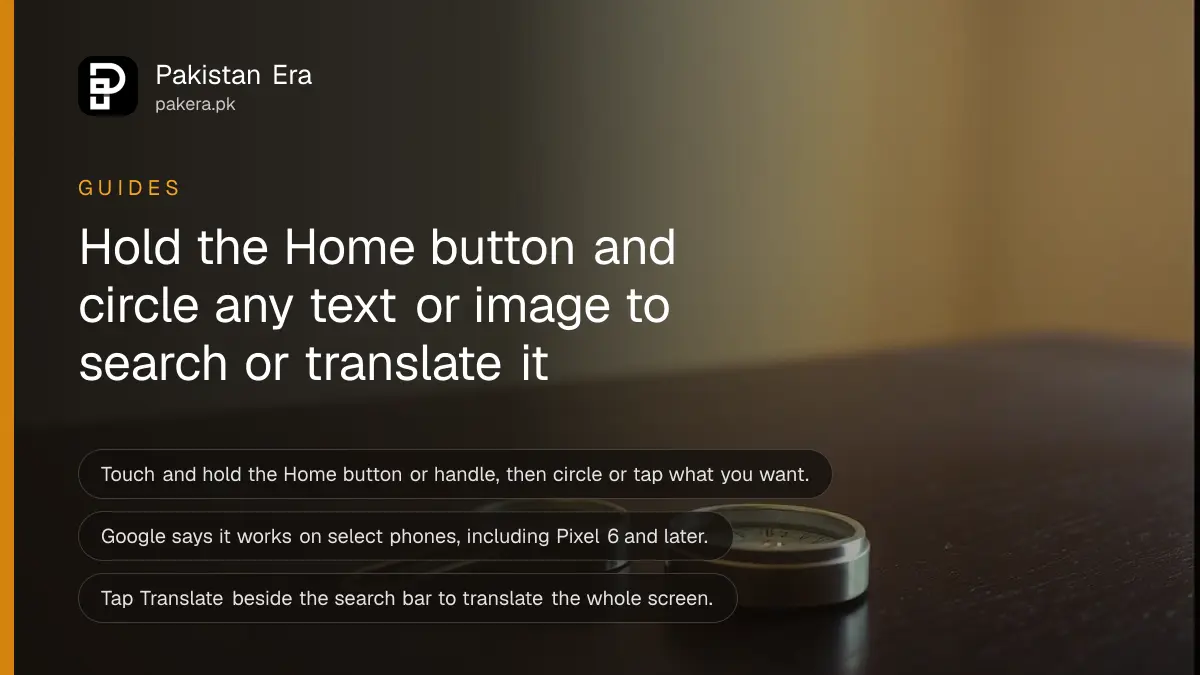
Short answer: Touch and hold the Home button or the navigation handle at the bottom of your Android screen, then circle, highlight or tap what you want to search. Google says Circle to Search is on select Android phones, including Pixel 6 and later, and you can translate the whole screen with one tap.
You see a word you do not know in a screenshot. A shirt in a video catches your eye. A line of English in a chat needs translating. Instead of copying text or switching apps, you can circle it and Google Search opens right on top of what you are doing.
We read two Google help pages on Circle to Search on 14 October 2026. Which phones have it, and which extras you get, depends on your model and country. We did not test it on a Pakistani handset.
Circle to Search searches whatever is on your screen
Circle to Search lets you search text or an image on your screen without leaving the app. You hold the Home button or navigation handle, then circle, highlight, scribble or tap. Results appear in the lower half of the screen. Google says it works on select Android phones, including Pixel 6 and later.
Samsung and some other brands list it on newer models. Google's page names Pixel 6 and later, and says "select" for the rest, so check your own phone. We could not confirm a list of Pakistani models.
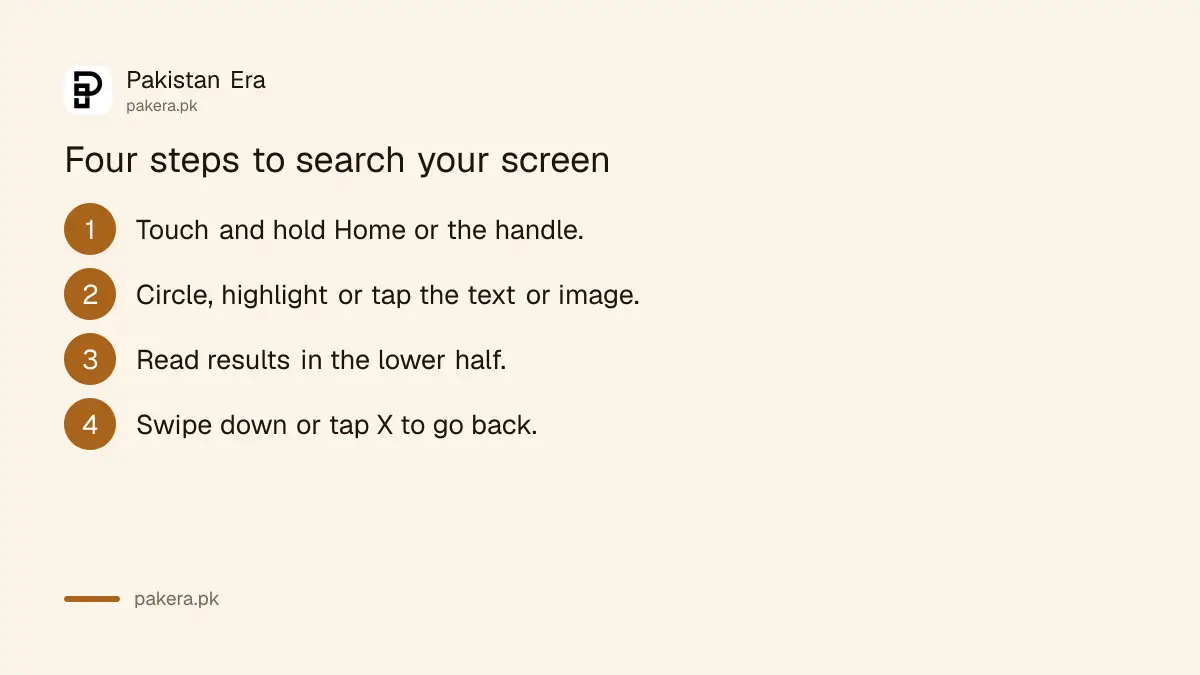
Four steps start a search
Touch and hold the Home button or handle, circle or tap the text or image, read the results in the lower half, then swipe down, use the back gesture or tap X to return. To fine tune your selection, drag its borders.
- Touch and hold the Home button or navigation handle. A search bar and a glow appear.
- Circle, highlight, scribble or tap the text or image.
- Read the results in the lower half. Expand them if you need more room.
- To go back, swipe down, use the back gesture, or tap X at the top left.
If something hides behind the search bar, use a two finger pan or drag the bar to the top or bottom, as Google explains.
Translate and follow-up questions help students most
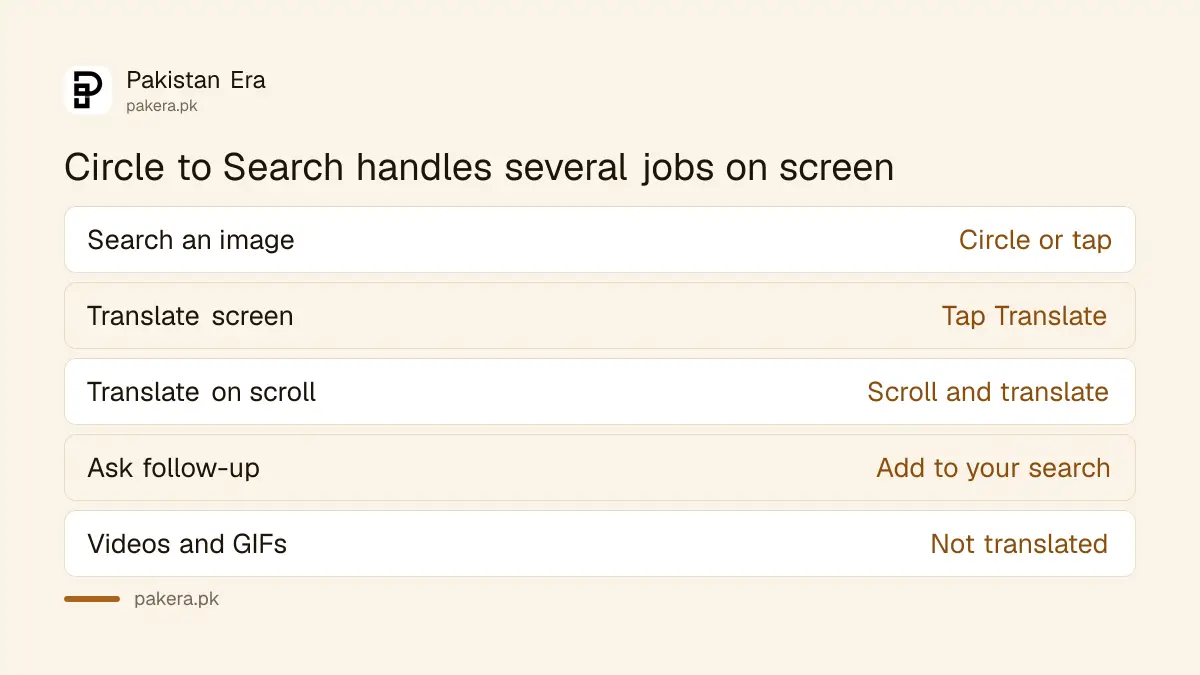
Tap Translate beside the search bar to translate the whole screen. For a long page, hold the Home button, tap Translate and choose Scroll and translate. Google says this works on web pages, messages and social media, but not on videos or GIFs.
You can also type a follow-up in the bar that says "Add to your search". Circle a math problem or a paragraph, then ask "explain this simply". For offline translation of languages, see how to download Google Translate languages for offline use.
| What you want | What Google says to do |
|---|---|
| Search an image or text | Hold Home or handle, then circle or tap |
| Translate the screen | Tap Translate beside the search bar |
| Translate while scrolling | Tap Translate, choose Scroll and translate |
| Ask a follow-up | Type in the Add to your search bar |
| Leave | Swipe down, back gesture or tap X |
Do not trust any answer blindly. For homework, use it to understand a question, then check your textbook. Tools like Gemini Notebook for studying from PDFs suit longer notes.
Some extras only work on newer Pixels
Find the look and Try it on need specific Pixel 10 or Pixel 11 models, or devices with AI Mode and AI Overviews. Google says Try it on is offered in Australia, Canada, India, Japan, the UK and the US, so Pakistan is not on that list. The camera feature needs Pixel 11.
So do not buy a phone just for the shopping extras. The core feature of circling and searching is the useful part, and Google lists it for Pixel 6 and later.
Google also mentions a photo transparency check that shows whether a photo is original or modified. It may not work in banking, medical or other confidential apps. If you worry about fake images, read about checking AI photos and videos with SynthID.
Fix "Screen search isn't available" or turn it off
If you see the error, go to Settings, Apps, Default apps, Digital assistant app, set Google as the default and turn on Use screen and app data. Then update the Google app in Google Play. To switch the feature off, search Settings for Circle to Search.
On a Pixel, Google says to open Settings, tap System and turn off Circle to Search. On most other Android phones, search Settings for Circle to Search, tap it and switch it off.
The feature reads your screen when you call it. It does not mean the phone always searches on its own. Still, avoid using it on screens that show private details like bank balances or ID cards.
Common questions
How do I open Circle to Search?
Touch and hold the Home button or the navigation handle at the bottom of the screen. Then circle, highlight, scribble or tap what you want.
Which phones support it?
Google says select Android phones, including Pixel 6 and later. Check your own phone, because we could not confirm a list of Pakistani models.
Can it translate my whole screen?
Yes. Tap Translate beside the search bar. It does not work on videos and GIFs, Google says.
Why does it say "Screen search isn't available"?
Set Google as your default digital assistant app and turn on Use screen and app data. Also update the Google app in Google Play.
How do I turn it off?
Search Settings for Circle to Search and switch it off. On a Pixel, go to Settings, System and turn it off there.
How we verified this
What we checked, where we read it, and what we could not confirm.
Last checked on 14 October 2026, Pakistan time. We read Google's Android Help page on Circle to Search. We did not test it on a Pakistani handset or SIM, and we could not confirm which non-Pixel models include it here.
About the author

Technology Journalist & Multimedia Producer
Ahmad Ali is a technology journalist and multimedia producer at Pakistan Era, joining the team in October 2026. He covers consumer technology and digital life for Pakistani readers, combining research with hands-on product testing.