How to Use Google Gemini Notebook (NotebookLM) to Study From Your PDFs in Pakistan
Use Google Gemini Notebook, known as NotebookLM, to study from PDFs in Pakistan. Create a notebook, add sources, ask questions and make quizzes, step by step.
Short answer: Open notebook.google.com, click Create new notebook, choose Upload a source and add your PDF. Then ask questions in the Chat panel or make quizzes in the Studio panel. Google's help page calls the tool Gemini Notebook, which many people know as NotebookLM.
A student with a 300-page PDF and one week before exams has a simple problem. Reading all of it twice is not possible. Searching for a topic in the file takes long. An AI notebook that answers only from your own files can cut that time.
We read Google's help page for the tool on 14 October 2026. This guide follows it. We did not test the tool with a Pakistani account, so check that it opens for you first.
A notebook holds the sources for one project
Google defines a notebook as a collection of sources for a specific project. Each notebook is separate, so it cannot see the files in your other notebooks. Make one notebook per subject, such as one for Physics and one for Law.
This design helps you. The answers come from the files you added, not from the open internet. That makes it easier to check a claim: you can go back to the source you uploaded.
Because notebooks do not talk to each other, you cannot ask one question across all your subjects. Plan your notebooks around how you study, one exam or one assignment at a time.
Four steps make your first notebook
Go to notebook.google.com, click Create new notebook, select Upload a source in the pop-up and choose your file. Google lists PDFs, links, YouTube videos and Play Books ebooks as supported sources. Then use the Chat panel to ask questions.
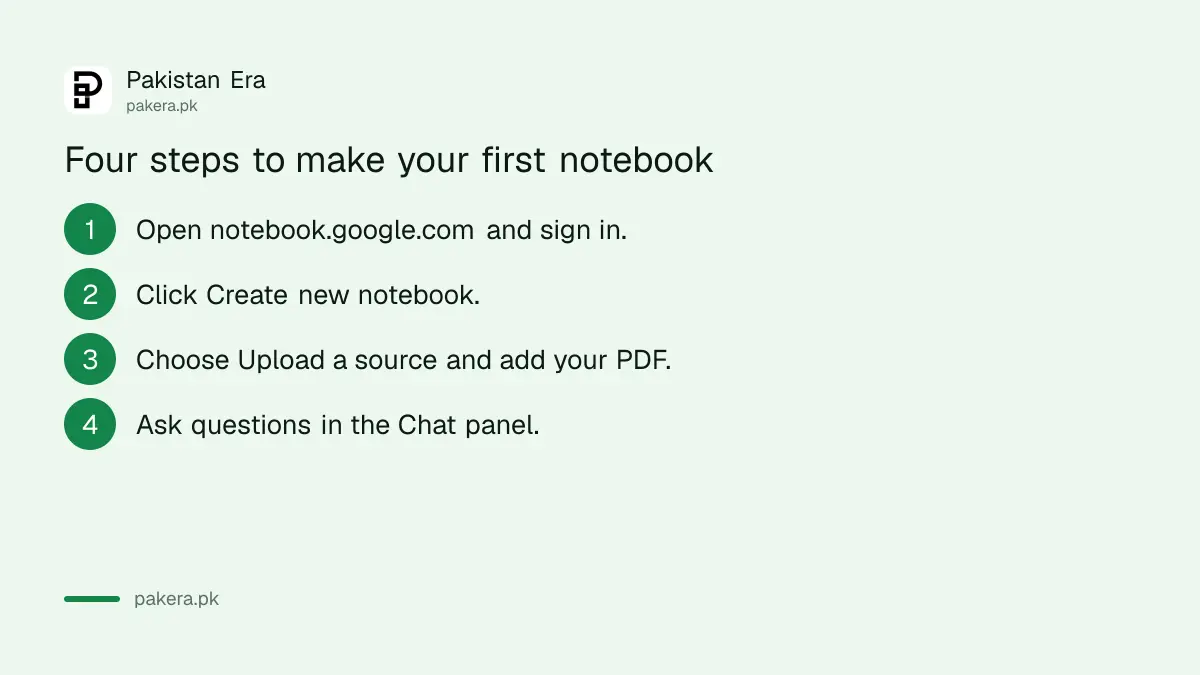
- Open notebook.google.com and sign in with your Google Account.
- Click Create new notebook.
- In the pop-up, select Upload a source. Pick a PDF, or paste a link or a YouTube address.
- Wait for the source to load, then type a question in the Chat panel.
- Open the Studio panel when you want notes, flashcards or a quiz.
Use clear PDFs. A scan that is blurred or tilted gives weak answers, as it would with any tool. If you only have photos of notes, our guide on how to scan notes into one PDF shows a quick way to make a clean file first.
The Chat panel answers questions about your files
Use the Chat panel for summaries and questions. Ask for the main points of chapter three, a plain-English explanation of a term, or a comparison between two sections. Ask short, specific questions and you get shorter, more useful answers.
Good prompts for a student are simple. Try: "List the five main causes in this chapter." Or: "Explain this definition in simple words, then give an example from the file."
Always verify an answer against the page it came from before you write it in an exam or assignment. Google's own page warns not to rely on the tool for medical, legal, financial or other professional advice. Treat it as a study helper, not as the final word.
The Studio panel makes study material from the same sources
Google says the Studio panel can generate notes, mind maps, reports, audio and video overviews, flashcards, quizzes, slide decks, infographics and data tables. For revision, flashcards and quizzes are the most useful. Slide decks help for class presentations.
Update, 20 October 2026: Google has added a review step, so you can edit the plan for slide decks and Video Overviews before Gemini Notebook makes them.
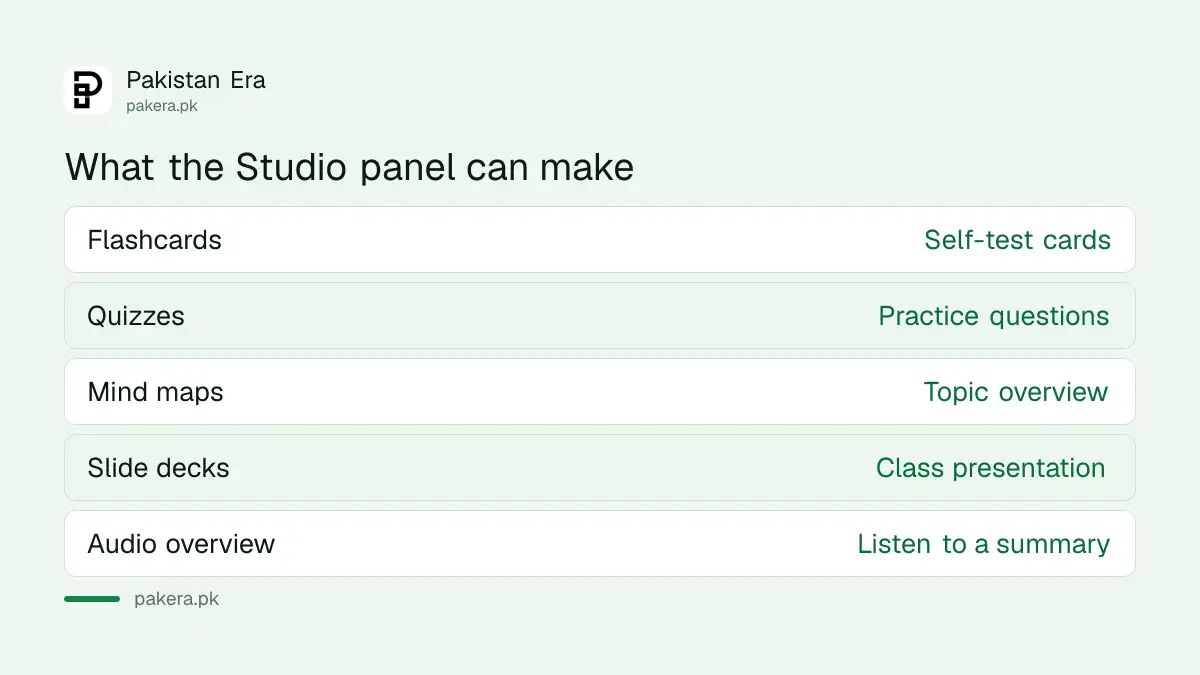
| Studio output | Best use |
|---|---|
| Flashcards | Memorise definitions and dates |
| Quizzes | Test yourself before an exam |
| Mind maps | See how topics connect |
| Reports and notes | Make a short revision sheet |
| Slide decks | Prepare a class presentation |
| Audio overview | Listen while travelling |
Update, 1 November 2026: Google's Audio Overview help page now lists Urdu, Pashto, Punjabi and Sindhi among more than 80 languages, so you can make a spoken summary of your notes in Urdu. Our guide to NotebookLM Audio Overview in Urdu has the steps.
If you already use another assistant for this, compare it with how to make flashcards and quizzes from your notes in ChatGPT. The difference here is that the notebook sticks to the sources you chose.
Share carefully and know the limits
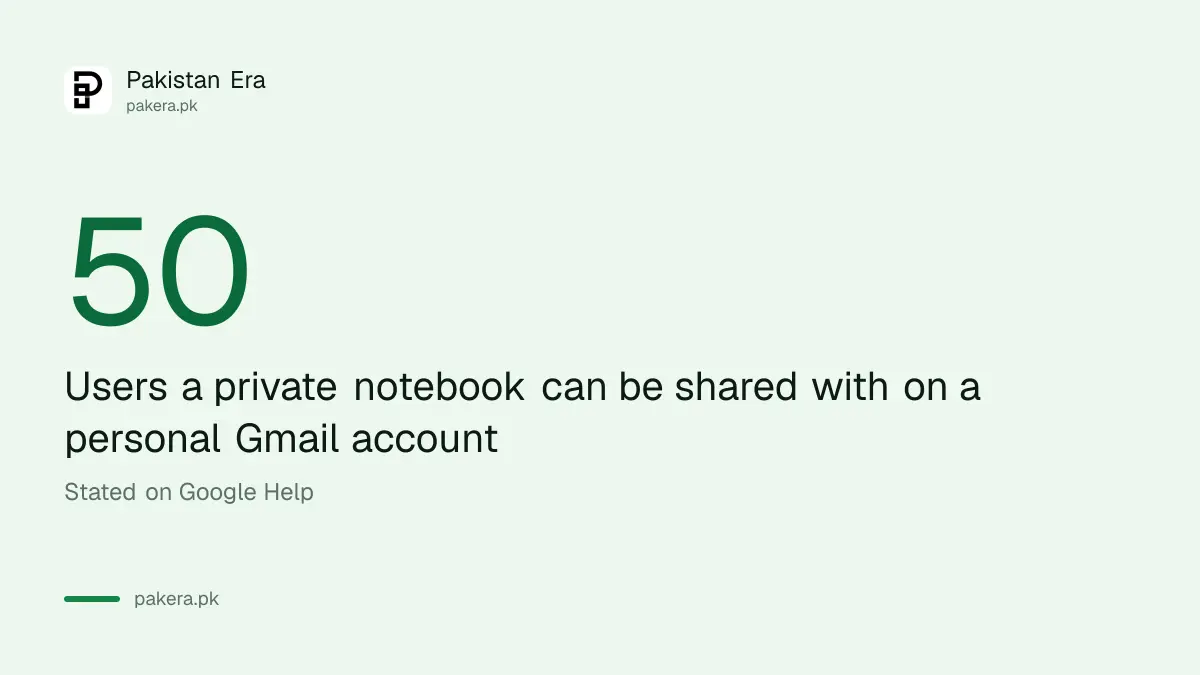
Google says you can share a notebook privately with up to 50 users on a personal Gmail account, or publicly with Google account holders. The mobile app has fewer features than the website. Do not upload private papers you would not hand to a stranger.
Before you upload anything, ask whether the file is yours to share. Textbooks you bought, class notes you wrote and public past papers are fine for personal study. Confidential office documents or other people's ID papers are not.
Students who want a stronger free plan can read what Google offers in the guide to free Gemini for Pakistani students. Plan limits and file size limits were not on the page we read, so check them in the tool.
If privacy is your worry, learn how to delete your Gemini chats and turn off activity saving, and ask yourself what you are happy to upload.
Common questions
Is Gemini Notebook the same as NotebookLM?
Google's help page uses the name Gemini Notebook. Many people still know the tool as NotebookLM. We could not confirm the rename beyond that help page.
What can I upload as a source?
Google lists PDFs, links, YouTube videos and Play Books ebooks. Click Upload a source in the pop-up when you make a notebook.
Can I ask one question across several notebooks?
No. Google says each notebook is independent. Put every source for one subject in the same notebook.
Can I make flashcards and quizzes?
Yes. Google says the Studio panel can make flashcards, quizzes, mind maps, reports, slide decks and more from your sources.
Can I trust the answers for exams?
Use them to learn, then check the source page. Google says not to rely on the tool for medical, legal or financial advice.
How we verified this
What we checked, where we read it, and what we could not confirm.
Last checked on 14 October 2026, Pakistan time. We read Google's help page for creating a notebook. We did not open the tool with a Pakistani account, and the page did not state free plan limits, file size limits or Urdu support, so we do not give them. On 1 November 2026 we read Google's Audio Overview help page, which lists Urdu, Pashto, Punjabi and Sindhi for Audio Overviews. Whether the tool is open to every Pakistani Google Account is not confirmed here. Open notebook.google.com to see what your account can do.
About the author

Technology Journalist & Multimedia Producer
Ahmad Ali is a technology journalist and multimedia producer at Pakistan Era, joining the team in October 2026. He covers consumer technology and digital life for Pakistani readers, combining research with hands-on product testing.