Google Verification Code Not Received in Pakistan: 5 Fixes, and How to Sign In Without the SMS
Google verification code not received in Pakistan? Check for a Google prompt, use only the newest code, check the SIM, or tap Try another way for a backup code.
Google verification code not coming to your phone in Pakistan? Look for a Google prompt first: Google often sends a tap-to-approve prompt to a signed-in phone instead of an SMS. If you need the SMS, use only the newest code, check that your number can receive texts, and get a stronger connection. No phone at all? Tap "Try another way" and use a backup code.
Requesting the code again and again makes things worse. Google says only the newest code works, so every older text in your inbox is now useless.
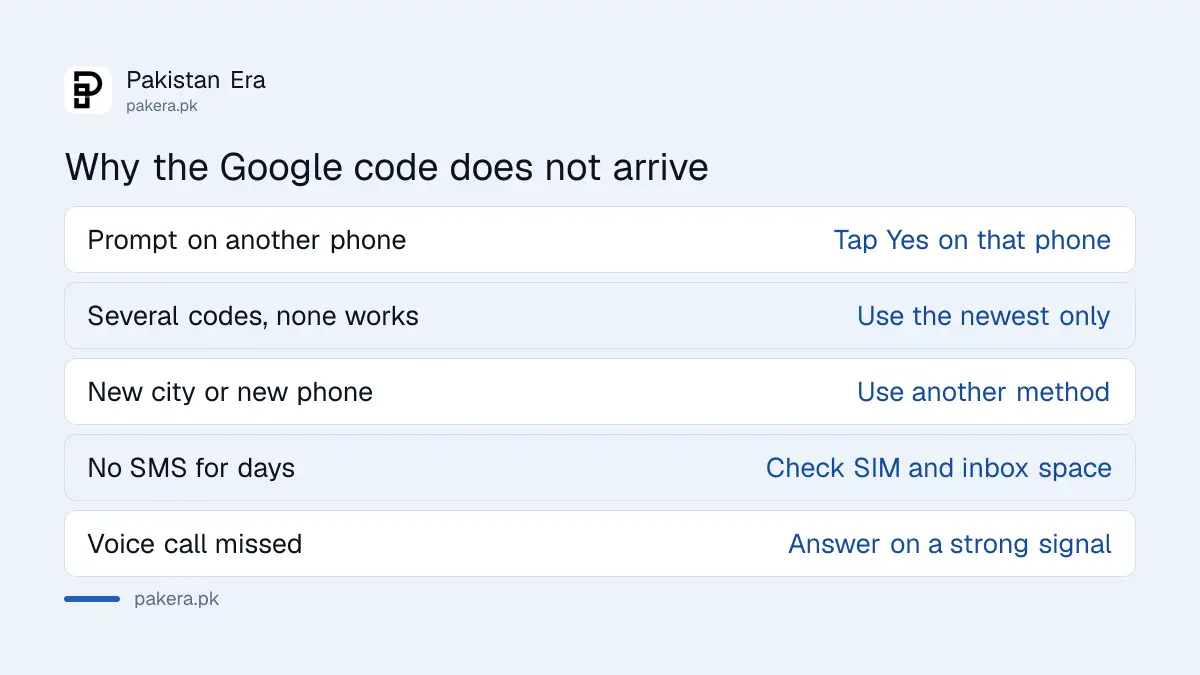
Why the Google code does not arrive
Google lists a few reasons for a missing code: it sent a Google prompt instead, it saw something unusual about the sign-in such as a new location, your plan or phone does not handle text delivery, or your connection was weak when you asked for the code.
The location point catches people out. If Google notices that your sign-in looks different, for example a new city or a new phone, it may not offer a text message code at all. Then you need another method you set up earlier.
| What happened | Why | What to do |
|---|---|---|
| No SMS, but a prompt on another phone | Google sent a prompt instead | Tap Yes on the signed-in phone |
| Several codes, none works | Only the newest code is valid | Use the latest text only |
| No SMS from a new city or phone | Google saw an unusual sign-in | Use another method, or a trusted device |
| No SMS at all for days | Plan or phone cannot get the text | Check the SIM, balance and SMS storage |
| Voice call went to voicemail | Call not answered or weak connection | Answer the call on a stronger signal |
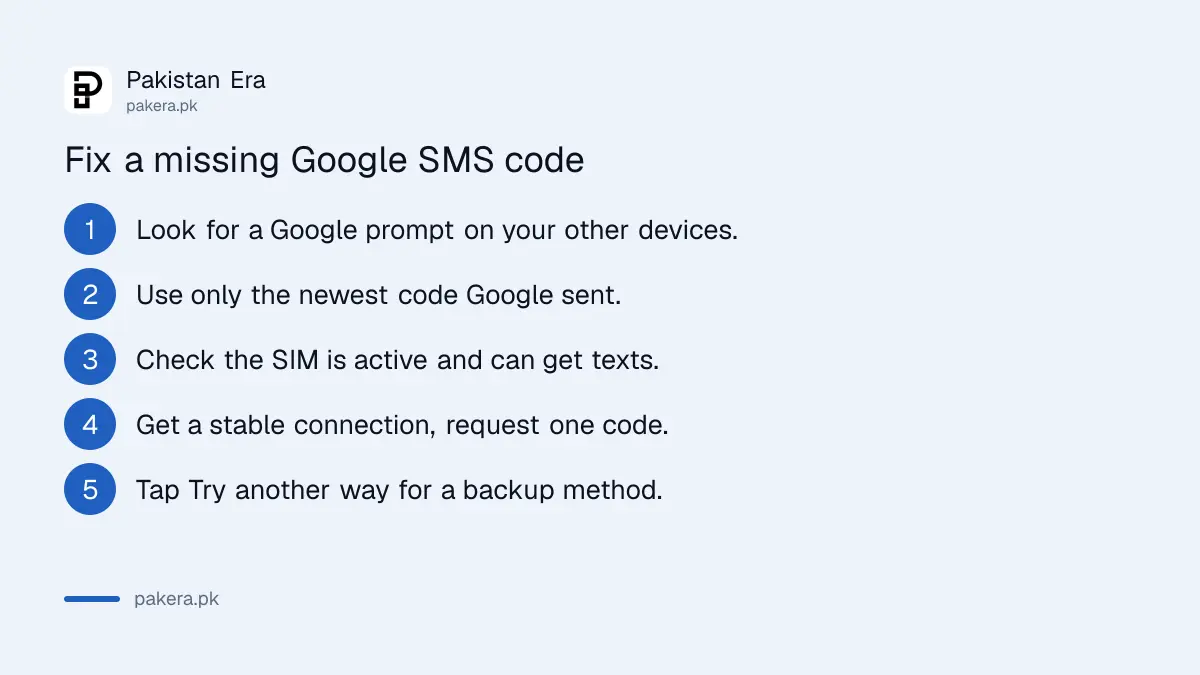
Fix a missing Google SMS code in five steps
Start with the Google prompt, then the code itself, then the phone. Most people get in at step one or two. If you reach step five, stop asking for new codes and switch to a backup method.
- Check your other devices for a Google prompt. If any phone or tablet is signed in to the account, tap Yes on the prompt.
- Use only the newest code. Delete or ignore older texts from Google.
- Check that the SIM can get texts. The SIM must be active, in the phone and on the number saved in your account, with space for new messages.
- Get a stable connection on mobile data or Wi-Fi, then request one new code.
- Tap "Try another way" on the sign-in screen and choose a backup code, another phone or a passkey.
Google says delivery speed and availability vary by location and mobile operator. If codes arrive late on one SIM, wait a few minutes before asking again. A code requested in a panic three times sets you back to the start each time.
Use a backup method when the phone is lost
If the phone is lost or stolen, Google accepts several other ways to prove it is you: another phone signed in to the account, another number added in 2-Step Verification, a saved backup code, a security key, or a passkey made on another device.
- Backup codes: one-time codes you saved earlier. How to keep a set ready is in saving Google backup codes.
- Another phone: any phone still signed in to your Google Account can approve the sign-in.
- A trusted computer: if you ticked "Don't ask again on this computer", you may be able to sign in there without a second step.
- Your number on a new SIM: Google suggests asking your operator to move your number to a new SIM. In Pakistan that means a duplicate SIM, issued against the owner's CNIC with biometric verification.
After you get back in, Google recommends signing out of the lost phone and changing your password. Then add a second number or an authenticator app so this does not happen again. The setup steps are in setting up Google Authenticator.
When nothing works, account recovery takes 3 to 5 days
With no second step left, use Google's account recovery. Google says that because 2-Step Verification adds security, it can take 3 to 5 business days to confirm the account is yours. Answer the questions as fully as you can.
Google may ask for an email address or phone number where it can reach you, and send a code there to check you control it. Use a device and place where you have signed in before, if you can. The full recovery route is in recovering a Gmail or Google account.
If you lost your backup codes, not your phone, you can cancel the old set. Go to the 2-Step Verification section of your Google Account, select Show codes, then Get new codes.
Common questions about Google verification codes
Why is Google not sending the verification code to my phone?
Google may have sent a prompt to a signed-in device instead, or it may not offer SMS because the sign-in looks unusual. Weak signal and SIM problems can also stop the text.
Why does my Google code say wrong?
You probably used an older code. Google says that if you request several codes, only the newest one works.
Can I sign in to Gmail without the verification code?
Yes, with another method set up earlier: a backup code, another phone, a passkey, a security key or a trusted computer. Tap Try another way to see your options.
How long does Google account recovery take with 2-Step Verification?
Google says it can take 3 to 5 business days, because the extra step means it needs longer to confirm the account belongs to you.
Should I use Google Voice for my codes?
No. Google warns that if codes go to Google Voice and you sign out of it, you can lock yourself out, because the code needed to get back in goes to Google Voice.
How we verified this
What we checked and where we read it.
Last checked 17 November 2026. The reasons and fixes come from Google Account Help: Fix common issues with 2-Step Verification. The page also covers lost security keys, lost passkeys and the Google Voice warning. Account recovery starts at accounts.google.com/signin/recovery.
About the author

Technology Journalist & Multimedia Producer
Ahmad Ali is a technology journalist and multimedia producer at Pakistan Era, joining the team in October 2026. He covers consumer technology and digital life for Pakistani readers, combining research with hands-on product testing.