Hide Text From Google Snippets on Your Pakistani Website: data-nosnippet, nosnippet and max-snippet
Stop Google showing the wrong text from your Pakistani website. Use data-nosnippet, nosnippet and max-snippet with copy-ready code, plus 4 mistakes to avoid.
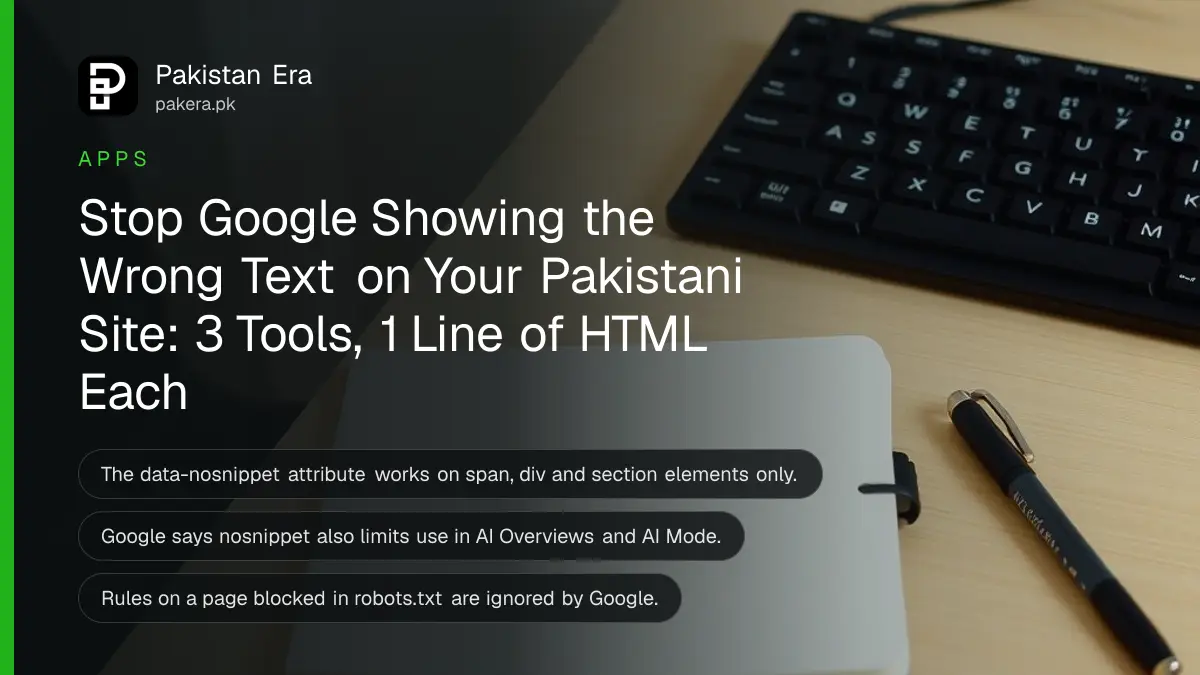
To hide part of a page from Google's search snippet, wrap it in <div data-nosnippet>. To hide all snippets for a page, use <meta name="robots" content="nosnippet">. To limit length, use max-snippet:50. These also limit use in AI Overviews and AI Mode, and the page stays indexed.
A Pakistani shop has an old Rs 2,500 price in a sidebar, and Google keeps showing it in search results. A helpline page has a note about office staff that makes a poor preview. These small problems have a tidy fix that many site owners never use. No plugin is needed, just one attribute in your HTML.
Google's own robots meta tag reference is the source for every rule below, and we read it on 7 November 2026. We start with the page-level tags, then the text-level attribute, and then the mistakes that quietly break them.
Three snippet tools handle three different jobs
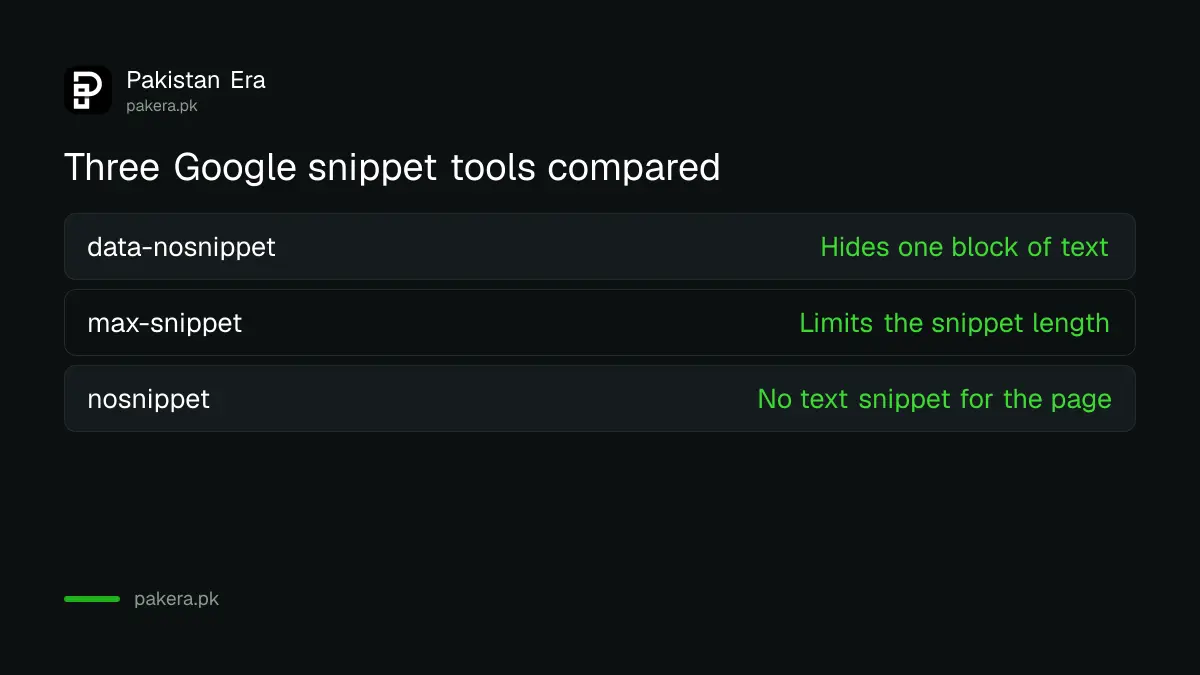
Pick the tool by how much text you want to hide. Use data-nosnippet for a block on the page, max-snippet to cap the length, and nosnippet for the whole page. All three keep the page in the index, so people can still find it and click it.
| Tool | Where it goes | What it does |
|---|---|---|
data-nosnippet | On a span, div or section in the body | Keeps that text out of snippets |
max-snippet:50 | Robots meta tag in the head | Limits the text snippet to 50 characters |
max-snippet:0 | Robots meta tag in the head | Same as nosnippet |
max-snippet:-1 | Robots meta tag in the head | Lets Google choose the length |
nosnippet | Robots meta tag in the head | Blocks text snippets and video previews, though a static image thumbnail may still appear |
Add data-nosnippet to hide one block of text
The attribute goes on the block you want to keep out of the preview. Google allows it only on span, div and section elements. It is a true or false attribute that ignores any value, so setting it to false will still hide the text. To allow the text, remove the attribute.
- Find the text in your template or page editor's HTML view.
- Wrap it:
<div data-nosnippet>Old price: Rs 2,500</div>. - Check that the opening tag has a matching close.
- Open the page and confirm the text still shows to readers, since this rule affects only snippets.
- Use URL Inspection in Search Console to request a recrawl, then give Google time before you judge the result.
Your structured data stays usable inside the block, Google says. So a price in Product markup is not lost because the visible price sits in a data-nosnippet section. The first check if the wrong words still appear is your title and meta, covered in fixing the title Google shows.
Use the robots meta tag for a whole page
Put the tag in the head of the page. It takes one line, and most themes allow custom head code for each page. A tag can hold several rules, separated by commas, or you can use separate tags. Where two rules conflict, Google follows the more restrictive one.
| You want | Paste this in the head |
|---|---|
| No text snippet at all | <meta name="robots" content="nosnippet"> |
| A snippet of up to 20 characters | <meta name="robots" content="max-snippet:20"> |
| Google chooses the length | <meta name="robots" content="max-snippet:-1"> |
| Only a standard size image preview | <meta name="robots" content="max-image-preview:standard"> |
| A video preview of any length | <meta name="robots" content="max-video-preview:-1"> |
Be careful with nosnippet on a page that needs clicks. A result with no preview text is less inviting, so a Pakistani guide usually loses more from it than it gains. Use it for pages where any preview would mislead.
These rules also limit AI Overviews and AI Mode
Google says nosnippet applies to AI Overviews and AI Mode, and stops content from being used as direct input for them. It says max-snippet limits how much content can be used as direct input. So one page can stay out of AI answers while the site stays in.
That makes these tags the page-level partner to a site-wide switch, which is covered in the Search generative AI control. Google adds one exception: these limits do not apply where a publisher has separately granted permission, such as through in-page structured data or a licence agreement.
Before you act, look at what AI features actually send you, using the AI Overviews report in Search Console. The site-wide steps for AI bots are a different job, and they are in blocking AI training in robots.txt.
Use X-Robots-Tag for PDFs and other files
A PDF has no head section, so a meta tag will not work. For these, the rule goes in the HTTP header. Government-style notices, price lists and forms are common on Pakistani sites as PDFs, and they often show up in search with awkward previews. Headers fix that without editing the file.
Google's example header is X-Robots-Tag: noindex, and you can swap in the rule you need, such as X-Robots-Tag: nosnippet. You set it at the web server, not in the document. On Apache, Google shows Header set X-Robots-Tag "noindex, nofollow" inside a Files block matching PDFs. On NGINX, it shows add_header X-Robots-Tag "noindex, nofollow"; inside a location block.
If you are on shared hosting and cannot edit the server settings, ask your host. The Apache rule normally goes in a config file, and some hosts limit what you can change.
Four mistakes break these rules without warning
None of these shows an error on your page. Google simply ignores the rule, or the hidden block grows larger than you planned. So test on one page first, and look at the HTML that the browser actually received rather than what your editor shows.
- Blocking the page in robots.txt. Google says any rules on a page are ignored if crawlers cannot access it. A blocked page cannot deliver a
nosnippetinstruction. - An unclosed tag. Google warns that an unclosed element can extend the exclusion to all the content after it. One missing
</div>could hide most of your article from snippets. - Adding it with JavaScript later. Google says not to add or remove the attribute through JavaScript. If you create elements dynamically, include it when the element is created.
- Using the wrong element. On a
p,lior custom tag, it is not valid. Wrap the content in a div or span.
Do not reach for noindex here either. That removes the page from results, which is a far bigger step. If you are only unhappy with a preview, it is the wrong tool.
Common questions
What is data-nosnippet in HTML?
It is an attribute that keeps the marked text out of Google's search snippets. Google supports it on span, div and section elements only.
Does data-nosnippet hide text from readers?
No. Readers still see the text on the page. It only affects what Google can show as a preview.
Does nosnippet remove my page from Google?
No. The page can stay in results, without a text snippet or video preview. A static image thumbnail may still show.
Can I use data-nosnippet="false"?
It has no effect as a false value. Google ignores any value, so the text stays out of snippets. Remove the attribute instead.
What does max-snippet:-1 mean?
It lets Google choose the snippet length. A value of 0 means no snippet, the same as nosnippet.
Do these tags work for Bing as well?
We read only Google's documentation for this page, so everything here describes Google. Check Bing's own webmaster help before relying on any of these for Bing.
What we checked and sources
On 7 November 2026 we read Google's robots meta tag, data-nosnippet and X-Robots-Tag reference and its Control what you share page. The rupee and helpline examples are ours, to show how it might look on a Pakistani site. We did not run a before-and-after test on a live page for this report, and Google gives no fixed time for a snippet to update.
About the author

Founder and Editor
Umer Kureshi founded Pakistan Era in July 2024 and runs it as administrator, SEO lead and writer, overseeing website operations, search growth, content strategy and coverage of technology and current affairs.