How to Invite Anyone to a WhatsApp Call Without an Account in Pakistan
WhatsApp guest calling lets anyone in Pakistan join your call from a browser, no account needed. Create a link, approve the guest and talk free with up to 32.
You can now invite anyone to a WhatsApp voice or video call in Pakistan, even if they have no WhatsApp account. Open the Calls tab, tap the plus icon, create a call link and send it. The guest opens the link in a computer browser, types a name, waits for your approval and joins. WhatsApp says guest calls are free, end-to-end encrypted and work for one-to-one calls and group calls of up to 32 people.
WhatsApp announced guest calling on its own blog on 14 October 2026. We read that post and the two help centre pages on call links on 19 October 2026. The feature matters in Pakistan because a tutor, a client abroad or an older relative on a laptop no longer needs to install the app or hand over a phone number to join your call.
Guest calling lets a person without WhatsApp join your call from a browser
A guest is somebody who joins a WhatsApp call through a link without a WhatsApp account. They open the link on a desktop browser, enter a name and sit in a waiting room until the person who made the link lets them in. Only a WhatsApp account holder can create the link.
WhatsApp's help centre lists Chrome, Safari, Firefox and Edge on desktop as the supported browsers for guests. The blog post describes guests joining from "their computer browser", so a phone browser is not promised. If the person you want to call only has a phone, the simpler route is still to have them install WhatsApp, or to use the steps for WhatsApp calls from a computer browser on your own side.
Guests appear in the call as "Name (Guest)". They can talk, turn on video, share their screen, raise a hand and send a thumbs up or heart reaction. WhatsApp's help page says they cannot add or remove anyone, start a new call or send messages. They also cannot see other participants' phone numbers.
How to create a call link and send it to a guest
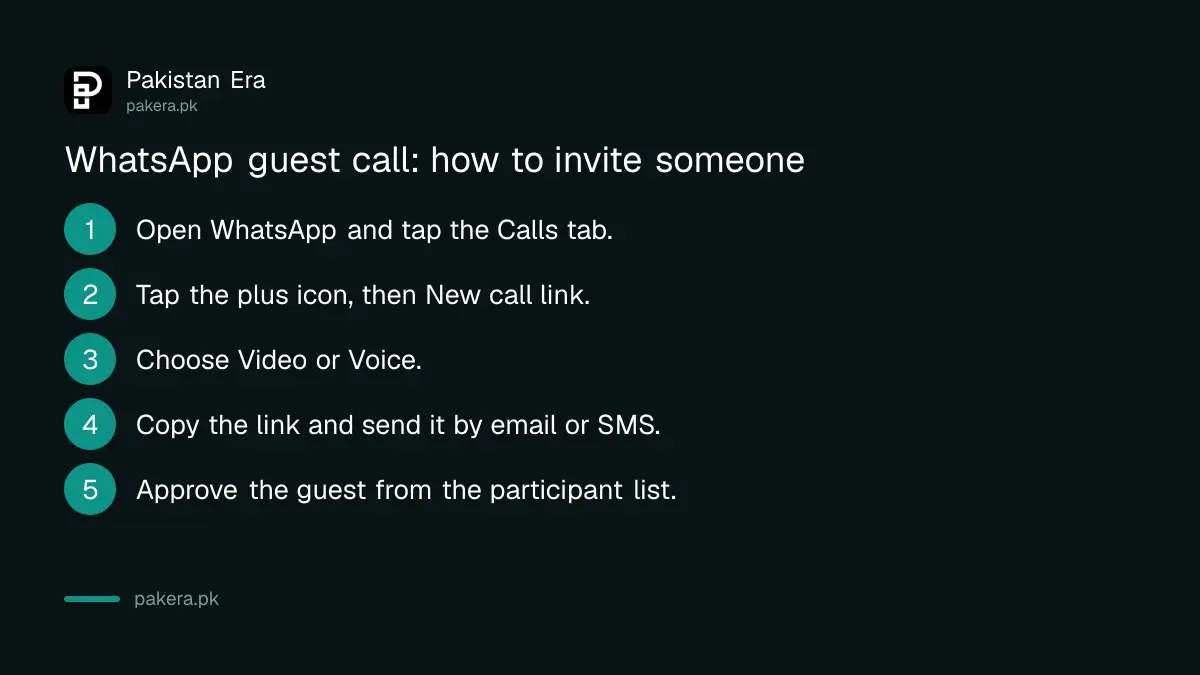
Go to the Calls tab in WhatsApp, tap the plus icon or New call link, choose Video or Voice, and copy the link or send it through WhatsApp. Paste it into an email, SMS or any other app for the person who is not on WhatsApp.
- Open WhatsApp and tap the Calls tab.
- Tap the plus icon, then New call link.
- Choose Video or Voice.
- Leave Require approval to join switched on if you want a waiting room for WhatsApp users too. Guests always need approval.
- Tap the copy icon, or Send link via WhatsApp.
- Paste the link into an email, SMS, or any other app for your guest.
- Start the call from the link. When the guest requests to join, approve them from the participant list.
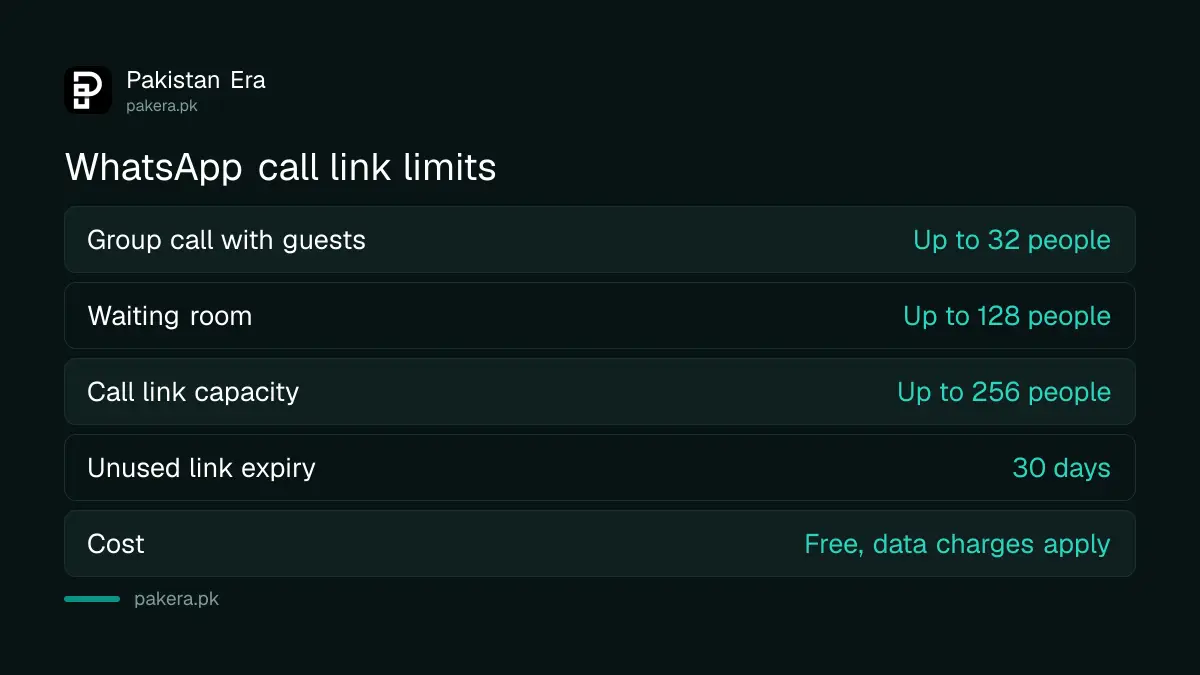
Every link is a new, random address, so nobody can guess it. WhatsApp's help page says a link expires if it has not been used for 30 days, and that WhatsApp can revoke a link for privacy or security reasons. Contacts you have blocked cannot join through your link.
The host approves every guest, and can remove anyone during the call
Guests always land in a waiting room, whatever your approval setting. Only the person who created the link sees the waiting room and can admit or deny people. The waiting room holds up to 128 people, and anyone still waiting when the call ends is removed.
During the call, the creator sees "has requested to join" next to each name and can tap the tick to admit, the cross to deny, or Approve all. A denied person gets a message and can ask again. To remove somebody mid-call, open the participant list, tap the person and choose Remove. They see "You have been removed from the call" and cannot rejoin through that link.
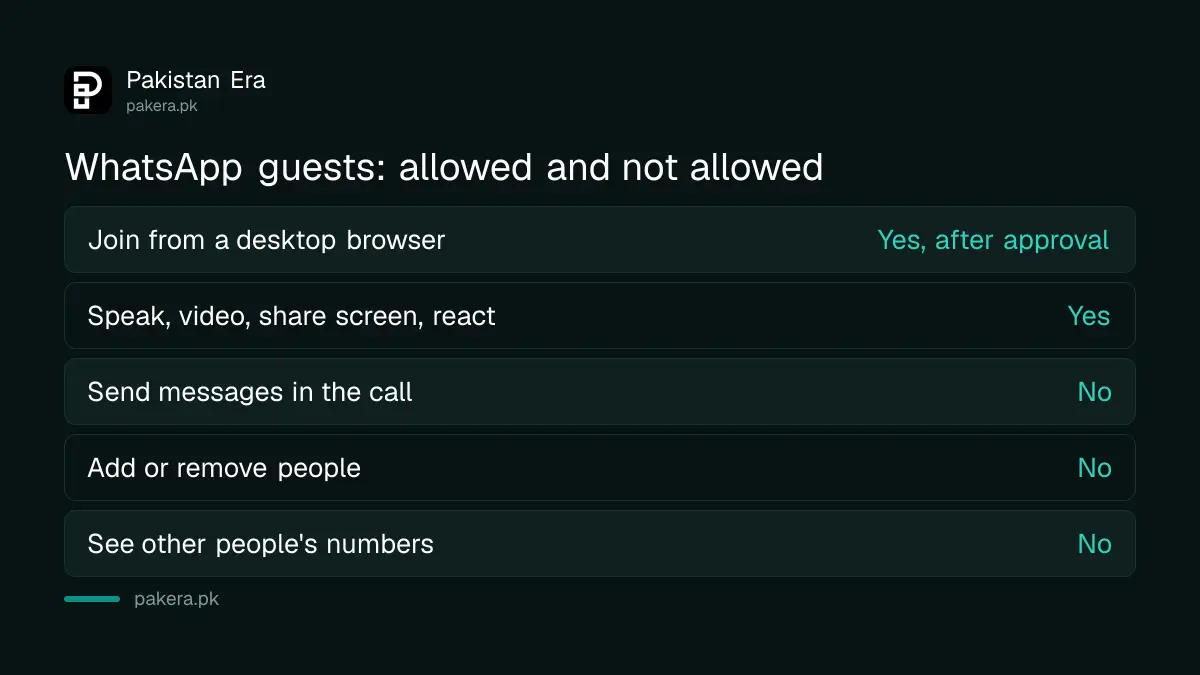
| Action | WhatsApp user on the call | Guest without an account |
|---|---|---|
| Join through the link | Yes, from the app or browser | Yes, desktop browser only, after approval |
| Speak, use video, share screen, react | Yes | Yes |
| Send messages in the call | Yes | No |
| Add or remove people | Only the link creator can remove | No |
| Create a new call or link | Yes | No |
| See other participants' numbers | Yes, for contacts | No |
Calls are free and encrypted, but the time limit wording differs between two WhatsApp pages
The blog post says guest calls have no time limits and are end-to-end encrypted. The help page says a call on a link continues until everyone leaves or until 60 minutes have passed, and ends for guests if every WhatsApp user leaves while a guest is still waiting. WhatsApp's two pages do not match on this point.
Our reading is that the blog describes the general rule for calls, and the help page describes what happens to the link call when guests are involved. We could not test a call past 60 minutes, so plan an important lesson or meeting to fit inside an hour, or be ready to start a fresh link. If your call runs on and does not cut off, the blog wording was right for your case.
The group size also reads differently. The blog says guests can join group calls of up to 32 people. The help page on fixing link problems says a call link can hold up to 256 people. The 32 figure is the one WhatsApp attached to guests, so treat 32 as the safe planning number when guests are involved. Data charges still apply on both sides, the same as any WhatsApp call.
Where guest calling helps in Pakistan, and where it does not
Guest links suit a tuition class with students on laptops, a freelancer's client who refuses to install another app, a job interview, or a relative abroad who only uses a computer. It does not suit a guest who only has a phone, because WhatsApp promises browser joining on desktop only.
For groups that already live on WhatsApp, the ordinary call from the group chat is simpler, and the newer tools for group polls and the @all mention cover planning. For a scheduled meeting, WhatsApp says calendar add-ons for Google Calendar and Outlook will come later in 2026, so you can paste a WhatsApp link into an invite. Until then, create the link and paste it yourself.
If a stranger sends you a call link, you do not have to join, and WhatsApp's tools to silence unknown callers still apply to normal calls. A scammer on a call can still talk you into sharing a code, so never read out an OTP to anyone on a call.
Common questions about WhatsApp guest calls
Can someone without WhatsApp join my call?
Yes. From 14 October 2026, a person with no WhatsApp account can open your call link in a desktop browser, enter a name and join once you approve them.
Does guest calling cost money?
No. WhatsApp says guest calls are free. Both sides still use mobile data or Wi-Fi, which your operator charges for as usual.
Can a guest join from a phone browser?
WhatsApp's help page lists only desktop browsers: Chrome, Safari, Firefox and Edge. A guest on a phone should install WhatsApp instead.
Can a guest see my phone number?
No. WhatsApp says guests cannot see other participants' phone numbers, send messages or add anyone to the call.
How long does a call link last?
A link expires if it is not used for 30 days. WhatsApp can also revoke a link for privacy or security reasons.
How many people can join?
WhatsApp's blog says guests can join group calls of up to 32 people. Its help page says a call link can hold up to 256 people and the waiting room 128. Plan around 32 when guests are involved.
What if the guest is stuck in the waiting room?
Only the link creator can approve them. Open the participant list and tap the tick next to their name, or Approve all. If the call ended, send a new link.
How we verified this
What we checked, where we read it, and what we could not confirm.
Last checked 19 October 2026. The feature, the 32 person figure, the no cost and no time limit statements and the calendar plan come from WhatsApp's blog post of 14 October 2026. The steps, the 30 day expiry, the 128 person waiting room, the 60 minute wording and what guests can and cannot do come from WhatsApp's help page on creating and sharing call links, and the browser list and the 256 figure from its help page on fixing call link issues, both read on 19 October 2026. We did not run a guest call ourselves, so we cannot say how the feature behaves on your phone today or whether the rollout has reached every account in Pakistan.
About the author

Technology Journalist & Multimedia Producer
Ahmad Ali is a technology journalist and multimedia producer at Pakistan Era, joining the team in October 2026. He covers consumer technology and digital life for Pakistani readers, combining research with hands-on product testing.