How to Remove a Person or Object From a Photo Free on Your Phone in Pakistan
Remove a person or object from a photo free on Android or iPhone with Google Photos Magic Eraser: steps, the 3 GB RAM minimum and the fixes in Pakistan.
To remove an unwanted person or object from a photo for free in Pakistan, open the photo in the Google Photos app, tap Edit, search for "Magic Eraser", brush over the thing you want gone, and tap Erase. It costs nothing, works on Android and iPhone, and needs a phone with at least 3 GB of RAM and Android 8.0 or iOS 15.
Google made Magic Eraser, Unblur and Portrait light free for every Google Photos user from 15 May 2024. Before that, non-Pixel phones needed a paid Google One plan. So a stranger in your wedding photo, a wire across a mountain view in Naran, or a shopping bag on the table can go in about a minute, without any paid app.
Magic Eraser is free in Google Photos on most phones
Magic Eraser is a free tool inside the Google Photos app. It removes a selected person or object and fills the gap with a guess of what was behind it. You need only the app, a Google account and a phone that meets the minimum specification.
| Tool | What it does | Cost | Minimum phone |
|---|---|---|---|
| Magic Eraser | Removes a person or object you brush over | Free | 3 GB RAM, Android 8.0 or iOS 15 |
| Unblur | Sharpens a blurry photo | Free | 4 GB RAM |
| Portrait light | Adds or balances light on faces | Free | 4 GB RAM |
| Magic Editor | Moves or resizes people and objects | 10 saves a month free, more on Pixel or 2 TB Google plans | 3 GB RAM, Android 8.0 or iOS 15 |
| Ask (edit by typing) | Edits from a typed request such as "remove the glare" | Free where rolled out | Age 18 or over, personal Google account |
To check your RAM on Android, open Settings, then About phone. On most Samsung, Infinix, Tecno and Xiaomi phones the RAM figure sits on that screen. Older phones with 2 GB of RAM will not show the tool at all.
How to erase a person or object with Magic Eraser
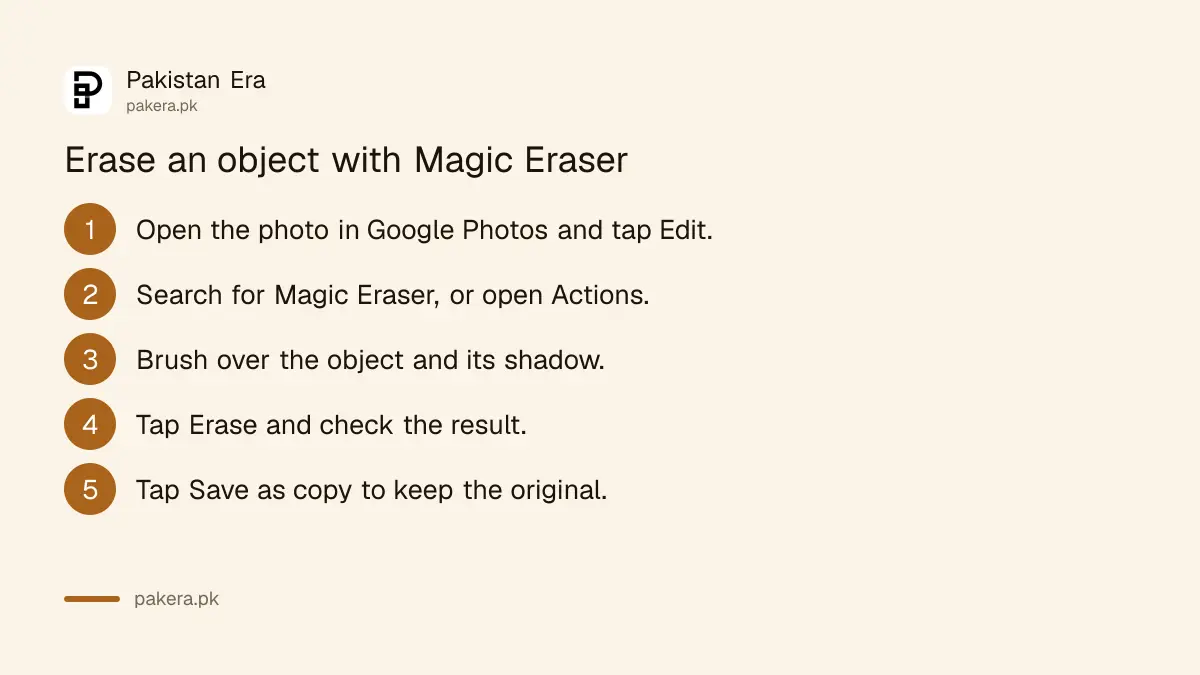
Open the photo in Google Photos, tap Edit, find Magic Eraser under Actions or through the search box, brush over the object and tap Erase. Then save. The whole job takes under a minute on a mid-range phone.
- Update Google Photos from the Play Store or App Store.
- Open the photo you want to fix and tap Edit.
- Tap the search icon and type Magic Eraser. On some versions it sits under Actions or Tools instead.
- Tap the object, draw a circle around it, or brush over it. Use Add or Subtract to fix the selection.
- Tap Erase, check the result, then tap Done.
- Tap Save to update the photo, or Save as copy to keep the original as well.
Brush a little wider than the object. Shadows and reflections are separate from the object itself, so brush over them too, or the photo shows a dark patch where the person stood.
Use Camouflage when erasing looks wrong
Some objects are too big to erase cleanly, like a bright red car behind a group photo. Camouflage changes the colour of the selected object so it blends into the background instead of disappearing. It is in the same Magic Eraser screen on phones that offer it.
Save a copy so you can always go back
Tap Save as copy if you might need the untouched photo later. A normal Save lets you undo the edit later through Edit and Revert, but a copy keeps both versions side by side and works on every phone and album.
Google's help page lists three rules worth knowing:
- On Android 10 or lower, some edits can only be saved as a copy.
- In a shared album, a photo someone else took can only be saved as a copy.
- Edits saved as a copy cannot be undone or adjusted later, so keep the original.
To compare your edit with the original, press and hold the photo preview while editing. If your phone is short of storage, set up Google Photos backup and its free 15 GB before you start saving copies of large photos.
Fixes when Magic Eraser is missing or the result is poor
A missing Magic Eraser usually means an old app version, a phone under 3 GB of RAM, or an Android version below 8.0. A smudged result usually means the selection was too tight or the object covered too much of the photo.
| Problem | Fix |
|---|---|
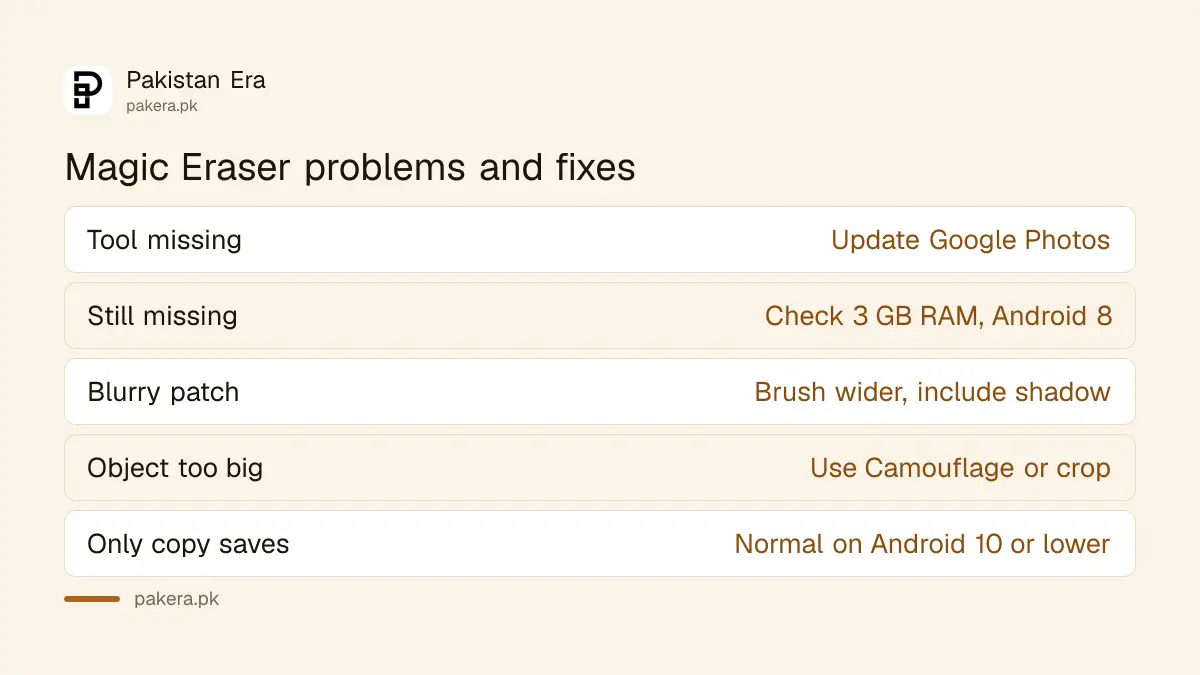
| No Magic Eraser in Edit | Update Google Photos, then search "Magic Eraser" inside Edit |
| Still missing after update | Check RAM and Android version in Settings, About phone |
| Blurry patch where the object was | Undo, brush wider, include the shadow, erase again |
| Object is half the photo | Use Camouflage, or crop the photo instead |
| Save button only offers a copy | Normal on Android 10 or lower and in shared albums |
Samsung Galaxy phones also have their own object eraser in the Gallery app, and newer models add Galaxy AI tools. Those are covered in free Galaxy AI features in Pakistan. For product photos where you only want to cut out the background, free background removal for sellers is the quicker tool.
Do not use AI edits on photos for official documents
Never use Magic Eraser or any AI edit on a photo for a CNIC, passport, visa, exam form or job application. Official photos must show you as you are, and an edited photo can get a form rejected or treated as false.
The same caution applies to photos of other people. Removing an ex from a group photo is your own business. Changing a photo to put someone in a false light, or to fake evidence, can be an offence under Pakistan's cybercrime law. Google adds hidden marks to some AI-edited images, and anyone can test a picture with the SynthID detector for AI photos.
Magic Eraser works on the copy on your phone and in your Google account. It does not change a photo you already sent on WhatsApp or posted on Facebook, so edit before you share.
Common questions
Is Magic Eraser free in Pakistan?
Yes. Google made Magic Eraser free for all Google Photos users from 15 May 2024. You do not need Google One or a Pixel phone. Your phone needs at least 3 GB RAM and Android 8.0 or iOS 15.
Can I use Magic Eraser on an iPhone?
Yes. Install Google Photos from the App Store, open the photo, tap Edit and find Magic Eraser under Actions. The iPhone needs iOS 15 or later.
Why don't I see Magic Eraser in Google Photos?
Update the app first. If it is still missing, the phone may have less than 3 GB of RAM or an Android version below 8.0. Tablets and older phones often fall short.
Does Magic Eraser work without internet?
The edit itself runs on your phone. You need internet to download app updates and to sync the saved photo to your Google account.
Can I undo a Magic Eraser edit?
Yes, if you used Save. Open the photo, tap Edit, then Revert. If you used Save as copy, the original stays untouched as a separate photo.
How many Magic Editor saves do I get free?
Google gives Android and iPhone users 10 Magic Editor saves a month for free. Magic Eraser itself has no monthly limit.
How we verified this
What we checked and where we read it.
Last checked 25 November 2026. We read Google Photos Help, Edit your photos (Android), for the Magic Eraser steps, the RAM and Android requirements, Save and Save as copy, and Revert. The free availability from 15 May 2024, the 10 monthly Magic Editor saves and the iOS 15 minimum come from Google's announcement on the Google blog. Menu names vary by app version: on some phones the tool appears under Actions, on others through the search box in Edit.
Free on WhatsApp
Get last dates and rule changes on WhatsApp
We post new last dates, fee changes and fixes for common problems, a few short posts a day.
Follow Pakera on WhatsAppOther followers cannot see your number.
Pakera Solves It
Which online process wasted your time this week?
A portal that will not load, a form nobody explains, a complaint that went nowhere. Tell us. Every week we pick one, solve it step by step and publish the answer.
About the author

Technology Journalist & Multimedia Producer
Ahmad Ali is a technology journalist and multimedia producer at Pakistan Era, joining the team in October 2026. He covers consumer technology and digital life for Pakistani readers, combining research with hands-on product testing.