How to Set Up Screen Time and Parental Controls on Your Child's iPhone in Pakistan
Set up Screen Time and parental controls on your child's iPhone in Pakistan with Family Sharing: limit apps, pick contacts, set time limits and filter content.
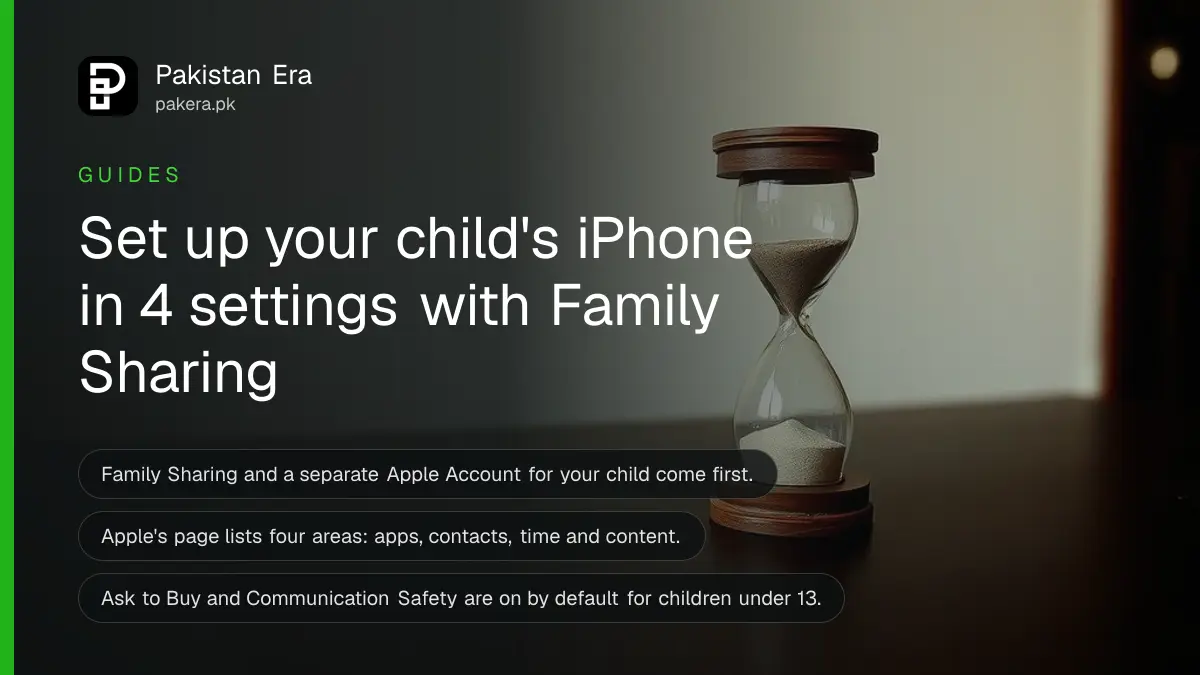
Short answer: Set up Family Sharing, give your child their own Apple Account, then open Settings, Family and choose your child. From there you can limit apps and websites, choose who they can contact, set time allowances and filter content. Apple's page asks for iOS 27 or later.
Many Pakistani parents hand over an old iPhone and hope for the best. Then the screen time grows, a game takes money from your card, or a stranger messages your child. Apple's built-in tools can stop most of that for free, and they take about fifteen minutes to set up.
We read Apple's support page on parental controls on 14 October 2026. It is written for iOS 27, which Apple released in September 2026, so older iPhones may show different screens. Our guide to iOS 27 and supported iPhones lists which models can update.
Family Sharing comes before every other setting
Apple says the parent must set up Family Sharing first, and the child must have their own Apple Account, not a shared one. All the devices should run iOS 27 or later. Without this, the controls under Settings, Family will not appear for your child.
Create the child's Apple Account from your own iPhone, so it joins your family group at once. Use an email address you can reach, and write the account password in a safe place. Do not share your own Apple Account with the child. A shared account gives the child access to your purchases, messages and photos.
If you are on Android at home, the same job is done by Google's Family Link. See how to set a daily screen time limit on your child's Android phone.
Four menus cover apps, contacts, time and content
Apple's page names four areas under Settings, Family, your child's name: Apps & Websites, Allowed Contacts, Time Allowances or Screen Time Schedule, and Content & Privacy Restrictions. Work through them in that order and you cover most risks.
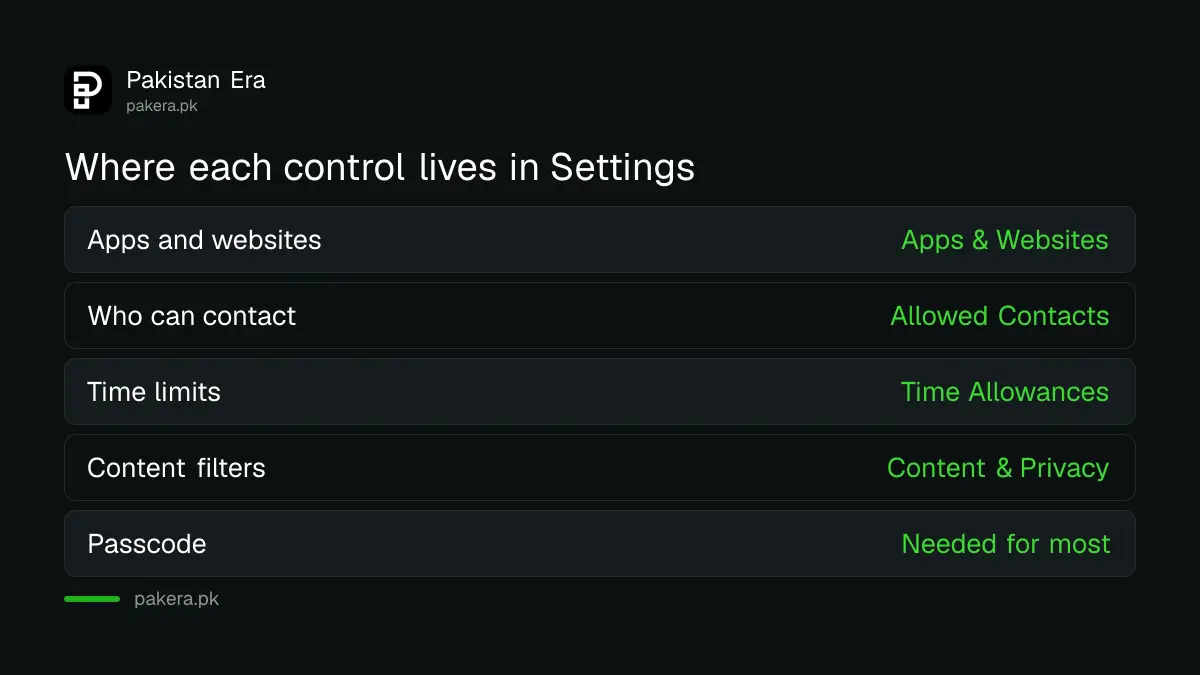
| Control | Where to find it | What it does |
|---|---|---|
| Apps and websites | Settings, Family, child, Apps & Websites, Restrictions | Limits which apps and sites the child can use |
| Who can contact | Settings, Family, child, Allowed Contacts | Chooses who can call or message |
| Time | Settings, Family, child, Time Allowances or Screen Time Schedule | Sets daily time and quiet hours |
| Content | Settings, Family, child, Content & Privacy Restrictions | Filters content and privacy settings |
The last column paraphrases what each menu is for. The menu paths are the ones Apple lists. If your iPhone shows slightly different words, look for the same idea.
Start with the contact list and the schedule
For a young child, set Allowed Contacts first so only family and known friends can reach them. Then set a Screen Time Schedule for school nights and bedtime. These two settings prevent the most common problems: strangers and late-night scrolling.
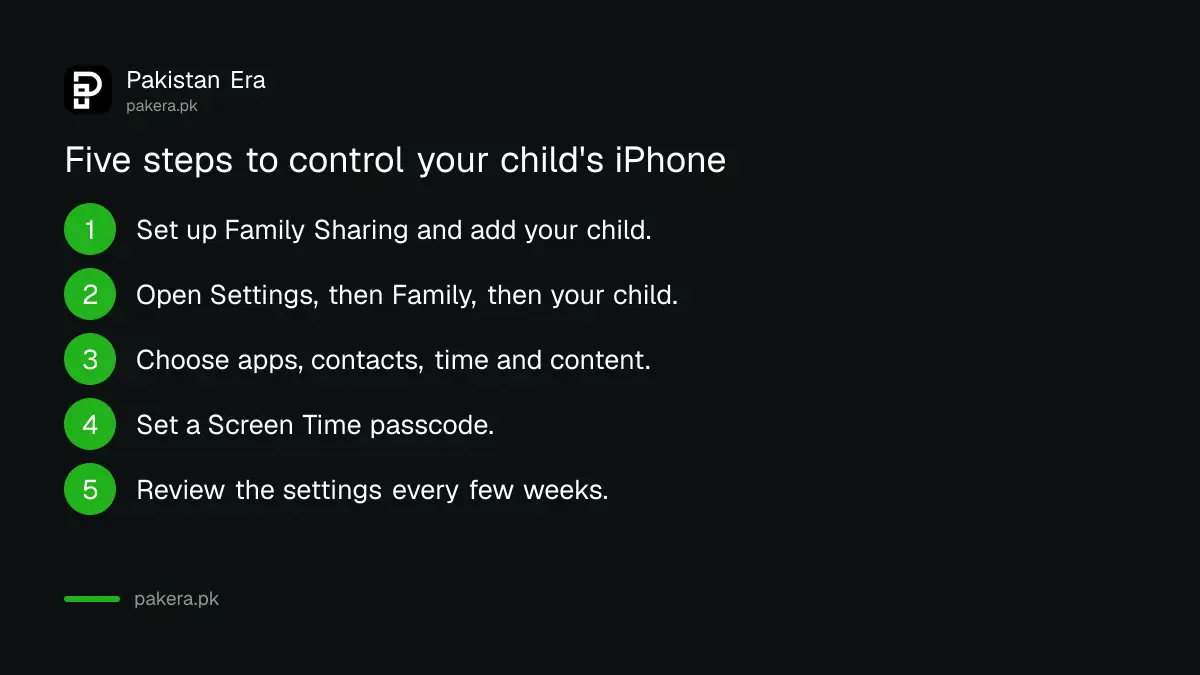
- Open Settings, then Family, then tap your child's name.
- Open Allowed Contacts and choose who the child can communicate with.
- Open Time Allowances or Screen Time Schedule and set the hours and daily limit.
- Open Apps & Websites and add Restrictions for games and social apps you do not want.
- Open Content & Privacy Restrictions and turn on the filters that suit the child's age.
Sit with your child while you do this. Explain each rule. A child who understands why the phone locks at nine is less likely to look for a way around it. For teenagers, talk first and agree on the limits together.
The same approach works inside apps. If your child uses TikTok, add its own controls with TikTok Family Pairing.
Protect the passcode and know the defaults
Apple says you need your Screen Time passcode to open most parental control sections, and that Ask to Buy, Ask to Browse and Communication Safety are on by default for children under 13. Pick a passcode your child cannot guess, and never use the phone unlock code.

Ask to Buy sends you a request when your child wants to download an app or buy something. This protects your card. In Pakistan, where many people use a card in a hurry, that matters. Apple also notes that some settings cannot be turned off, depending on your country or region.
Controls on the phone are only one layer. Pakistan's telecom regulator also publishes a list of free tools for parents. Read about how to set up parental controls on a child's phone for the wider picture, including network-level options.
Finally, keep your own phone updated. A child who is clever with settings can find gaps in old software.
Common questions
Do I need Family Sharing for Screen Time?
Yes. Apple's page says Family Sharing must be set up first, and the child needs their own Apple Account.
Which iOS version do I need?
Apple's page says all the devices should be on iOS 27 or later. Older versions may show different menus.
What is Ask to Buy?
It sends you an approval request when your child tries to download an app or make a purchase. Apple turns it on by default for children under 13.
Can my child turn off Screen Time?
Not without the Screen Time passcode, which Apple says is needed for most parental control sections. Keep it secret.
Does this work on a shared family iPad?
It works for any device signed in to your child's own Apple Account in your family group. Use the same menus under Settings, Family.
How we verified this
What we checked, where we read it, and what we could not confirm.
Last checked on 14 October 2026, Pakistan time. We read Apple Support's page on parental controls and Screen Time. That page refers to iOS 27 and warns that some settings cannot be turned off in certain places. We did not test the steps on an iPhone, we did not check Pakistan-specific differences, and the page did not state the minimum age for an Apple Account in Pakistan. Confirm the current screens on your own device.
About the author

Technology Journalist & Multimedia Producer
Ahmad Ali is a technology journalist and multimedia producer at Pakistan Era, joining the team in October 2026. He covers consumer technology and digital life for Pakistani readers, combining research with hands-on product testing.