WhatsApp is one of the most used messaging apps in the world, and having access to it on your PC can make daily life much easier, especially for people who work on computers for long hours. Instead of constantly picking up your phone to reply to messages, you can manage your chats directly from your desktop or laptop.
Whether you want to send messages while working, share files quickly, or simply keep your conversations synced across devices, WhatsApp on PC is a very convenient option. The setup process is also simple and only takes a few minutes.
How to Access WhatsApp on Your PC
Using WhatsApp on a computer is straightforward. You can either use it directly from your browser through WhatsApp Web or install the official desktop application on your PC.
First, open your browser and search for WhatsApp Web. Open the official website, and you will see two options. You can either continue using WhatsApp in your browser or download the desktop application from the top corner of the page.
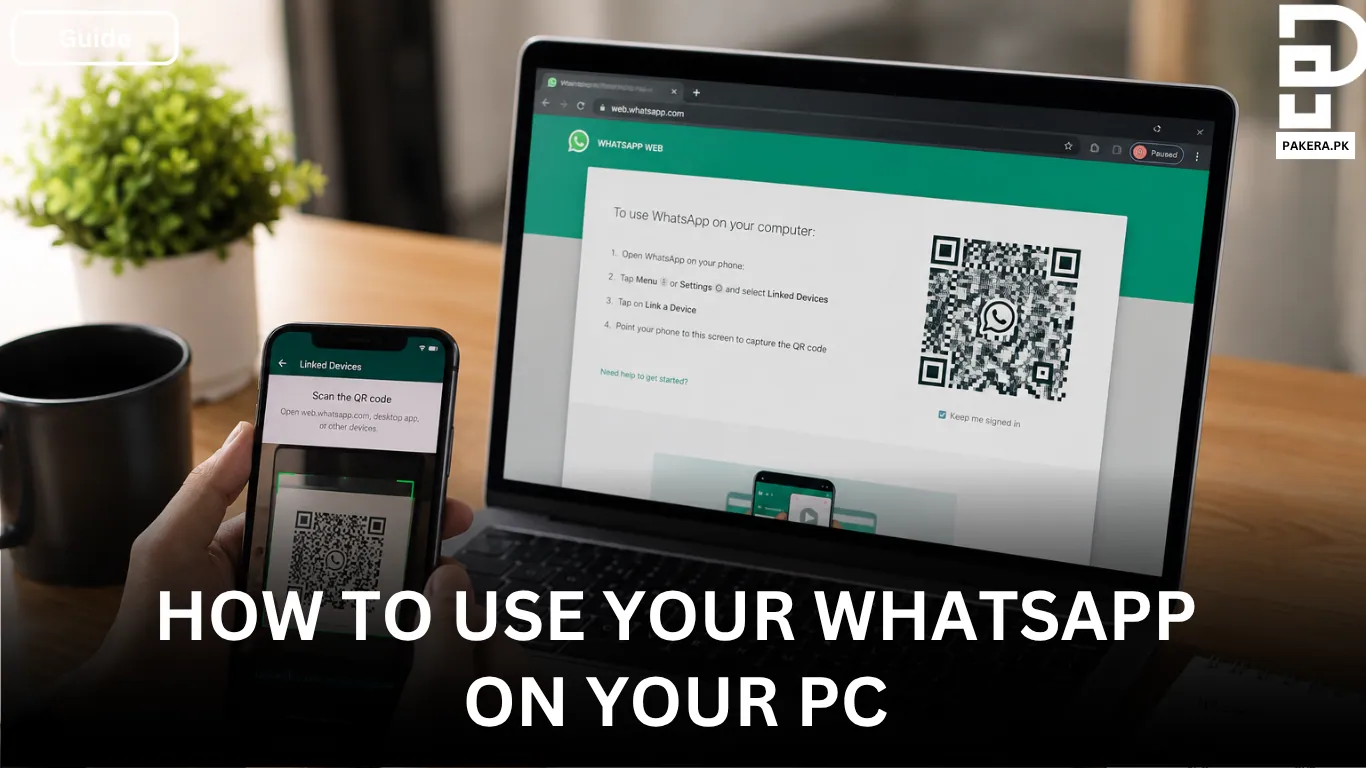
Once the website or application opens, a QR code will appear on the screen. This QR code is used to connect your mobile WhatsApp account with your PC.
Connecting Your Phone to WhatsApp Web
To connect your account, open WhatsApp on your mobile phone and go to the settings section. Inside the settings, you will find the “Linked Devices” or “Connected Devices” option depending on your phone version.
Tap on it and select the option to link a device. Your phone camera will open automatically. Simply scan the QR code displayed on your PC screen, and within a few seconds your WhatsApp account will be connected to your computer.
After the connection is complete, all your chats, messages, and media will appear on your PC, allowing you to use WhatsApp without touching your phone repeatedly.
WhatsApp Web vs WhatsApp Desktop App
Both versions work similarly, but there are small differences between them.
Using WhatsApp Web
WhatsApp Web works directly inside your browser. You do not need to install anything, making it a quick option for people who only use WhatsApp occasionally on their computers.
It works well on browsers like Google Chrome, Microsoft Edge, and Firefox.
Using the WhatsApp Desktop App
The desktop app is a better choice for people who use WhatsApp regularly while working. It usually feels smoother and more stable compared to the browser version.
The app also keeps WhatsApp separate from your browser tabs, which helps many users stay organized during work.
Important Things to Know
There are a few things users should remember while using WhatsApp on a PC.
Session Expiry
WhatsApp login sessions can expire if unused for a long time. Sometimes the app automatically logs out for security reasons. If that happens, you simply need to scan the QR code again from your phone to reconnect the account.
One-Time View Media Does Not Work
You cannot access one-time view photos or videos on your PC. These files can only be opened on the mobile application for privacy and security reasons.
Tips for Better Use
Using WhatsApp on a PC becomes even more useful when you take advantage of a few simple habits:
- Keep your phone connected to the internet for smoother syncing.
- Use keyboard shortcuts for faster messaging.
- Download the desktop app if you use WhatsApp daily for work.
- Log out from shared or public computers for security.
Frequently Asked Questions
You still need your phone to link the device for the first time. After linking, WhatsApp can continue working on your PC even if your phone is temporarily offline in many cases.
Yes, WhatsApp Web and the desktop application are completely free to use.
Yes, the desktop application supports voice and video calls. However, some browser versions of WhatsApp Web may have limited calling features.
WhatsApp may log you out because of inactivity, browser cache issues, or security reasons. You can log back in by scanning the QR code again.
No, one-time view photos and videos are only accessible through the mobile application.
Conclusion
Using WhatsApp on your PC is a simple way to make communication faster and more convenient, especially for people who spend most of their time working on computers. Whether you choose WhatsApp Web or the desktop app, the setup process only takes a few minutes and can save you from constantly switching between your phone and your PC.
Once connected, you can easily manage chats, send files, and stay connected while continuing your work without interruptions.