How to Set an Out of Office Auto Reply in Gmail in Pakistan, on Phone or Computer
Set a Gmail out of office auto reply in Pakistan on a computer or the Gmail app, see how the vacation responder works, copy ready messages, fix failures.
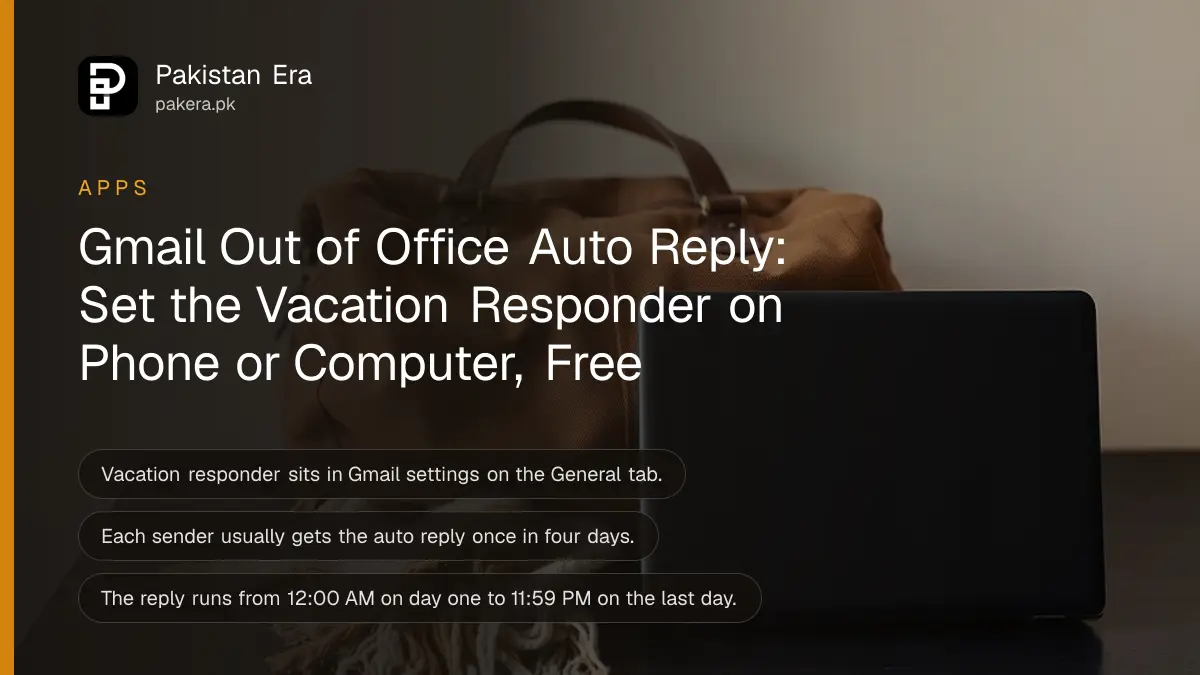
To set an automatic reply in Gmail on a computer, click Settings, then See all settings, scroll to Vacation responder on the General tab, select Vacation responder on, fill in the dates, subject and message, and click Save Changes. In the Gmail app, tap Menu, Settings, your account, Vacation responder, and switch it On. It is free on every Gmail account.
December is when most Pakistani offices, schools and universities slow down, with winter vacations, year-end leave and family trips. An out of office reply tells clients, students and colleagues you are away, when you are back, and who to contact meanwhile, so nobody waits on an email you will not read for two weeks.
How to set up the Gmail vacation responder on a computer
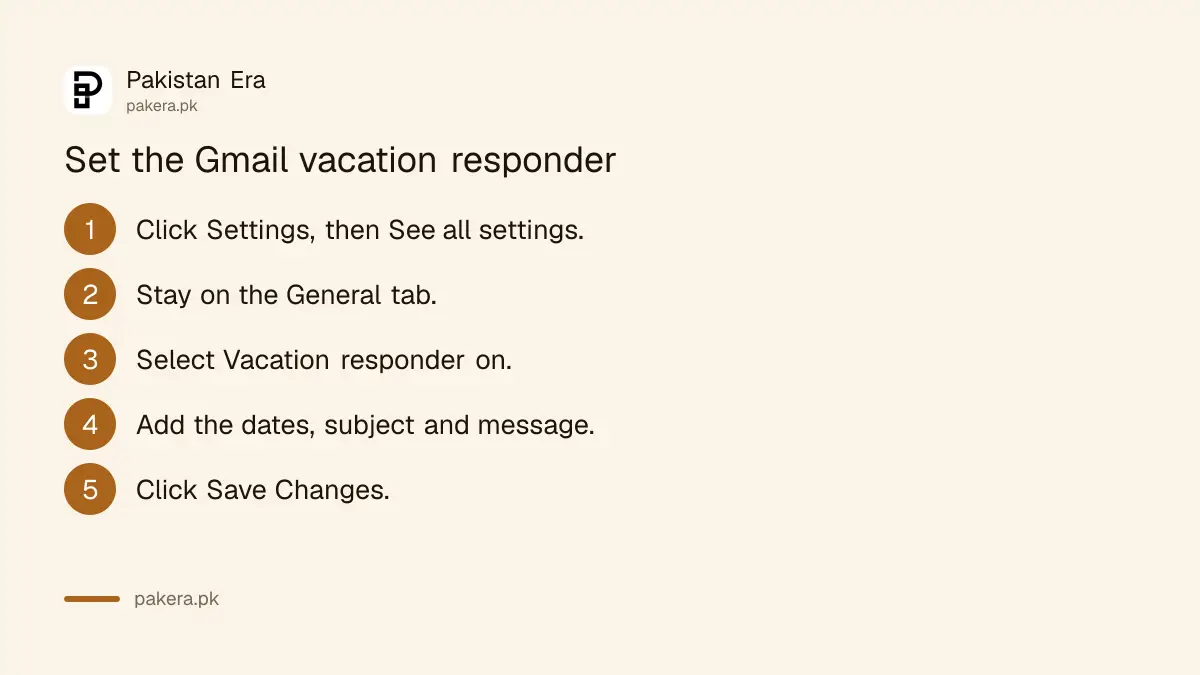
The computer route gives you the most control. Open Gmail's full settings, turn on Vacation responder in the General tab, set the first and last day, write the subject and message, and save. A banner across your inbox reminds you it is on.
- Open Gmail in a browser on your computer.
- At the top right, click the Settings gear, then See all settings.
- Stay on the General tab and scroll to Vacation responder.
- Select Vacation responder on.
- Fill in the first day, the last day, the subject and the message.
- Optional: tick the box to send the reply only to people in your contacts.
- Click Save Changes at the bottom of the page.
Your signature is added below the reply automatically. To stop the reply early, click End now on the banner at the top of your inbox.
How to set an auto reply in the Gmail app
The Gmail app on Android and iPhone has the same Vacation responder, under your account's settings. Turn the switch on, set the dates, subject and message, and tap Done. Turn the switch off when you are back.
- Open the Gmail app.
- At the top left, tap Menu (three lines), then Settings.
- Tap the account you want the reply on.
- Tap Vacation responder and turn the switch On.
- Fill in the dates, subject and message, then tap Done.
The setting belongs to the account, not the device. Set it on your phone and it works for mail opened on your laptop too. If you have two Gmail accounts, set it on each one separately.
How the Gmail auto reply works
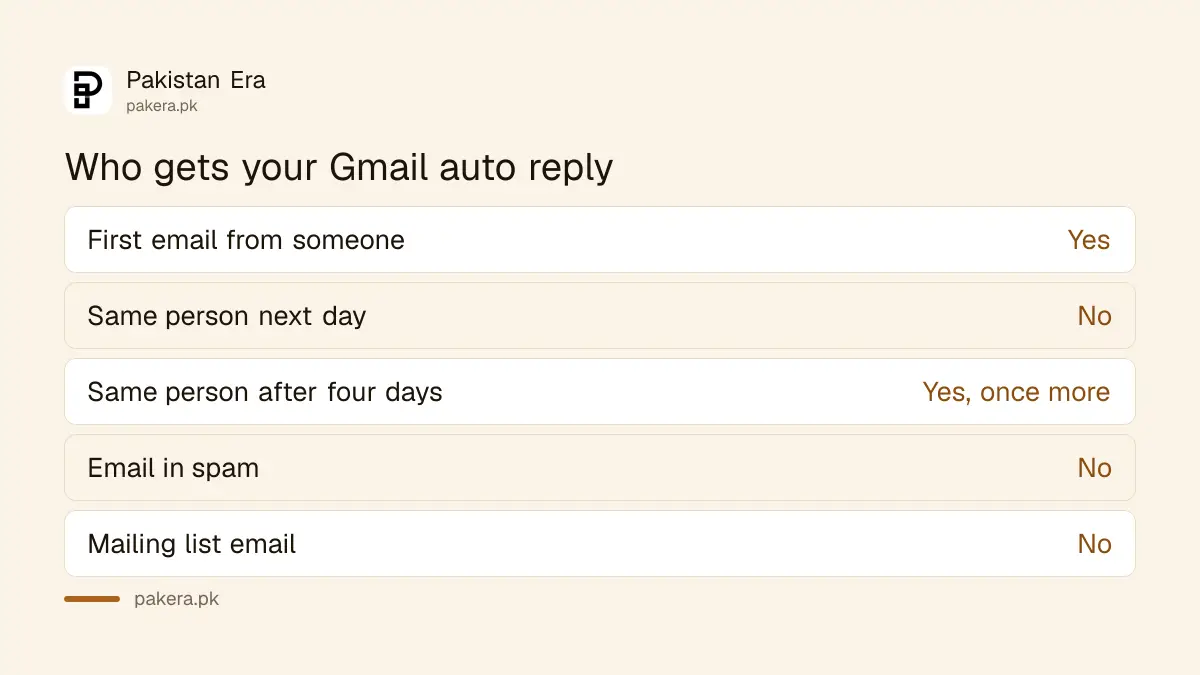
The reply starts at 12:00 AM on the first day and ends at 11:59 PM on the last day. Each person usually gets it only once, the first time they write. They get it again if they write after four days, or after you edit the message.
| Situation | Does the sender get your auto reply? |
|---|---|
| Someone emails you for the first time while you are away | Yes |
| Same person emails again the next day | No |
| Same person emails again after four days | Yes, once more |
| You edit the message, then they email again | Yes, they get the new version |
| The email lands in your spam folder | No |
| The email comes through a mailing list you joined | No |
Set the last day as the day before you return. If you come back on Monday 4 January, end the reply on Sunday 3 January, so Monday's emails get a normal answer from you.
Out of office messages you can copy
A good auto reply says four things: you are away, the date you are back, whether you will read email, and who to contact for urgent work. Keep it short. Do not share your home address, travel plans or a personal mobile number with every sender.
For office work
Subject: Out of office until 3 January
"Thank you for your email. I am on leave until Sunday 3 January with limited access to email. For urgent matters, please contact [name] at [work email]. I will reply when I am back on Monday 4 January."
For teachers and university staff
Subject: Winter vacation
"Thank you for your message. The campus is closed for winter vacation and I will reply when classes resume. For admissions or fee queries, please contact the admin office at [office email]."
For a small business
Subject: We are closed until 2 January
"Thank you for contacting us. Our office is closed for year-end holidays and reopens on 2 January. Orders placed now will be processed after we reopen."
Replace the dates with your own. Put the dates in the subject line too, so people see them without opening the reply.
Fixes when the auto reply does not send
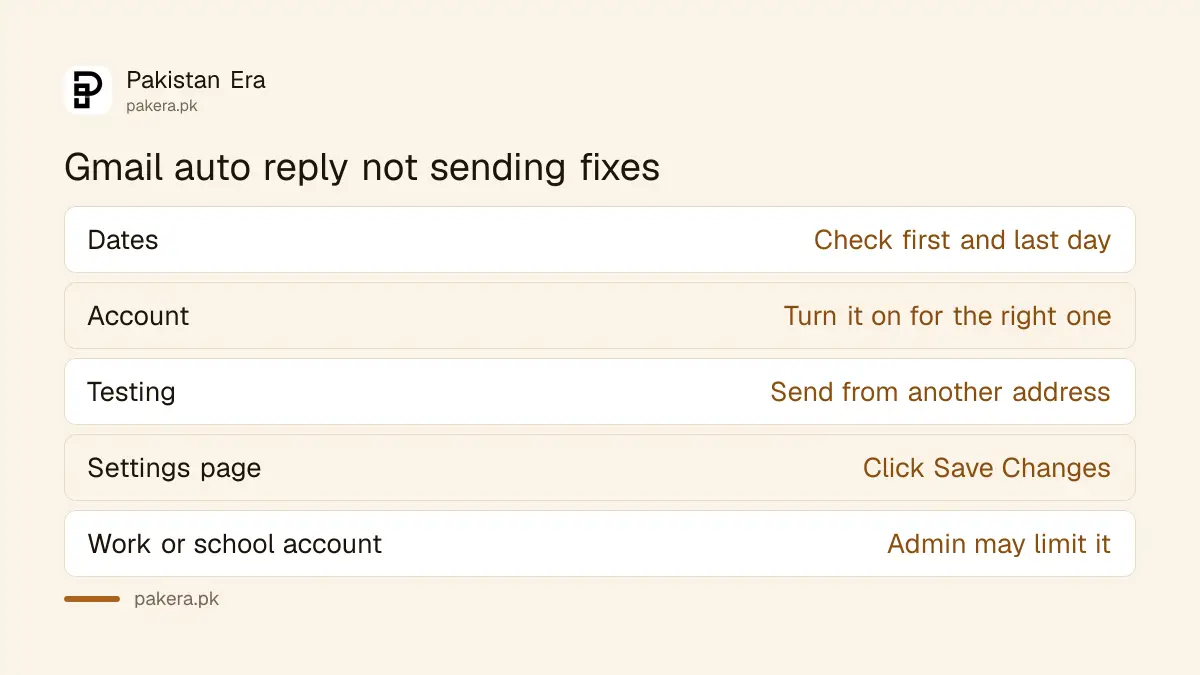
The usual causes are a wrong date range, the switch saved on a different account, or the test email sent from your own address. Gmail does not send the reply to spam or mailing list mail, and each person gets it only once in four days.
- Check the dates. The reply runs only between the first and last day you set.
- Check the account. In the app, make sure you turned it on for the right account.
- Test from another address. Send a test email from a friend's or a second account, not from yourself.
- Click Save Changes. On a computer, leaving the settings page without saving loses the reply.
- Work or school account? Your admin may limit auto replies to people inside your organisation.
Mail not arriving at all is a separate problem, covered in Gmail not receiving emails. For emails you want to send while away, use schedule send in Gmail and write them before you leave. If spam fills your inbox during the break, blocking senders and unsubscribing clears it. A business on its own domain can set the same reply after setting up email with Google Workspace.
Common questions
Is the Gmail vacation responder free?
Yes. Every Gmail account has it, on a computer and in the Gmail app, at no cost.
Does the auto reply go to every email I get?
No. Each person usually gets it once, the first time they email you. They get it again only after four days, or if you edit the message.
Can I send the auto reply only to people I know?
Yes. Tick the box under the message to send it only to people in your contacts.
What time does the Gmail auto reply start and stop?
It starts at 12:00 AM on the first day and stops at 11:59 PM on the last day, unless you end it earlier.
How do I turn off the Gmail auto reply early?
On a computer, click End now on the banner at the top of your inbox. In the app, turn off the Vacation responder switch.
How we verified this
What we checked and where we read it.
Last checked 24 November 2026. Steps and rules come from Gmail Help, Create a vacation responder or automatic reply in Gmail, computer and Android versions. The message templates are our own suggestions.
Free on WhatsApp
Get last dates and rule changes on WhatsApp
We post new last dates, fee changes and fixes for common problems, a few short posts a day.
Follow Pakera on WhatsAppOther followers cannot see your number.
Pakera Solves It
Which online process wasted your time this week?
A portal that will not load, a form nobody explains, a complaint that went nowhere. Tell us. Every week we pick one, solve it step by step and publish the answer.
About the author

Technology Journalist & Multimedia Producer
Ahmad Ali is a technology journalist and multimedia producer at Pakistan Era, joining the team in October 2026. He covers consumer technology and digital life for Pakistani readers, combining research with hands-on product testing.