How to Lock or Hide a Banking or Wallet App on Your iPhone in Pakistan
Touch and hold an app and tap Require Face ID, or choose Hide to move it to a Hidden folder. Protect bank, Easypaisa and JazzCash apps on your iPhone.
Short answer: On a recent iPhone, touch and hold the app icon, tap Require Face ID (or Touch ID or Passcode), and confirm. To also hide it, choose Hide and Require Face ID. The app then needs your face, finger or passcode every time, and a hidden app moves out of the Home Screen into a Hidden folder.
You hand your phone to a nephew to play a game, or to a relative to "just look at a photo". Your bank app, your Easypaisa and your JazzCash are one swipe away. Apple's lock and hide feature puts a second door in front of the apps that hold your money.
We read Apple's iPhone User Guide page "Lock or hide an app" on 12 October 2026. Below is what it says, applied to banking and wallet apps. We did not test it on a handset for this update.
Locking an app makes it ask for Face ID, Touch ID or your passcode
A locked app opens only after you authenticate, and it locks again each time you leave it. Apple says information inside a locked app also stops appearing in notification previews, search, Siri suggestions, CarPlay and your call history.
That second part matters for money apps. A wallet payment alert with an amount will not show on a lock screen preview where a person next to you could read it.
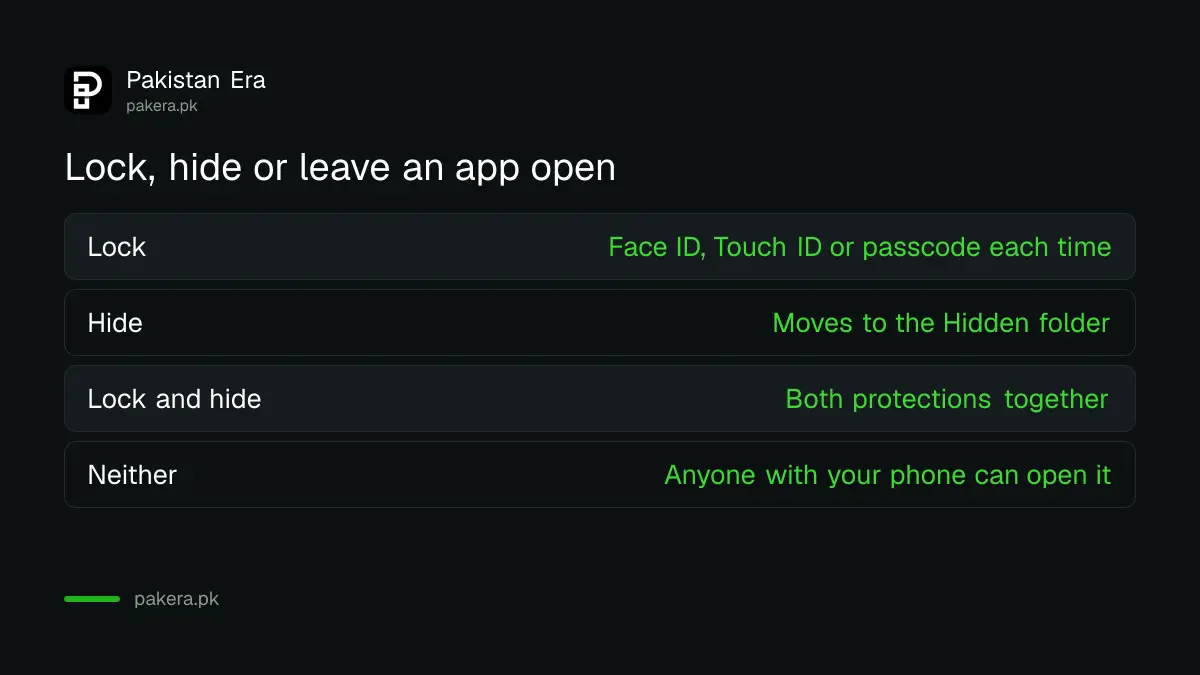
| Option | What it does | Best for |
|---|---|---|
| Lock | App needs Face ID, Touch ID or passcode each time | Bank and wallet apps you use daily |
| Hide | App leaves Home Screen, App Library and search, and sits in a Hidden folder | Apps you rarely open |
| Neither | Anyone with your unlocked phone can open it | Not for money apps |
The steps to lock or hide a bank or wallet app
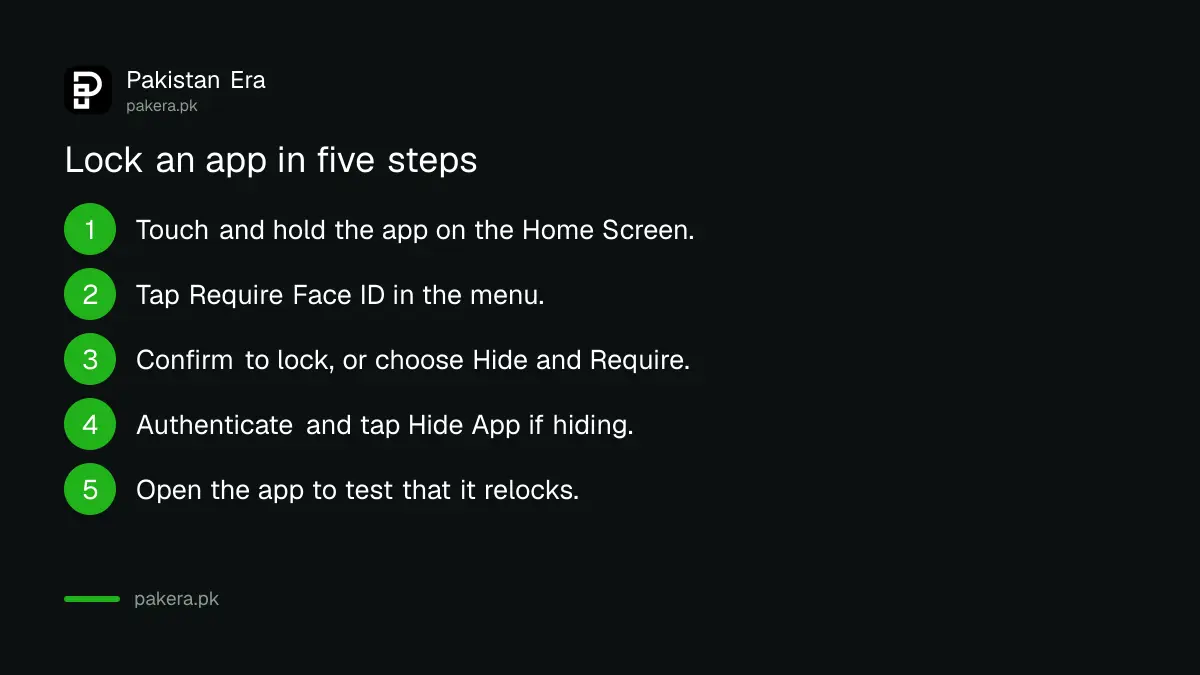
The steps take under a minute per app. You do them from the Home Screen using the Quick Actions menu, which opens when you touch and hold an icon.
- Go to the Home Screen and touch and hold the app you want to protect until the menu opens.
- Tap Require Face ID. On a phone with a fingerprint button it says Require Touch ID, and on others it says Require Passcode.
- To lock only, tap Require Face ID again to confirm.
- To lock and hide, tap Hide and Require Face ID, authenticate, then tap Hide App.
- Open the app to test it. It should ask for your face, finger or passcode, then relock after you leave.
Find a hidden app in the Hidden folder of App Library
A hidden app is not deleted. It moves to a Hidden folder at the bottom of App Library, and you need Face ID, Touch ID or your passcode to open that folder. It is also removed from search results.
If you hide a banking app and forget, do not reinstall it. Swipe to the end of App Library and open Hidden. Reinstalling may count as a new device for your bank, which can block payments for hours. The wait is explained in our note on the two hour wait on a new phone.
Know what the feature cannot do
Lock and hide protect against a casual user, not against someone who knows your passcode. If a thief watches you type your passcode and then takes the phone, the app lock falls with it, because the passcode opens locked apps too.
- Apps that came with the iPhone cannot be hidden. Only apps you downloaded from the App Store can be.
- An app you set as your default web browser cannot be hidden.
- The lock and hide setting stays on that one iPhone. It does not sync through iCloud, so a new phone needs the same steps again.
- Children under 13 in a Family Sharing group cannot lock or hide apps. A teenager aged 13 to 17 can, but a parent in the group can still see the app was downloaded and how long it is used.
These limits are in Apple's own page. The age bands can vary by country or region, so check how it behaves for a child's account.
Pair the lock with a long passcode and Apple's theft setting. Our guide to Stolen Device Protection on an iPhone covers the case where someone knows your passcode, and our page on how to block a lost or stolen phone covers the steps after a snatching.
Which apps to lock first
Lock the apps where a single tap moves money or exposes your identity. For most people in Pakistan that is a short list.
- Your bank's mobile app.
- Easypaisa and JazzCash.
- Your email app, because it resets other passwords.
- Photos and Files, if you keep scans of a CNIC or passport.
- WhatsApp, if you do not use its own chat lock.
WhatsApp has its own chat lock too. The steps for locking a WhatsApp chat are separate, and the two work together.
Common questions
Does the lock work on iOS versions before the latest?
Apple's page we read is from the current iPhone User Guide. If you do not see Require Face ID in the Quick Actions menu, update iOS in Settings, General, Software Update and try again.
Will I still get payment alerts from a locked app?
Apple says information from a locked app does not appear in notification previews. You may still get a notification, but without the content.
Can I use Face ID if I wear a mask or glasses?
Face ID settings are separate from this feature. If Face ID fails, the app asks for your passcode, so the passcode is your fallback.
Does hiding an app delete its data?
No. A hidden app and its data stay on the phone. Only its icon moves to the Hidden folder.
Is there an Android version of this?
Yes. Android has a feature called private space on Android 15 and later. We cover it in the steps to hide sensitive apps on Android.
How we verified this
What we checked, where we read it, and what we could not confirm.
We read Apple's Lock or hide an app on iPhone page on 12 October 2026. The steps may change with new iOS releases, so follow the on screen wording if it differs.
About the author

Technology Journalist & Multimedia Producer
Ahmad Ali is a technology journalist and multimedia producer at Pakistan Era, joining the team in October 2026. He covers consumer technology and digital life for Pakistani readers, combining research with hands-on product testing.