Wi-Fi Not Showing on Windows 11 Laptop in Pakistan: Missing Icon, Empty Network List and Adapter Fixes
Wi-Fi not showing on a Windows 11 laptop? Turn off Airplane mode, enable the adapter in Device Manager, restart WLAN AutoConfig and check 2.4 or 5 GHz.
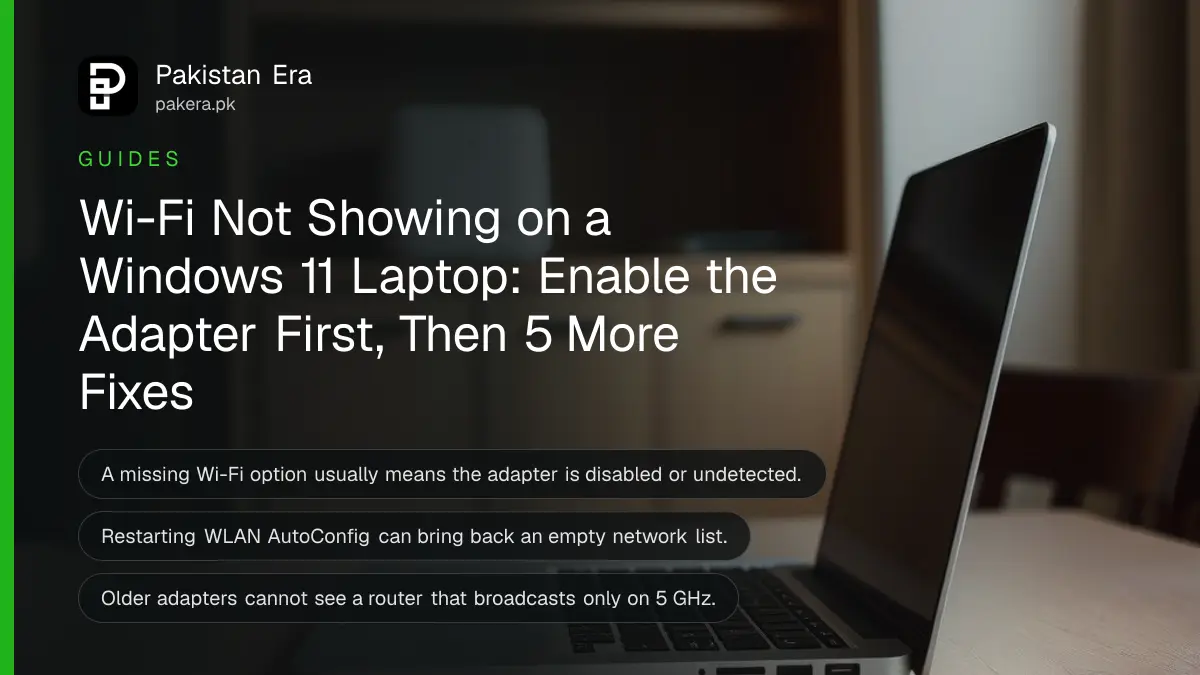
If Wi-Fi is not showing on a Windows 11 laptop, first turn off Airplane mode and turn Wi-Fi on under Settings > Network & internet. If the Wi-Fi option itself is missing, open Device Manager, expand Network adapters, right-click the Wi-Fi adapter and choose Enable device. A missing option almost always means Windows cannot see the adapter, so the fix is on the adapter or its driver, not on your router.
This page is for two problems: the Wi-Fi button or icon has vanished, or Wi-Fi is on but your home network is not in the list. If you can connect but pages do not load, that is a different fault, and the fixes for Wi-Fi connected but no internet cover it. We read Microsoft's page on fixing Wi-Fi connection issues in Windows on 31 October 2026.
Airplane mode and the Wi-Fi switch come first
Check Settings > Network & internet > Airplane mode is off, and that Wi-Fi is on in the same menu and on the taskbar. Some laptops also have a physical Wi-Fi switch. Microsoft lists all three before any deeper fix.
Start with the Network and Internet troubleshooter in the Get Help app. It runs checks and fixes common faults. Then look at the right side of the taskbar: select the network, sound or battery icons and make sure Wi-Fi is on. If your laptop has a hardware wireless switch on its side or front, make sure it is on too.
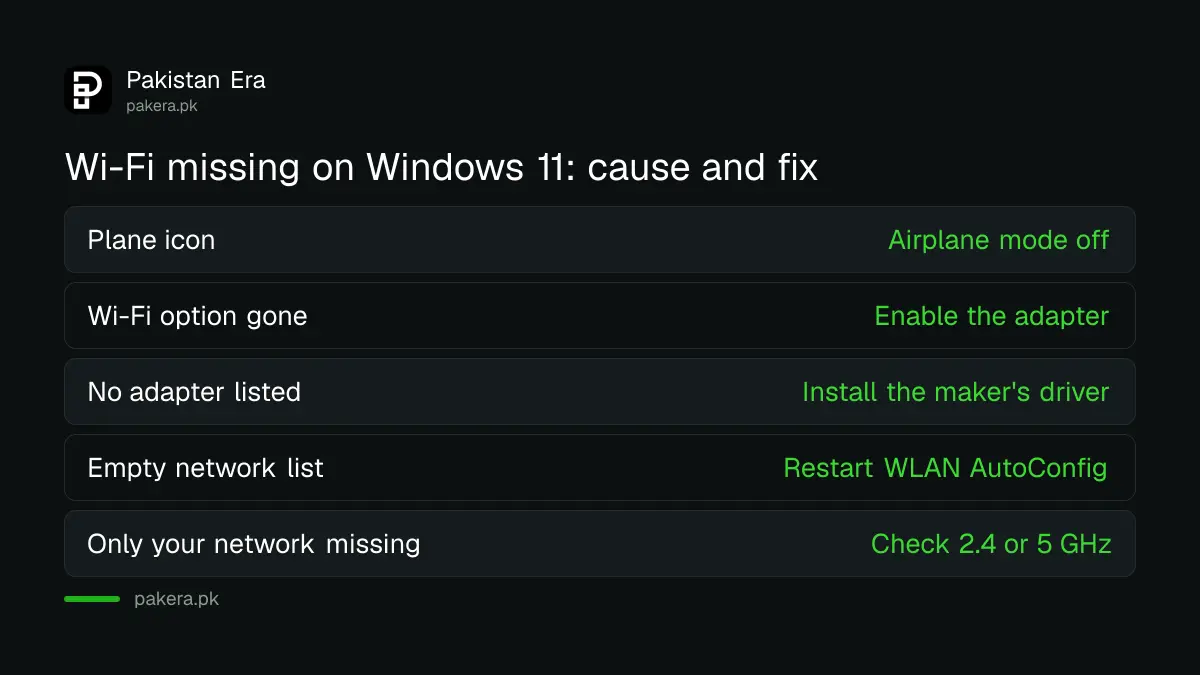
| What you see | Likely cause | Fix |
|---|---|---|
| Plane icon on the taskbar | Airplane mode on | Settings > Network & internet > Airplane mode off |
| Wi-Fi option missing in Settings | Adapter disabled or not detected | Device Manager > Network adapters > Enable device |
| No adapter listed at all | Driver missing | Install the driver from the laptop maker's site |
| Wi-Fi on, but no networks listed | WLAN AutoConfig service stopped | Restart WLAN AutoConfig in services.msc |
| Other networks show, yours does not | Band mismatch, 2.4 GHz or 5 GHz | Adapter Properties > Advanced > Wireless Mode or Band |
A missing Wi-Fi option means the adapter is off or not detected
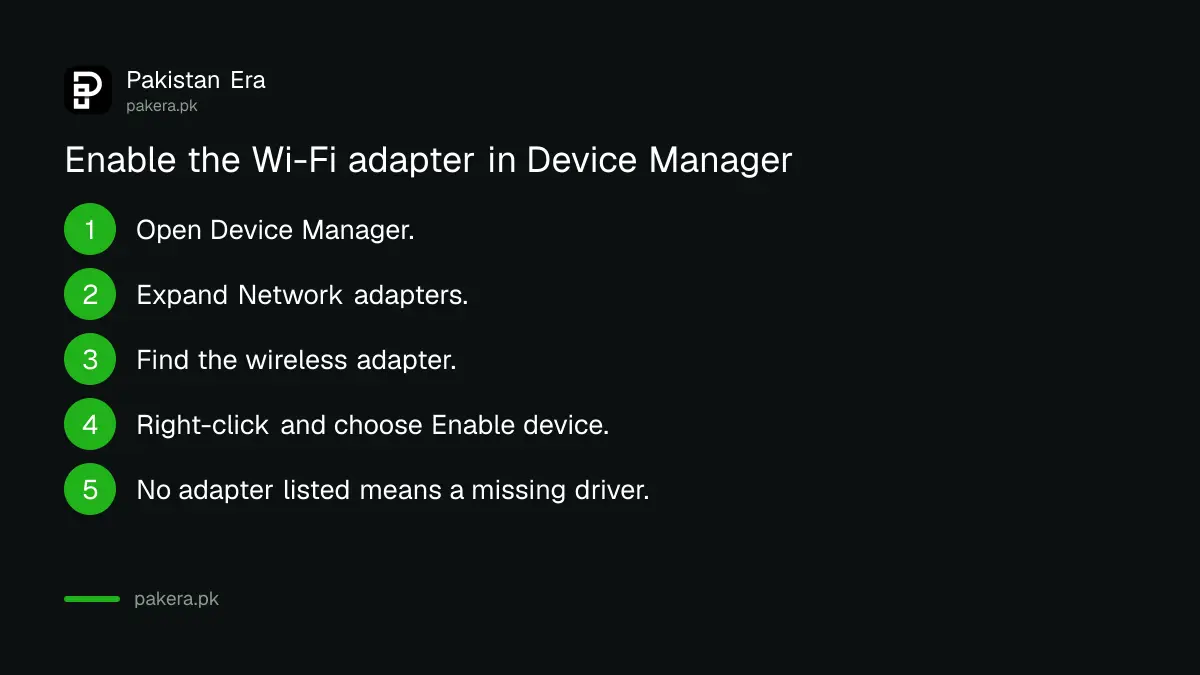
Search the taskbar for Device Manager, expand Network adapters, right-click the wireless adapter and choose Enable device. If no wireless adapter appears in the list at all, Windows is not detecting it, and you need its driver from the laptop maker.
- Search the taskbar for "device manager" and open it.
- Expand Network adapters.
- Find the adapter with "Wireless", "Wi-Fi" or "WLAN" in its name.
- Right-click it. If you see Enable device, choose it.
- If the adapter has a warning sign, open Properties and the Driver tab to compare its version with the maker's latest.
- If there is no wireless adapter at all, download the driver from the laptop maker's support site and install it.
Here is the catch: you need internet to download a driver, and your Wi-Fi is the thing that is broken. Use a LAN cable from the router if the laptop has a port, or share mobile data from your phone by USB, or download the driver on another computer and copy it across. Microsoft itself suggests downloading a backup driver before you uninstall the old one.
Restart WLAN AutoConfig when Wi-Fi is on but the list is empty
When Wi-Fi is switched on but no networks appear, restart the service that scans for them. Press Win + R, type services.msc and press Enter. Right-click WLAN AutoConfig and choose Restart.
This takes ten seconds and does not change any settings. If the list stays empty after a restart of the service and of the laptop, move on to the driver steps below.
Your network is missing but others show: check 2.4 GHz and 5 GHz
If you can see the neighbours' Wi-Fi but not your own, the laptop may not support the band your router uses. In Device Manager, open the adapter's Properties, then Advanced, and check Wireless Mode or Band matches 2.4 GHz or 5 GHz.
Older laptops often have 2.4 GHz-only adapters, so a router set to broadcast only on 5 GHz stays invisible to them. The other side of the fix is on the router. Many routers can split the two bands into separate names. On a Huawei router, for example, that is the Prioritize 5 GHz switch described in the Huawei router login steps, and on TP-Link it is in the TP-Link router settings.
Distance and walls also matter. A laptop in a back bedroom may simply be out of range, which the tips on where to place a Wi-Fi router address.
Update or reinstall the driver, then use network reset last
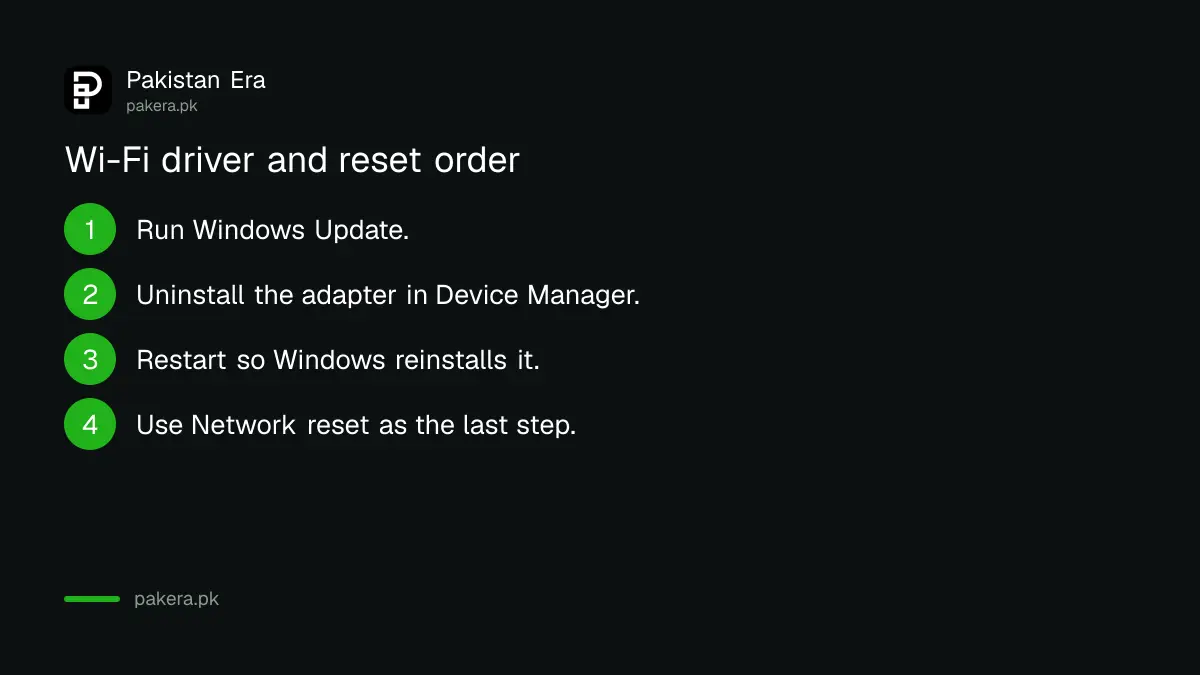
If none of the above works, update the Wi-Fi driver or uninstall it so Windows reinstalls it on restart. Network reset is Microsoft's last step. It removes and reinstalls every network adapter and resets network settings.
- Run Windows Update first.
- In Device Manager, right-click the adapter, choose Uninstall device and tick "Attempt to remove the driver for this device".
- Restart from Start > Power > Restart. Windows should reinstall the driver. If it does not, install the backup driver you downloaded.
- Still nothing? Go to Start > Settings > Network & internet > Advanced network settings > Network reset, select Reset now and confirm.
After a network reset, Microsoft warns, you may need to reinstall VPN software. Saved Wi-Fi passwords are also cleared, so note yours first using the steps to see a saved Wi-Fi password. If the adapter never comes back after all this, it may have failed, and a cheap USB Wi-Fi adapter is often quicker than a repair.
Common questions
Why has the Wi-Fi option disappeared in Windows 11?
Usually because the Wi-Fi adapter is disabled or its driver is missing. Enable it in Device Manager under Network adapters.
Why can I not see my 5 GHz Wi-Fi on my laptop?
The laptop's adapter may not support 5 GHz. Check Wireless Mode or Band in the adapter's Advanced properties, or set the router to broadcast 2.4 GHz as well.
What does WLAN AutoConfig do?
It is the Windows service that finds and connects to Wi-Fi networks. Restarting it can bring back an empty list.
Will network reset delete my files?
No. It resets network adapters and settings only. You may need to reinstall VPN apps and re-enter Wi-Fi passwords.
How do I download a Wi-Fi driver without Wi-Fi?
Use a LAN cable, USB tethering from your phone, or download the driver on another computer and copy it with a USB stick.
How we verified this
What we checked, where we read it, and what we could not confirm.
Last checked 31 October 2026. The steps come from Microsoft's page Fix Wi-Fi connection issues in Windows, which we read on 31 October 2026. The point about older 2.4 GHz-only adapters and the USB adapter suggestion are our own practical advice, not Microsoft's. Laptop makers' driver pages differ and we did not check them. We did not reproduce the fault ourselves.
About the author

Technology Journalist & Multimedia Producer
Ahmad Ali is a technology journalist and multimedia producer at Pakistan Era, joining the team in October 2026. He covers consumer technology and digital life for Pakistani readers, combining research with hands-on product testing.