How to Turn On Chrome Enhanced Protection for Safer Browsing in Pakistan
Turn on Enhanced protection in Chrome in Pakistan: 4 steps, what it catches that Standard does not, what Chrome sends to Google and who should switch it on.
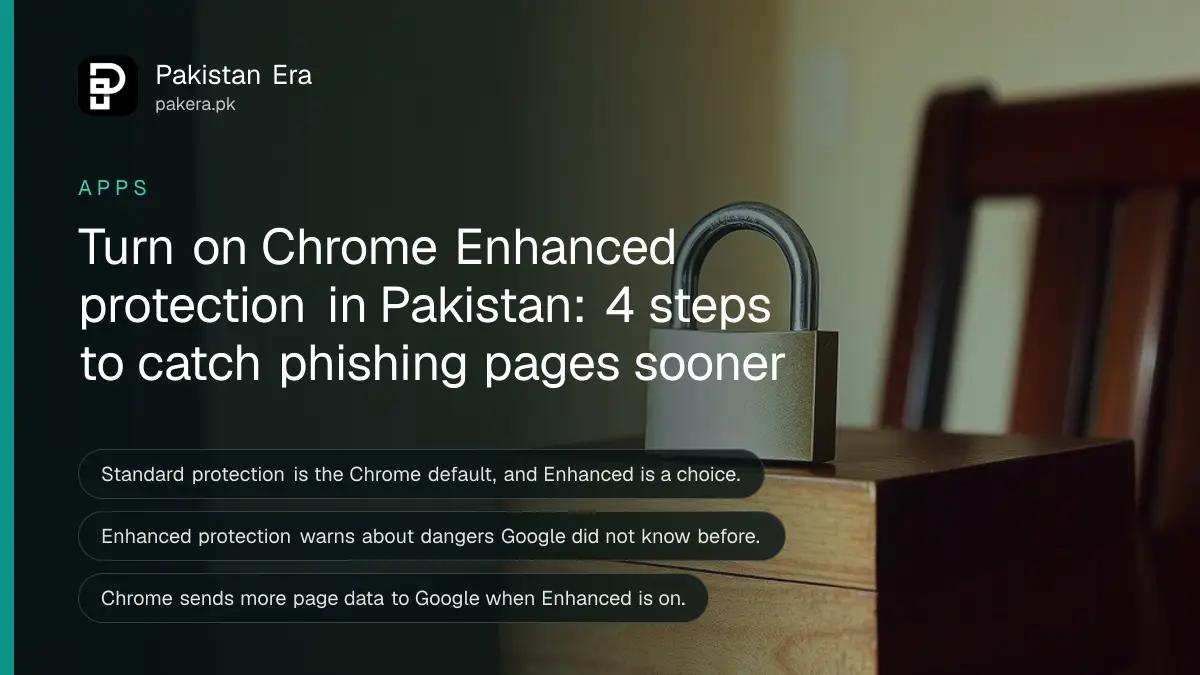
Short answer: In Chrome on your computer, open the three dot menu, then Settings, then Privacy and security, then Security, and choose Enhanced protection under Safe Browsing. Google says it warns you about dangerous sites, downloads and extensions even when Google did not know about them before, and flags breached passwords.
Fake pages often copy a bank, a courier or an easy loan offer. A brand new one is not on any list yet. The people who click in the first hours get no warning from a list that has not caught up.
That gap is what Chrome's Safe Browsing setting is about. We read Google's Chrome Help page on the three protection levels on 13 October 2026. This guide explains what each level does, what Google says it sends, and how to switch.
Chrome has three Safe Browsing levels
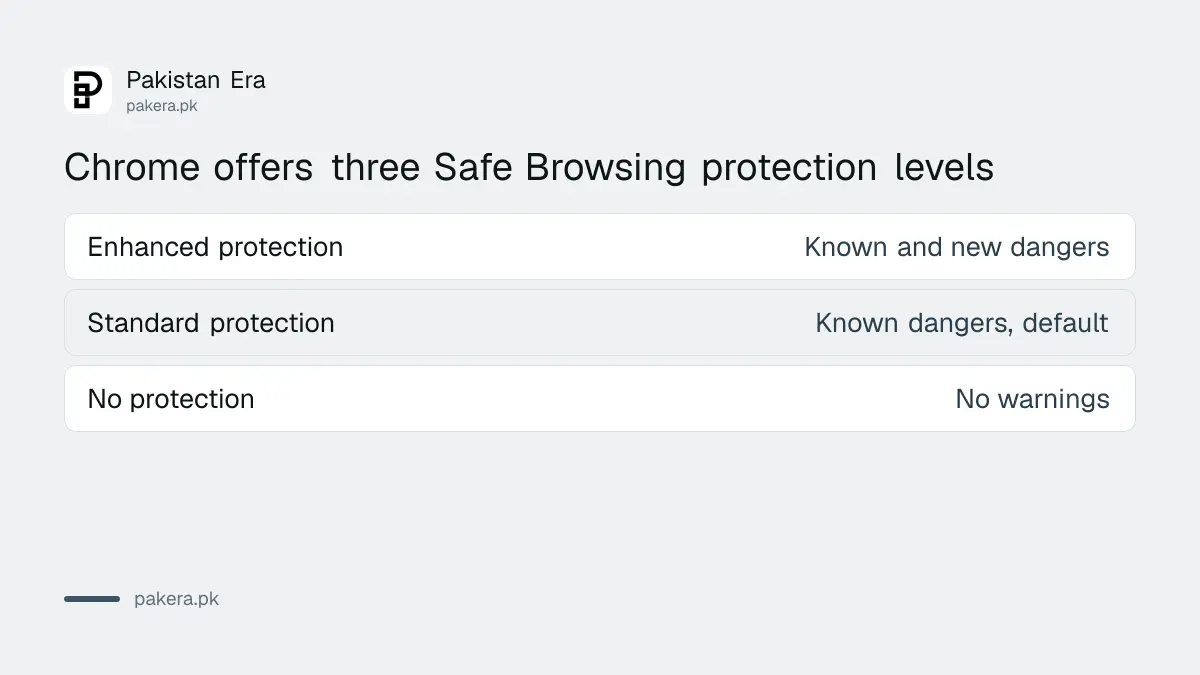
Google lists Enhanced protection, Standard protection and No protection. Standard is the default. Enhanced is Google's most secure option and covers new dangers as well as known ones. No protection is not recommended and leaves you without warnings about harmful sites and downloads.
Safe Browsing warns about malware, abusive sites and extensions, phishing, intrusive ads and social engineering. Each time you visit a site or start a download, Chrome checks with Safe Browsing based on the level you chose.
You can still choose to open an unsafe site or keep a file after seeing a warning. The warning is a stop sign, not a lock, which is why the level matters.
Enhanced protection catches threats that are not listed yet
With Enhanced protection, Google says you get warnings even for dangers it did not previously know about. Chrome sends the site's URL and a small sample of page content, extension activity and system information to Safe Browsing. It also runs in-depth scans of suspicious downloads.
Google lists three results for you: it improves security for you and everyone on the web, warns you if a password has been exposed in a data breach, and does not noticeably slow your browser or device.
Standard protection works differently. Chrome sends an obscured part of each URL through privacy servers, and full URLs and bits of page content go to Google only if a site does something suspicious.
| Level | What Google says it does | What Chrome sends |
|---|---|---|
| Enhanced protection | Warns about known and new dangers, breached passwords, scans suspicious downloads | URLs, a sample of page content, extension activity and system information |
| Standard protection | Warns about sites, downloads and extensions already identified as dangerous | An obscured part of URLs, full details only if a site is suspicious |
| No protection | No warnings. Not recommended | Nothing for Safe Browsing |
Switching takes four steps on a computer
Google's steps for a computer are short. You need to be inside Chrome's settings, not the Windows or Mac settings. The choice sits in the Security page of Chrome's settings.
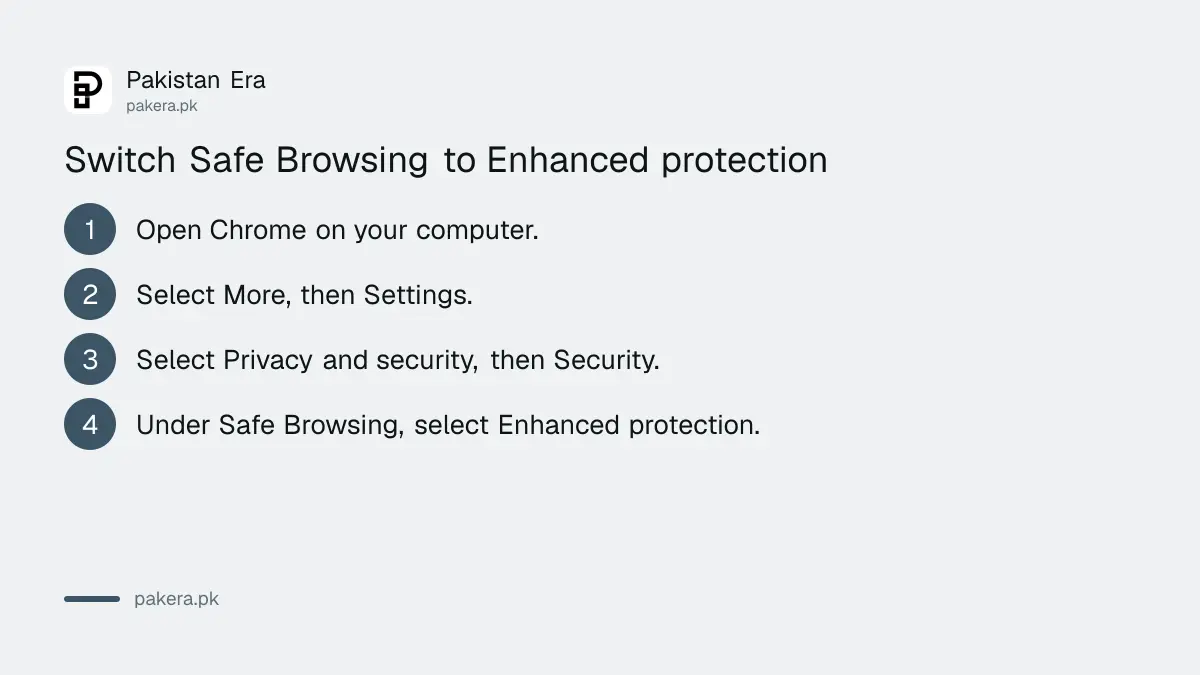
- Open Chrome on your computer.
- At the top right, select More (the three dots), then Settings.
- On the left, select Privacy and security, then Security.
- Under Safe Browsing, select Enhanced protection.
Google's page has separate tabs for Android and iPhone, which we did not read in full. On a phone, look for the same Safe Browsing choice inside Chrome's Settings under Privacy and security.
Enhanced protection is a trade of privacy for safety
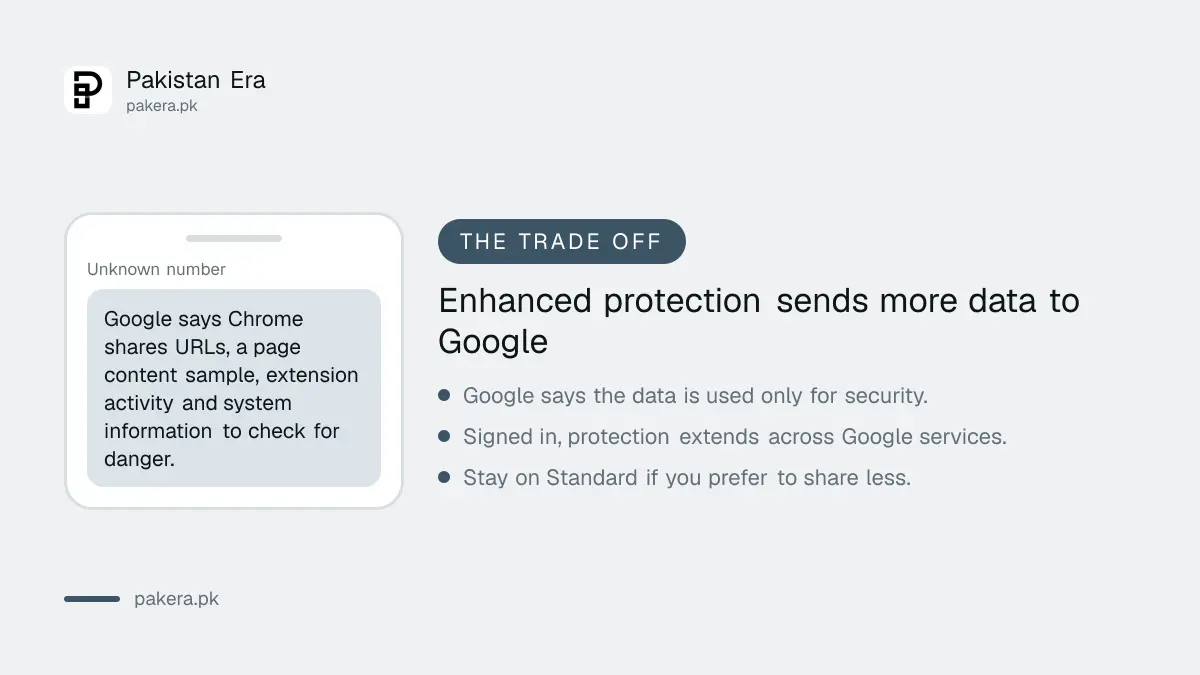
The extra checks mean Chrome sends more to Google. Google says this data is used only for security purposes, and that if you are signed in the protection extends across Google services, such as Gmail after a security incident. If that trade does not suit you, stay on Standard.
Who should pick Enhanced? Anyone who banks or pays bills online, runs a business page, handles other people's money, or often clicks links sent on WhatsApp. For a shared family computer, the warning screens also protect less careful users.
It will not rescue you from a scam that needs no bad website. A fake caller or a screen sharing trick still works on a perfectly clean browser, as the page on the screen sharing app scam in Pakistan shows.
Pair it with the rest of Chrome's safety tools
Safe Browsing is one layer. Run Chrome's own checkup for weak passwords, risky extensions and updates, using the steps in running Chrome Safety Check. Then consider a passkey for your Google account, as set out in how to set up a Google passkey.
If a link you opened in a WhatsApp chat installed something on your phone, follow the steps to remove a fake APK, and sign out of accounts you do not recognise using the Google account device check.
Common questions
Is Enhanced protection on by default in Chrome?
No. Google says Standard protection is on by default, and Enhanced is a choice you make in settings.
Will Enhanced protection slow my browser?
Google says it does not noticeably slow your browser or device.
Does Enhanced protection warn me about leaked passwords?
Yes. Google lists a warning when a password you use has been compromised in a data breach.
Can I still open a site Chrome warns about?
Yes. Google says you can choose to visit an unsafe site or keep a download after you see the warning.
Is it safe to turn Safe Browsing off?
No. Google calls No protection not recommended, because you get no warnings about dangerous sites, downloads and extensions.
How we verified this
What we checked, where we read it, and what we could not confirm.
Last checked on 13 October 2026, Pakistan time. We read Google's Chrome Help page, Choose your Safe Browsing protection level in Chrome, desktop tab. We did not read the Android or iPhone tabs in full, and we did not measure any speed effect ourselves.
About the author

Technology Journalist & Multimedia Producer
Ahmad Ali is a technology journalist and multimedia producer at Pakistan Era, joining the team in October 2026. He covers consumer technology and digital life for Pakistani readers, combining research with hands-on product testing.